
Choose ideCAD Architectural, Structural, or One AEC and work on projects at the same scale as the full version, with no time limits or restrictions on the number of stories or elements.
Free Limited BIM has certain technical limitations, including printing and plotting, file export, and project file compatibility. Projects created in Free Limited BIM cannot be opened in commercial versions of ideCAD.
You can download the software in two ways:
-
Option 1 – Download with OneClick: Click Download OneClick to download the software using ideYAPI OneClick.
-
Option 2 – Direct Download: Click Download Installation File to download the software directly.
Option 1 – Download with OneClick
-
Click the Download OneClick button to download.
-
ideYAPI OneClick will begin downloading. If it does not start automatically, click the Download again button.
-
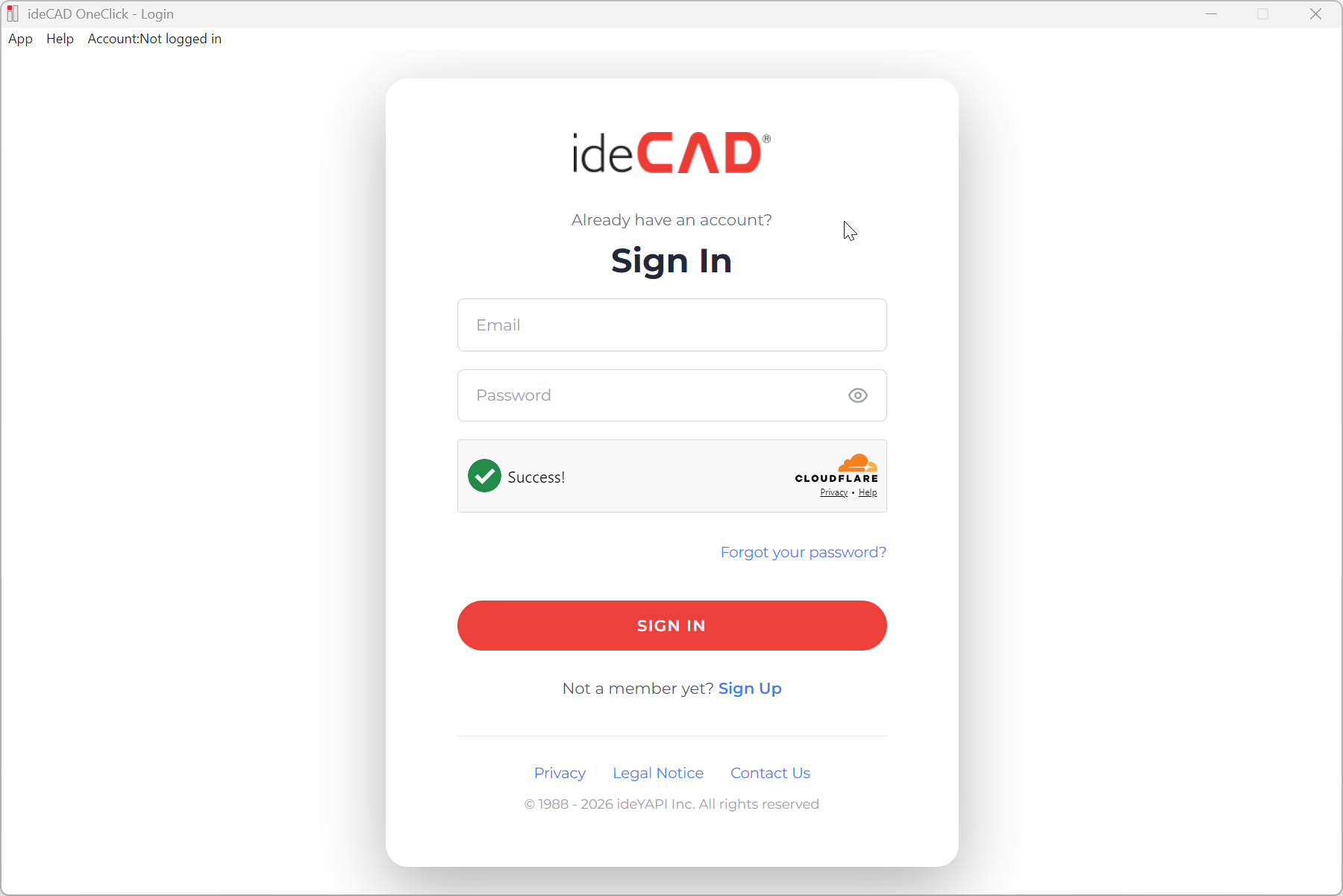
Once the download is complete, install and launch ideYAPI OneClick.
-
If you do not have a account, click here for the steps to create a account.
-
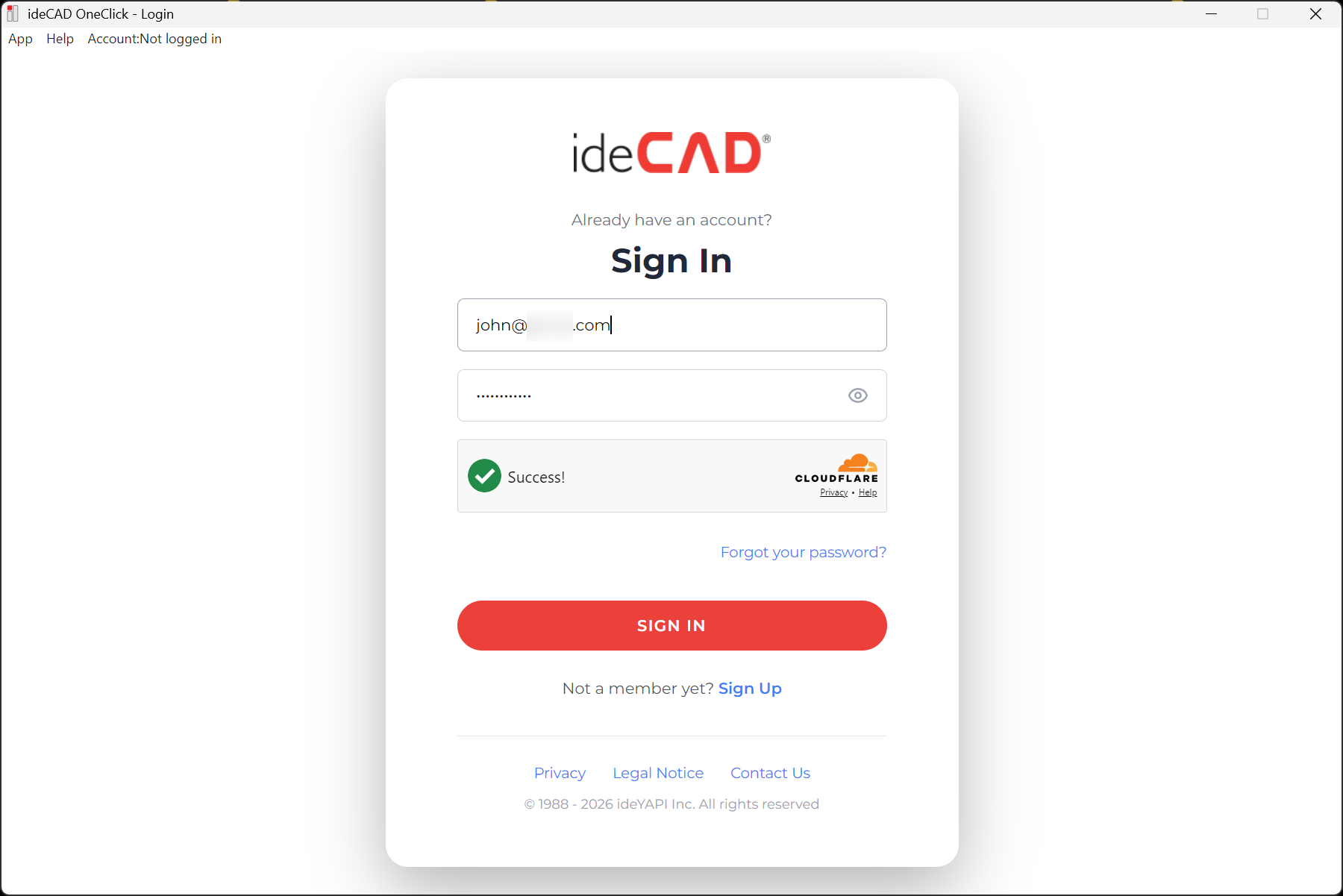
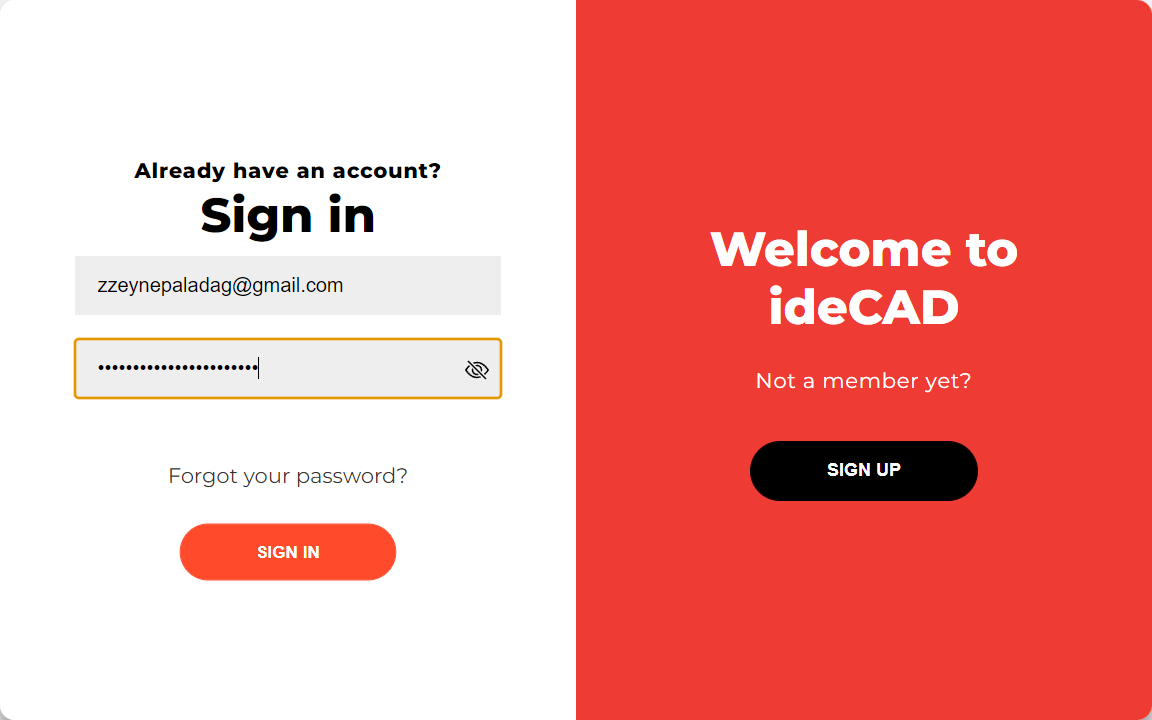
Enter your MyAccount email address and password.
-
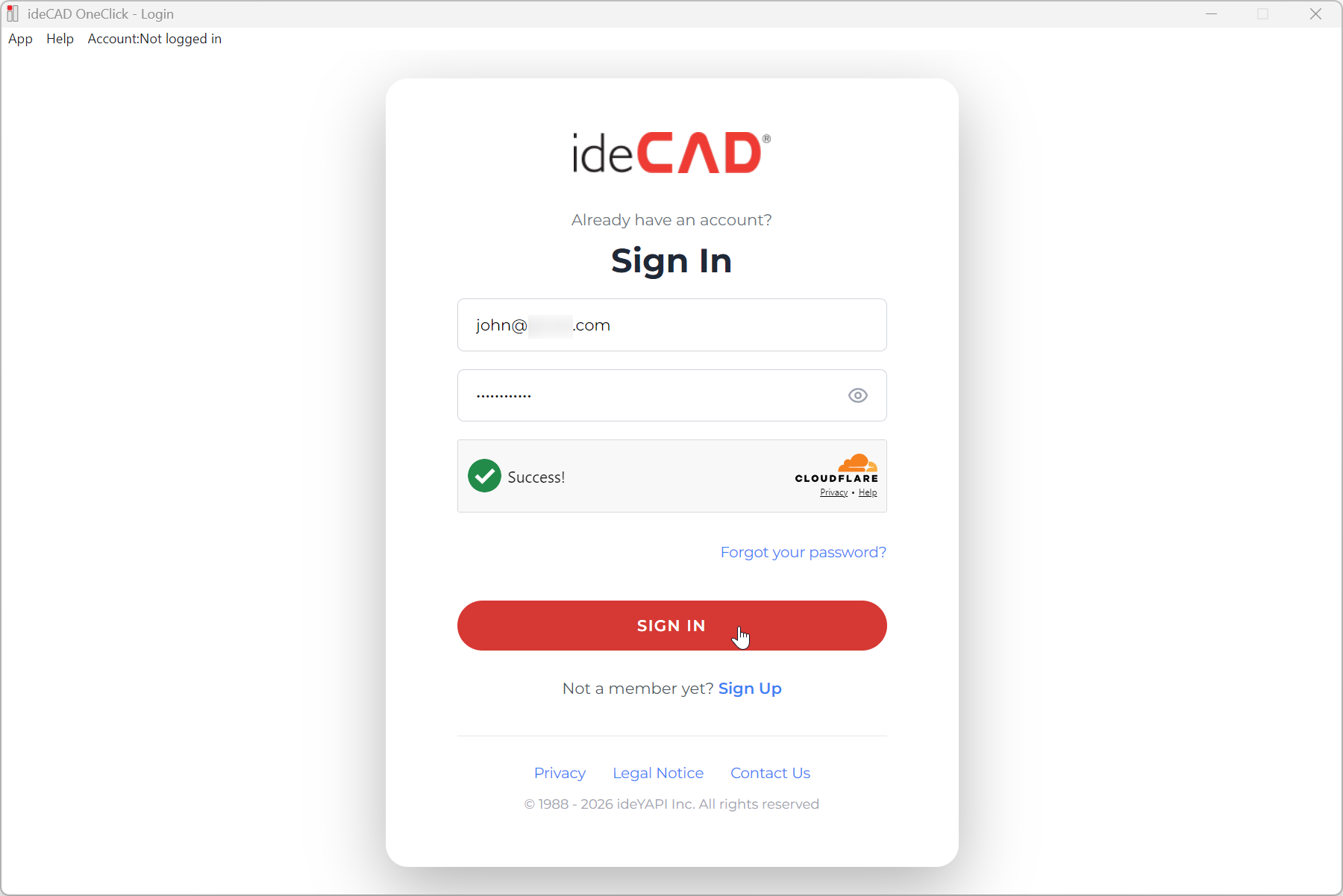
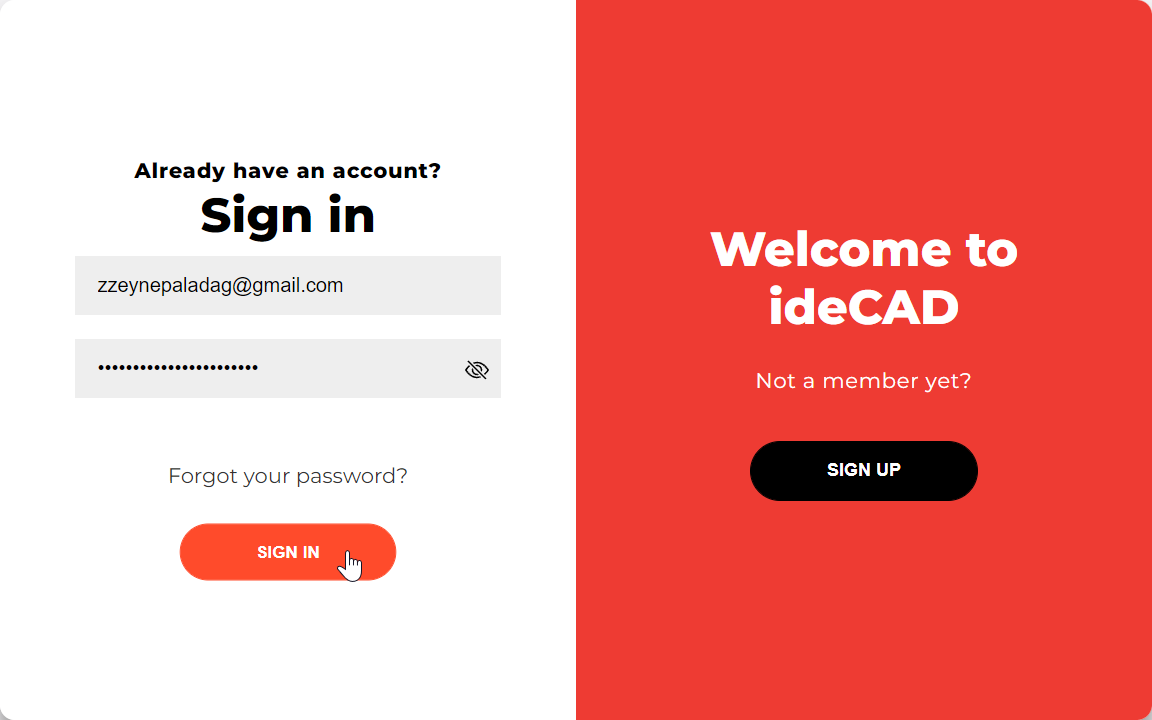
Click on the Sign In button.
-
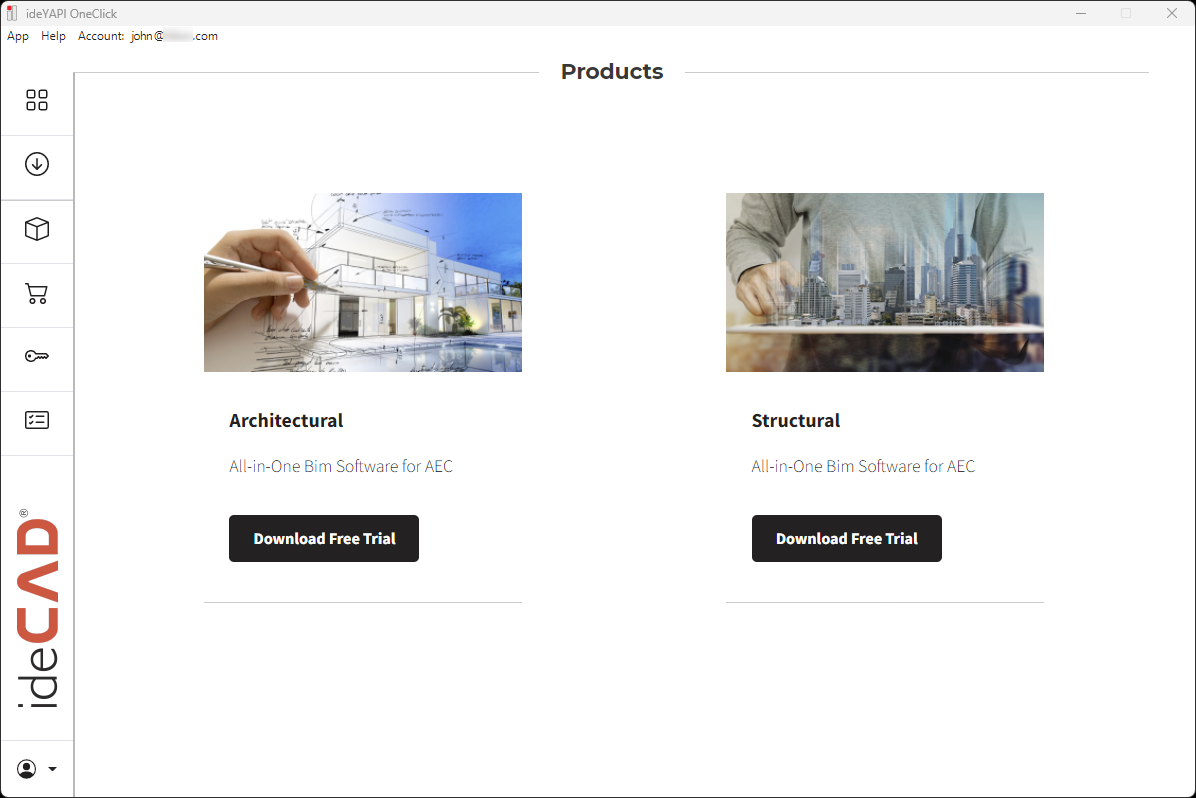
ideYAPI OneClick will open.
-
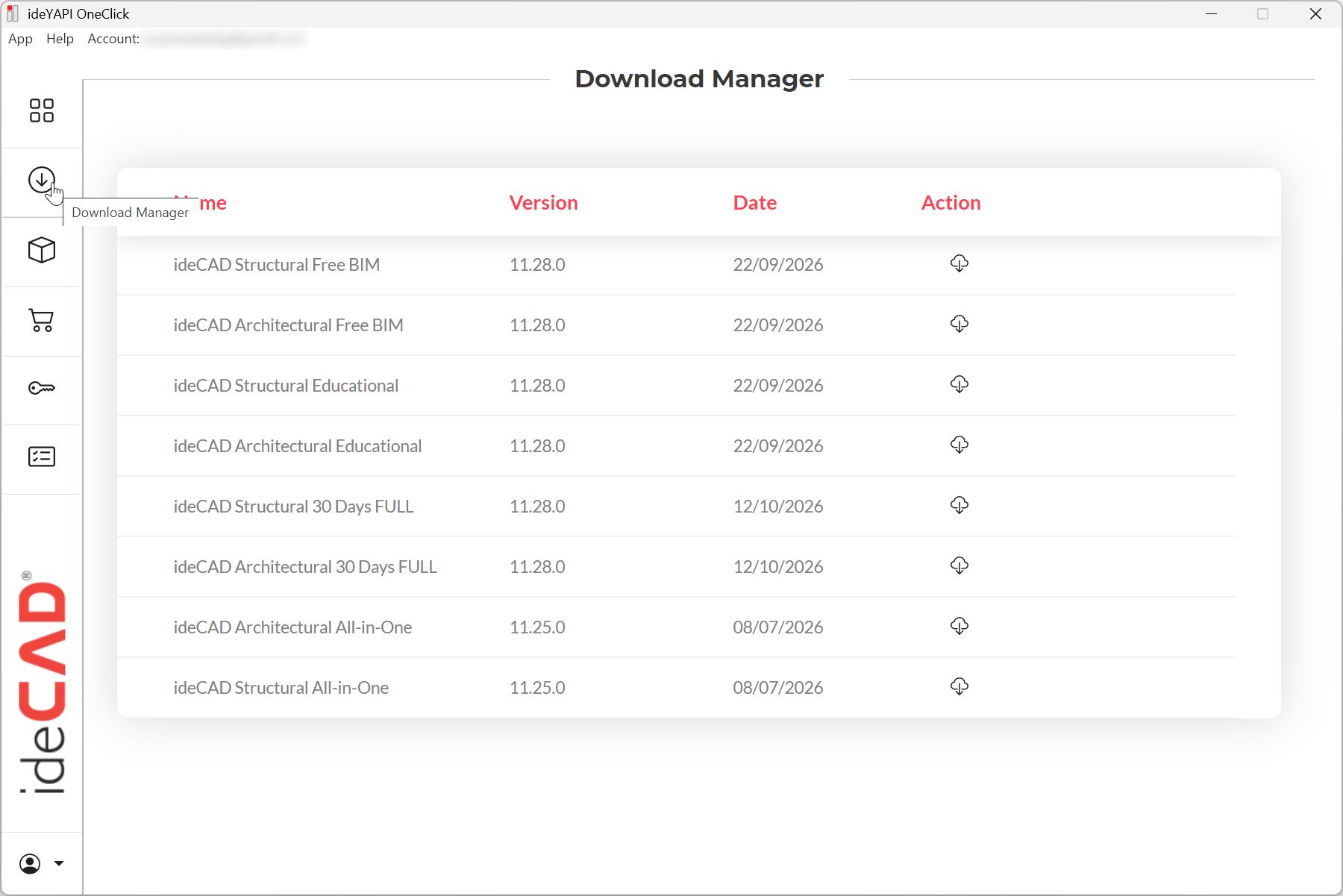
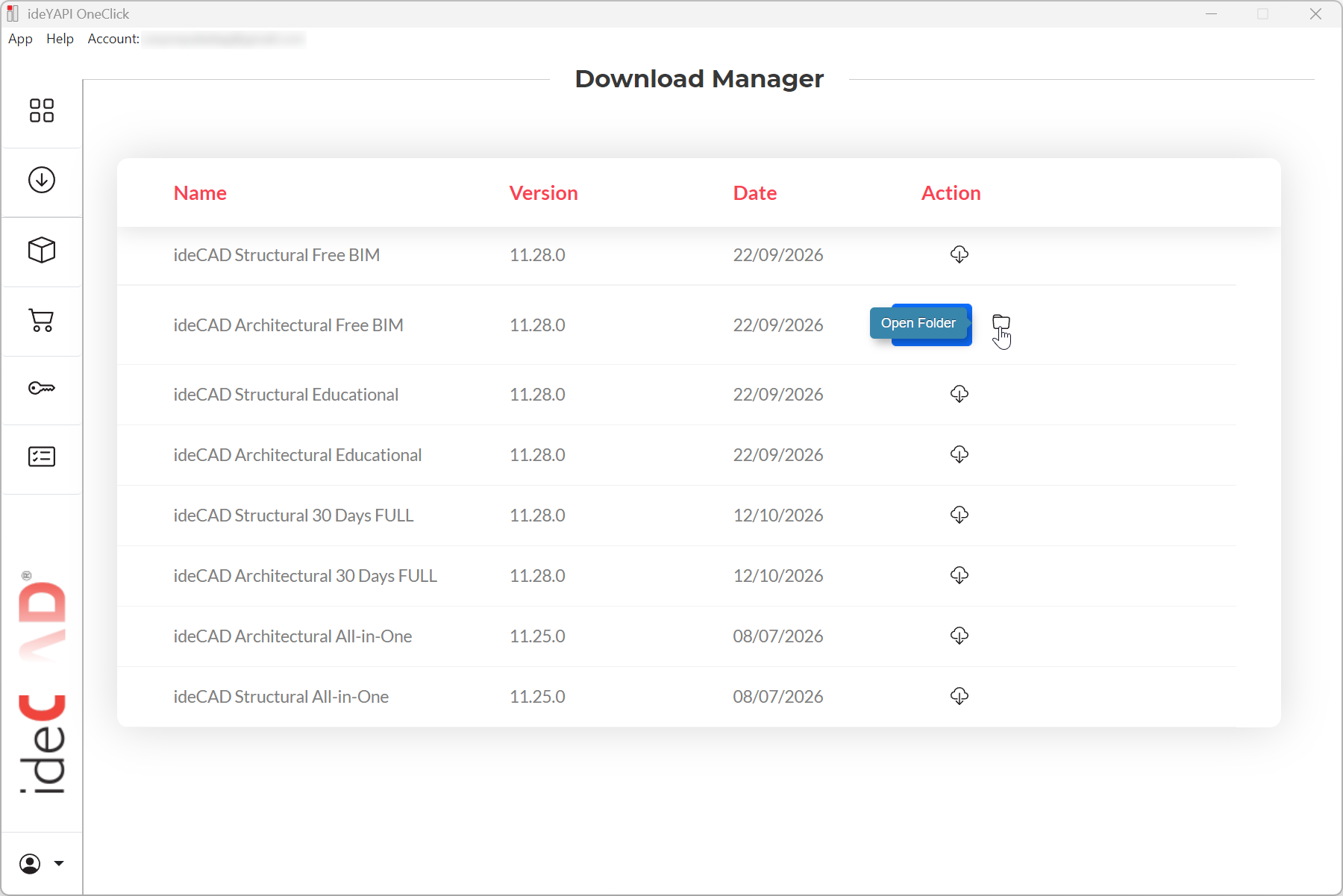
Open ideYAPI OneClick and go to the Download Manager tab.
-
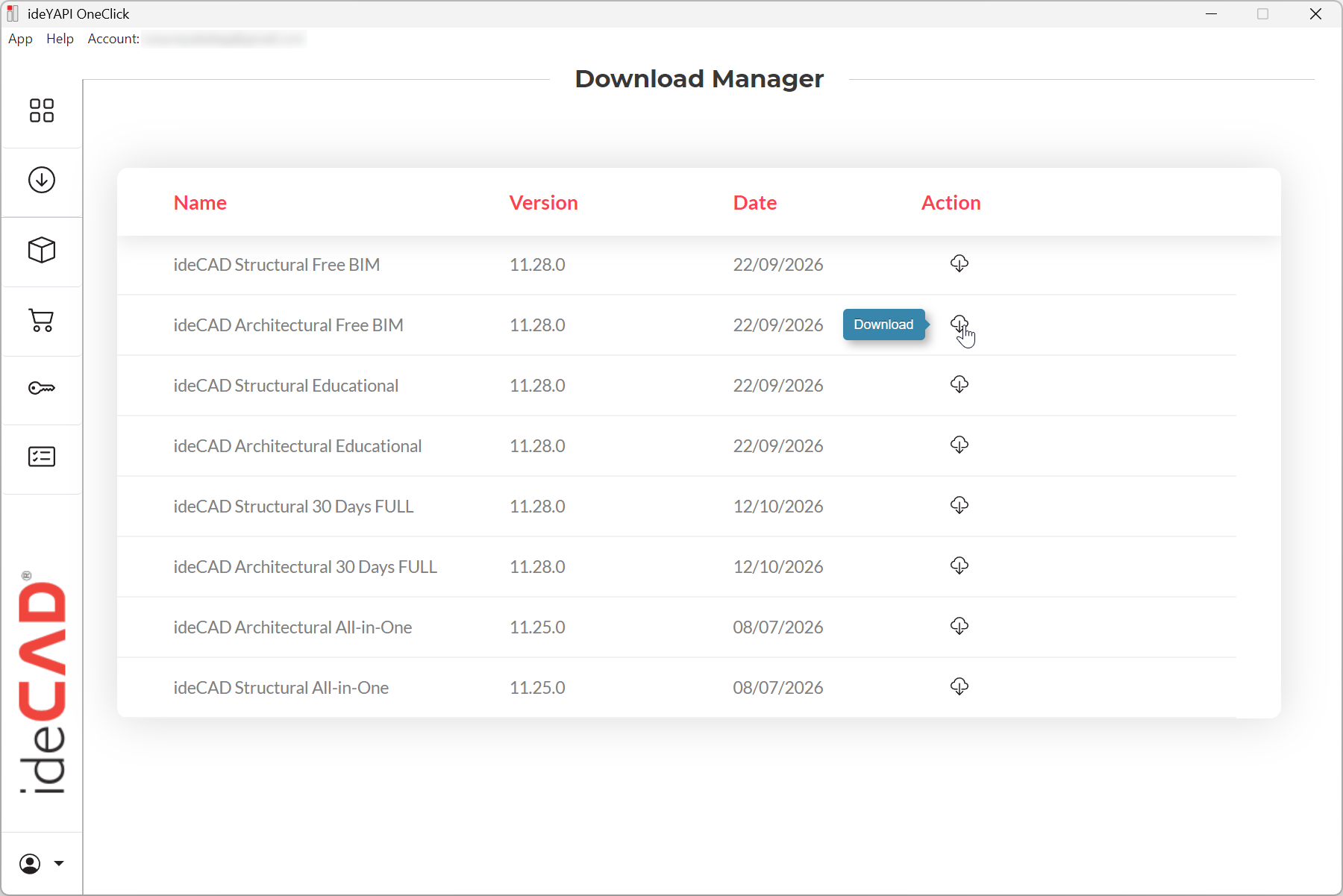
Click the Download icon for your selected ideCAD product. In this example, click the Download icon for ideCAD Architectural Free BIM.
-
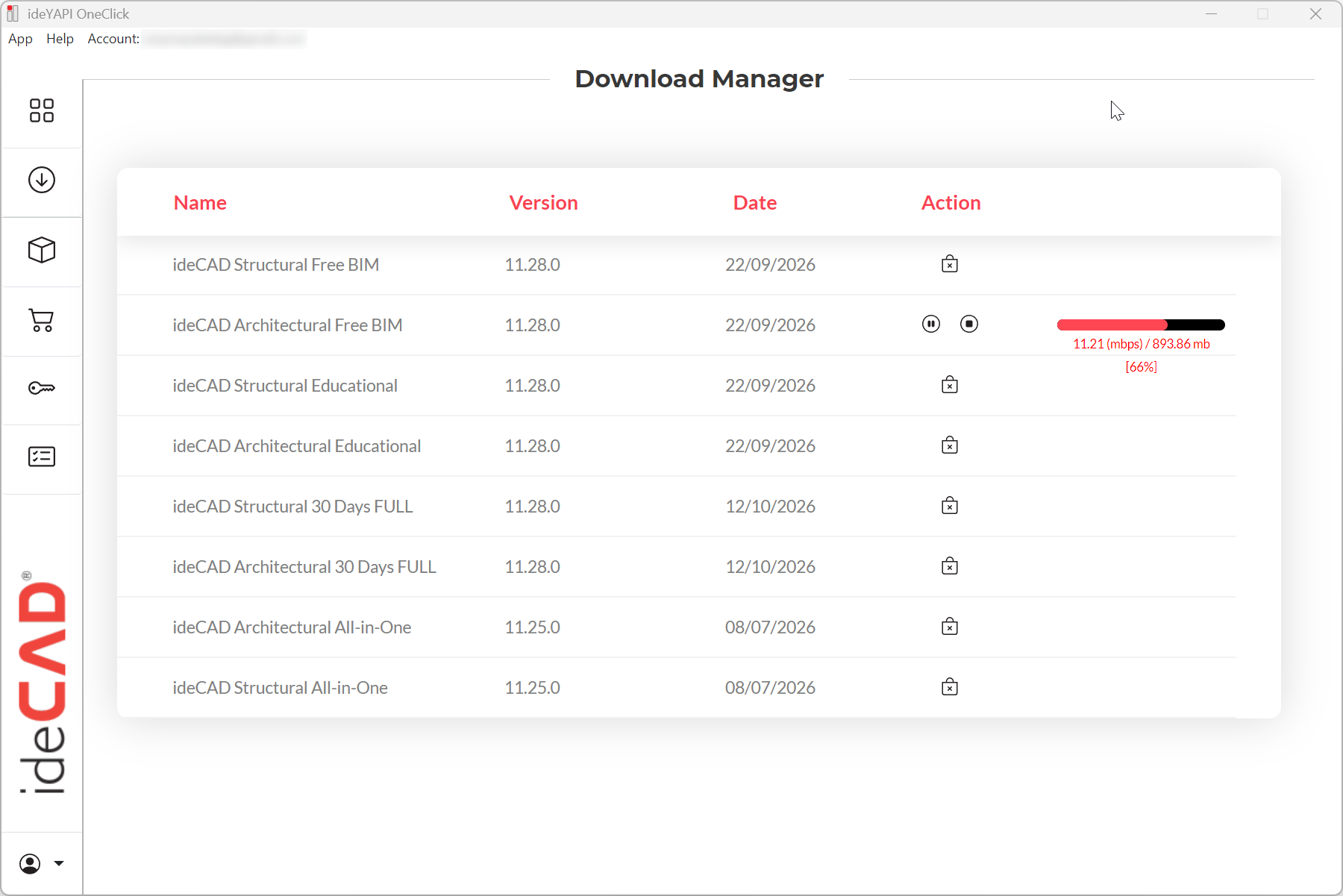
The download will begin.
-
After the download is complete, the installation process will start automatically.
-
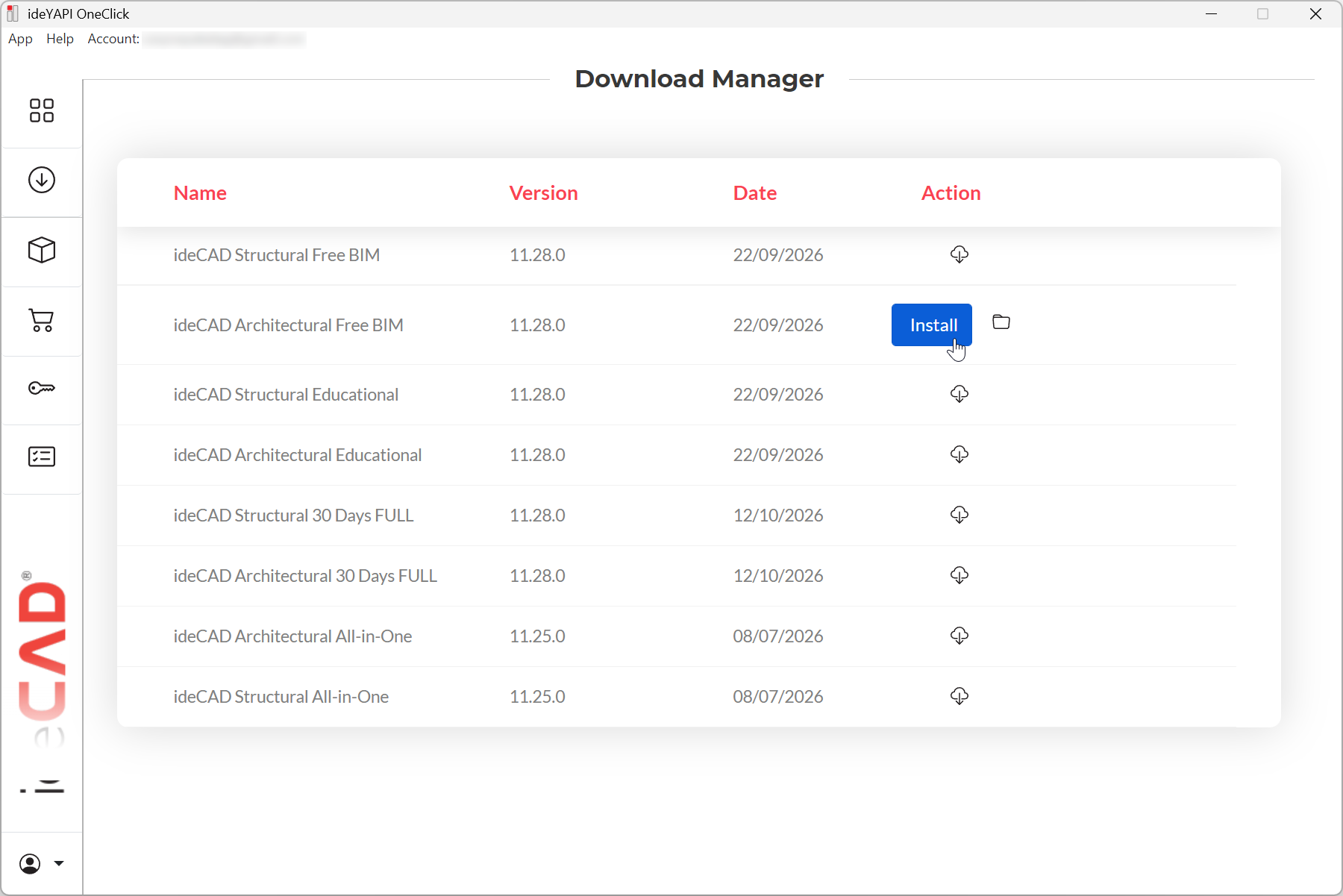
If the installation process has not started, you can start the installation process by clicking the Install button.
-
If the installation does not start automatically, you can also click the Open Folder icon next to the Install button to open the folder containing the installation file.
-
Double-click the installation file to start the installation manually.
-
After installation, launch the software to start from the desktop shortcut.
Option 2 – Download the installation file
-
Click the Download installation file button to download the software directly.
-
The ideCAD Architectural Free Limited BIM installation file will begin downloading. If it does not start automatically, click the Download again button.
-
After the download is complete, double-click the installation file to start the installation manually.
-
After installation, launch the software to start from the desktop shortcut.
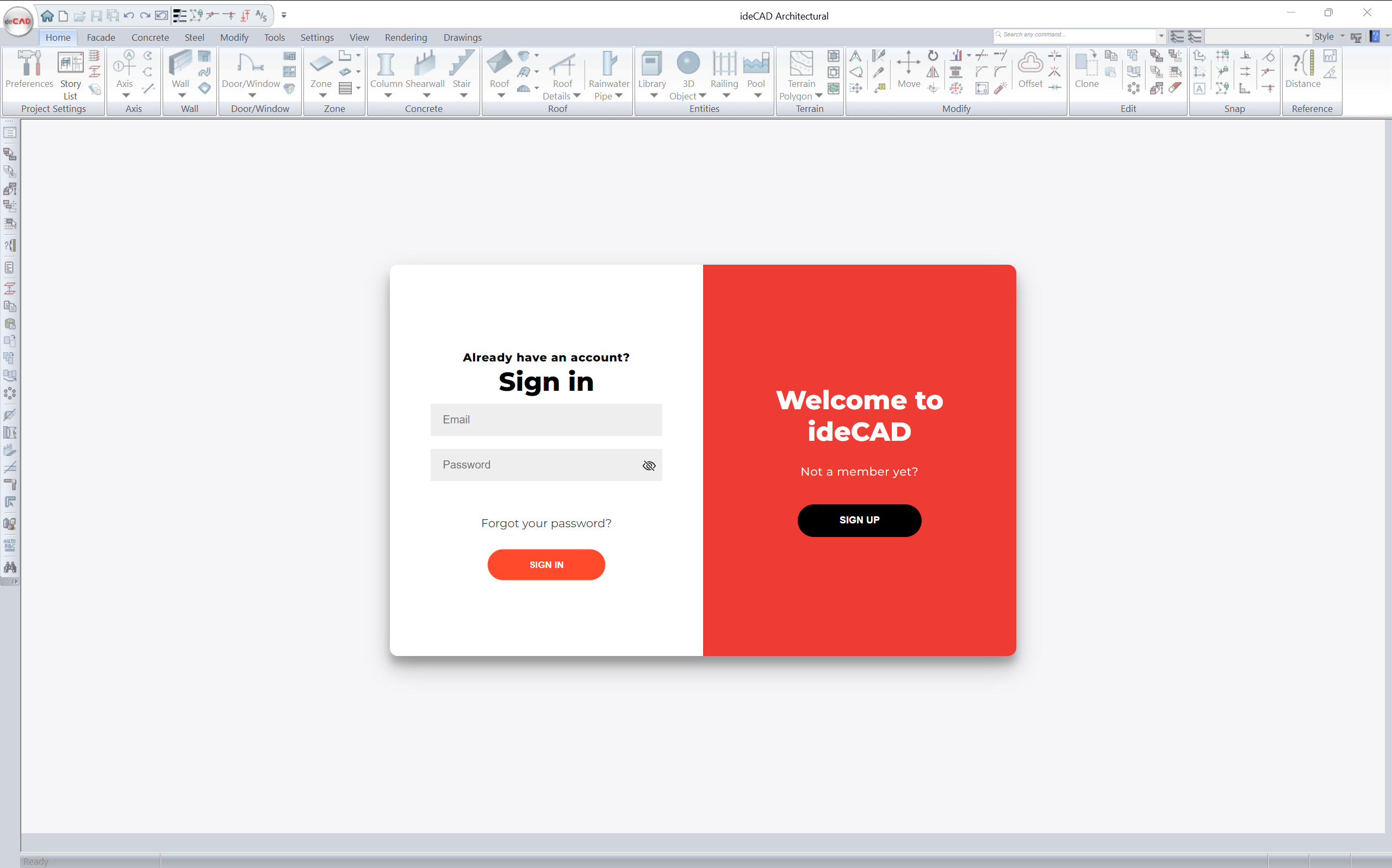
To use ideCAD Free Limited BIM free, you need to log in.
If you do not have an account, you have to sign up first. Click here for the steps to create a account.
-
Open the ideCAD Free Limited BIM.
-
Enter your email and password.
-
Click the sign-in button.
-
ideCAD ideCAD Free Limited BIM will be open.
Next Topic