
Access the same integrated BIM platform used by architects, structural engineers, and detailers worldwide — free for academic use.
-
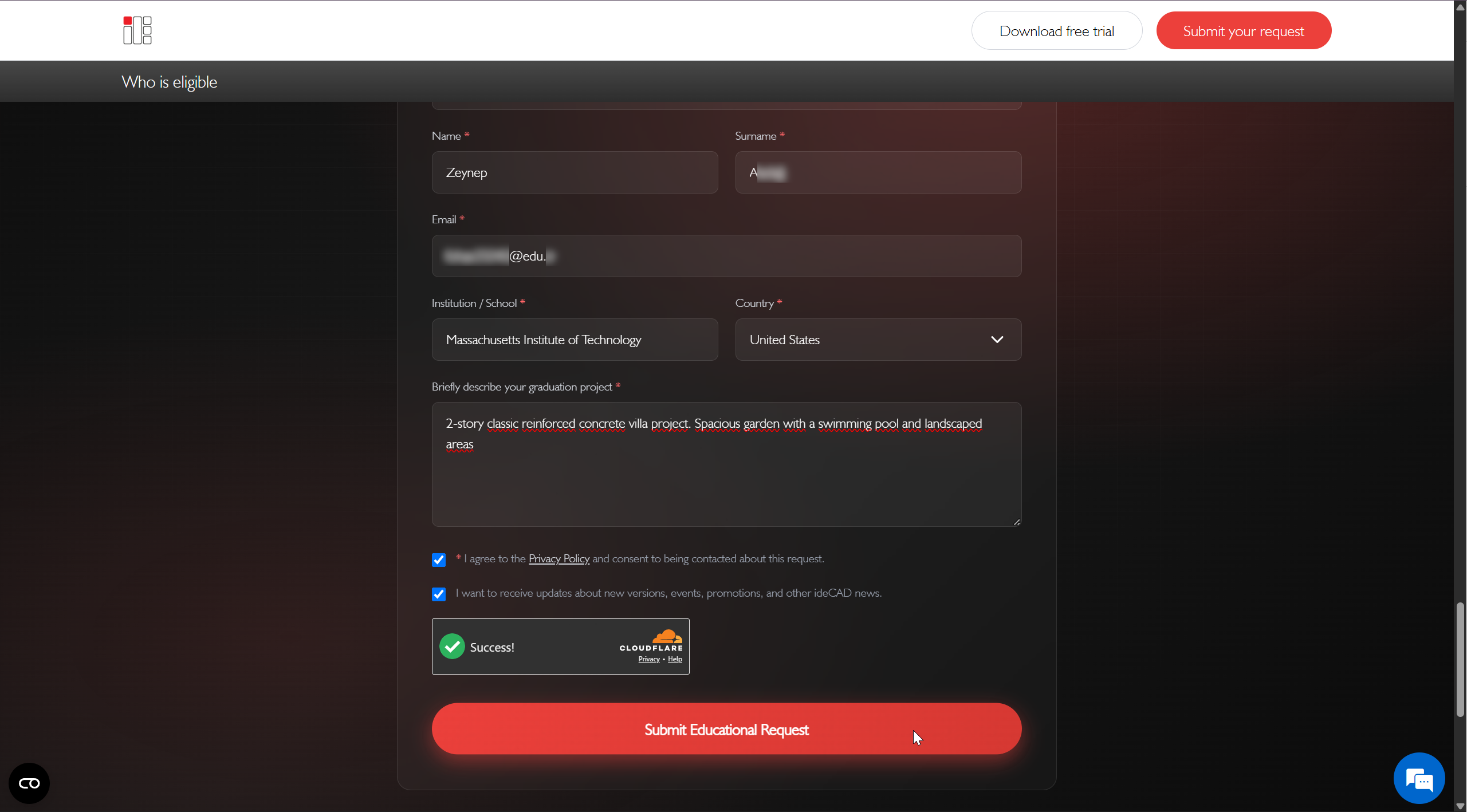
Click on the Free Educational Access line in the Get Started section of the Products heading.
-
In the request form, select the product you would like to access, enter your information, accept the Privacy Policy, and check the box to receive ideCAD news and updates.
It is required that the e-mail address have an edu extension and that the name of the person requesting the student version be included.
-
Click the Submit Educational Request button.
-
After clicking the Submit Educational Request button, please allow some time for your educational license request to be approved.
-
Once your request is approved, you will receive a confirmation email. Please check your inbox regularly, including your spam folder.
-
To receive your educational license, create your ideCAD MyAccount with this email address.
-
Click the Create my MyAccount button.
-
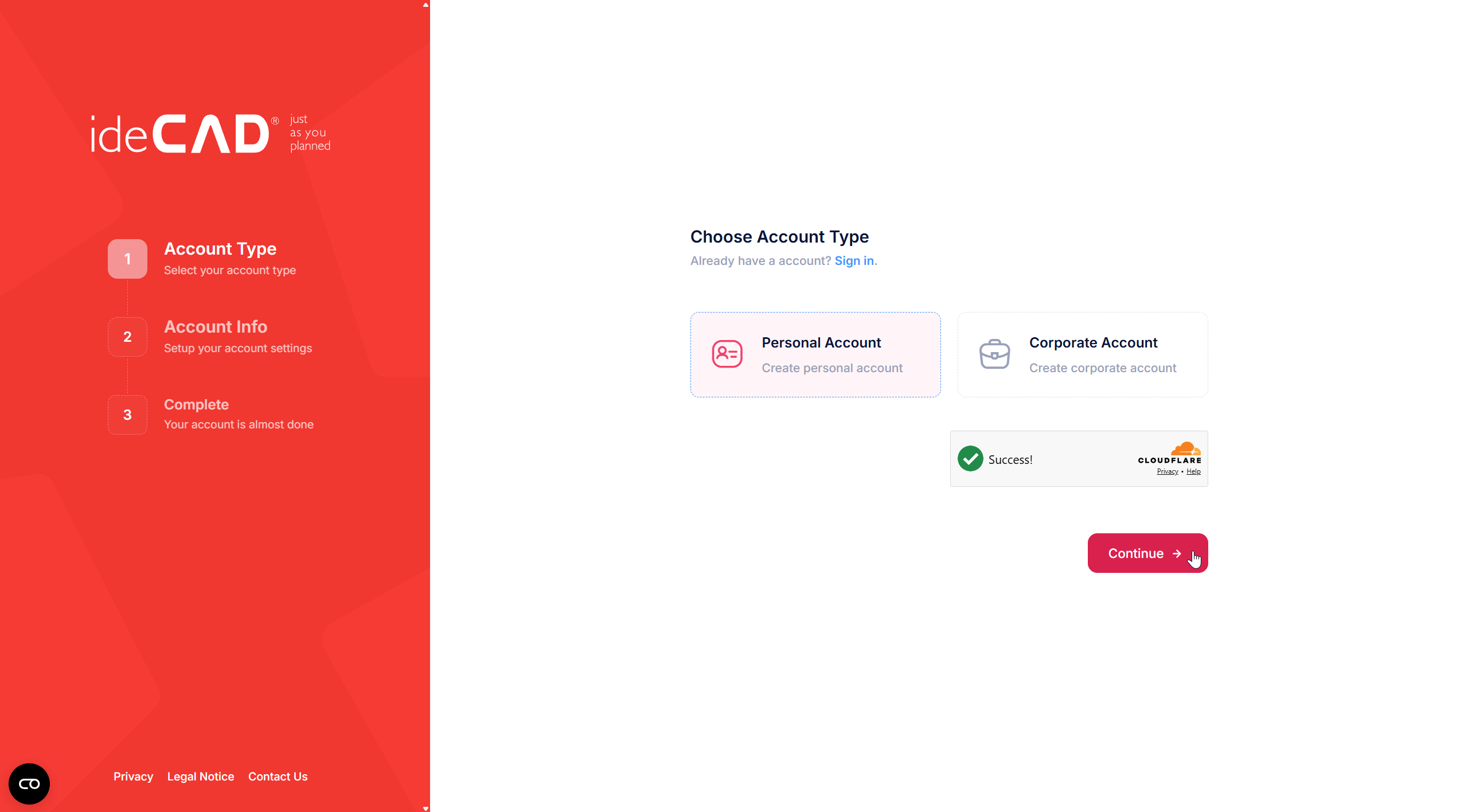
The MyAccount account creation page will open.
-
Choose the account type and click the continue button.
-
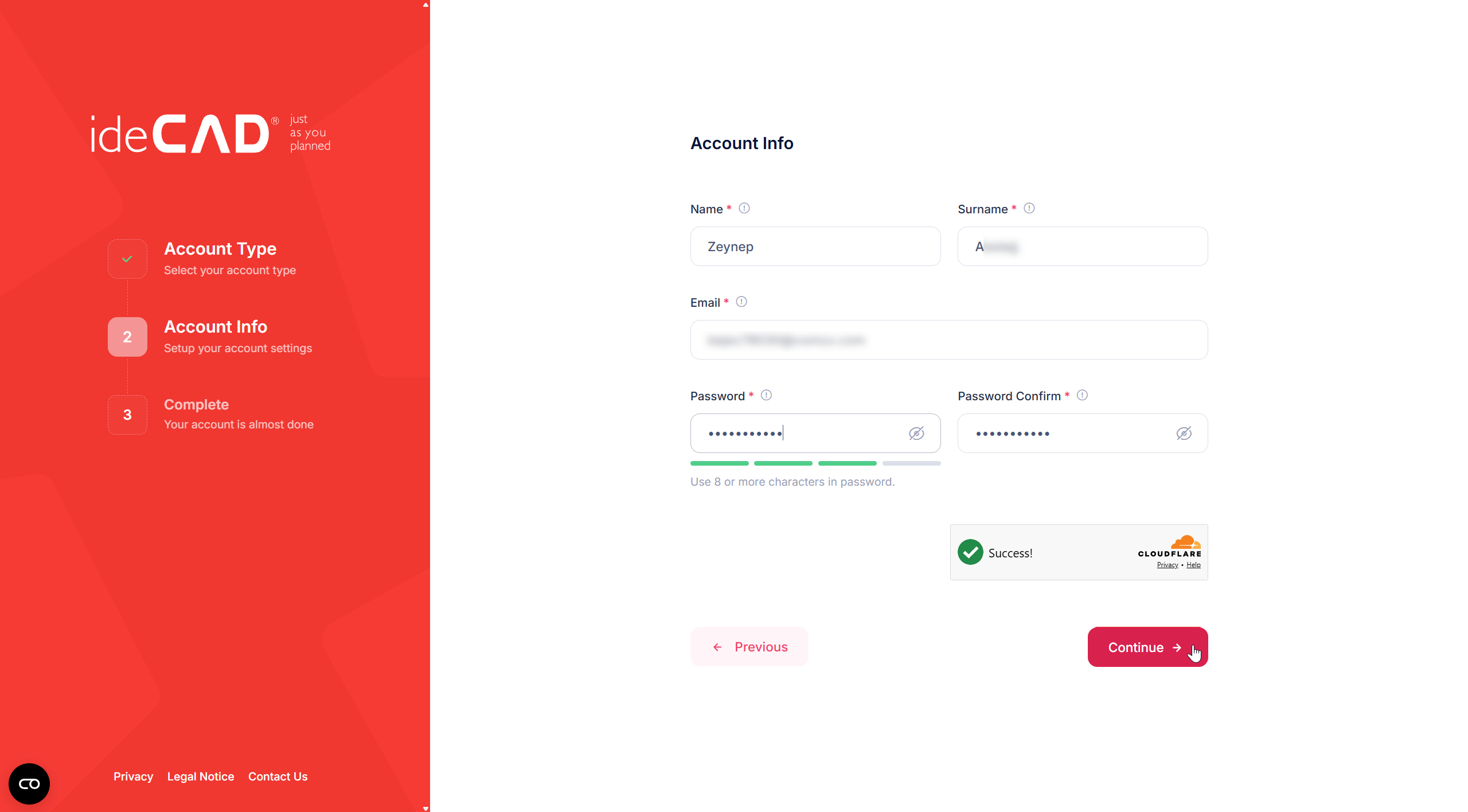
The name, surname, and email fields will be pre-filled. Enter and confirm your password, then click the Continue button.
-
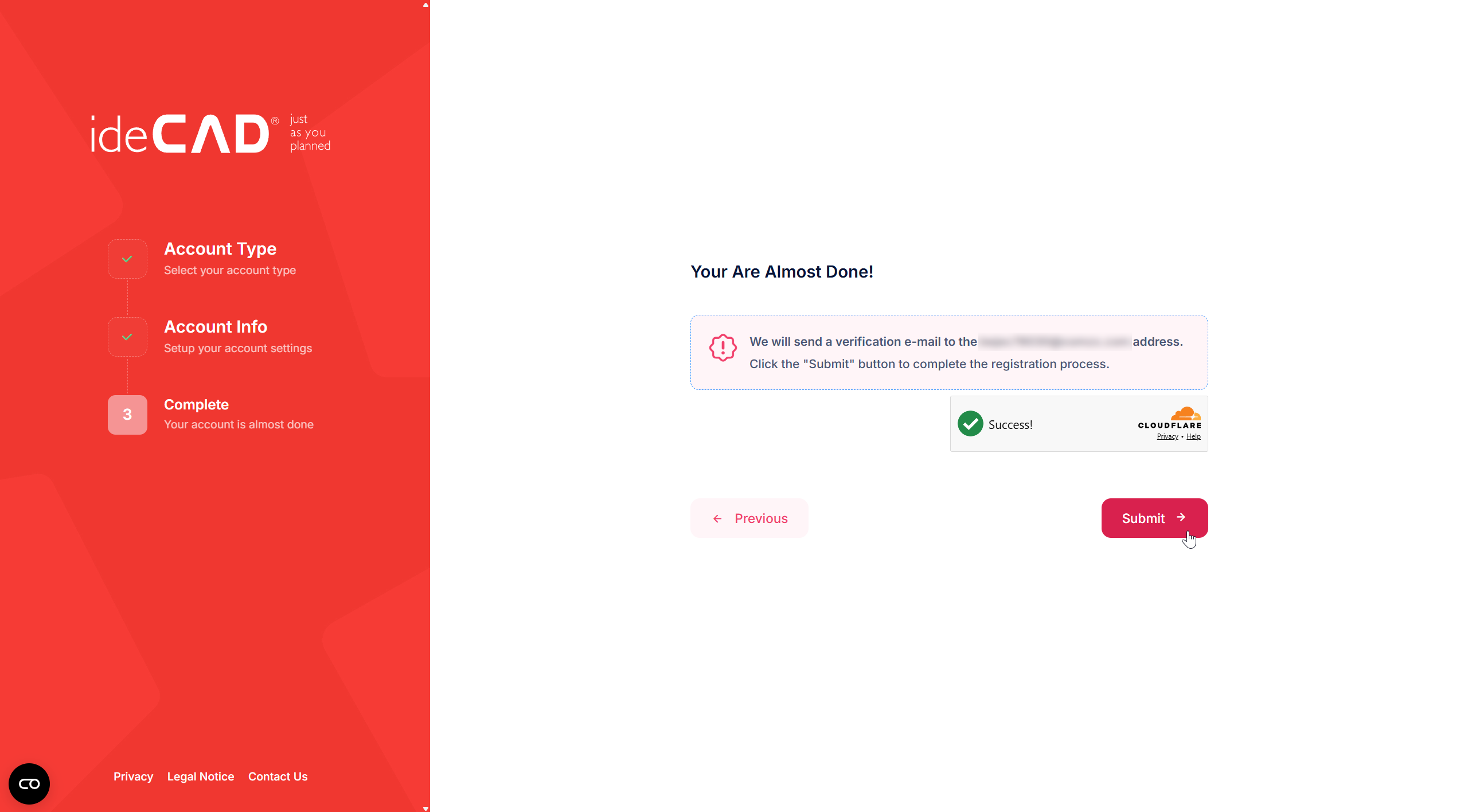
Click the Submit button to send verification mail.
-
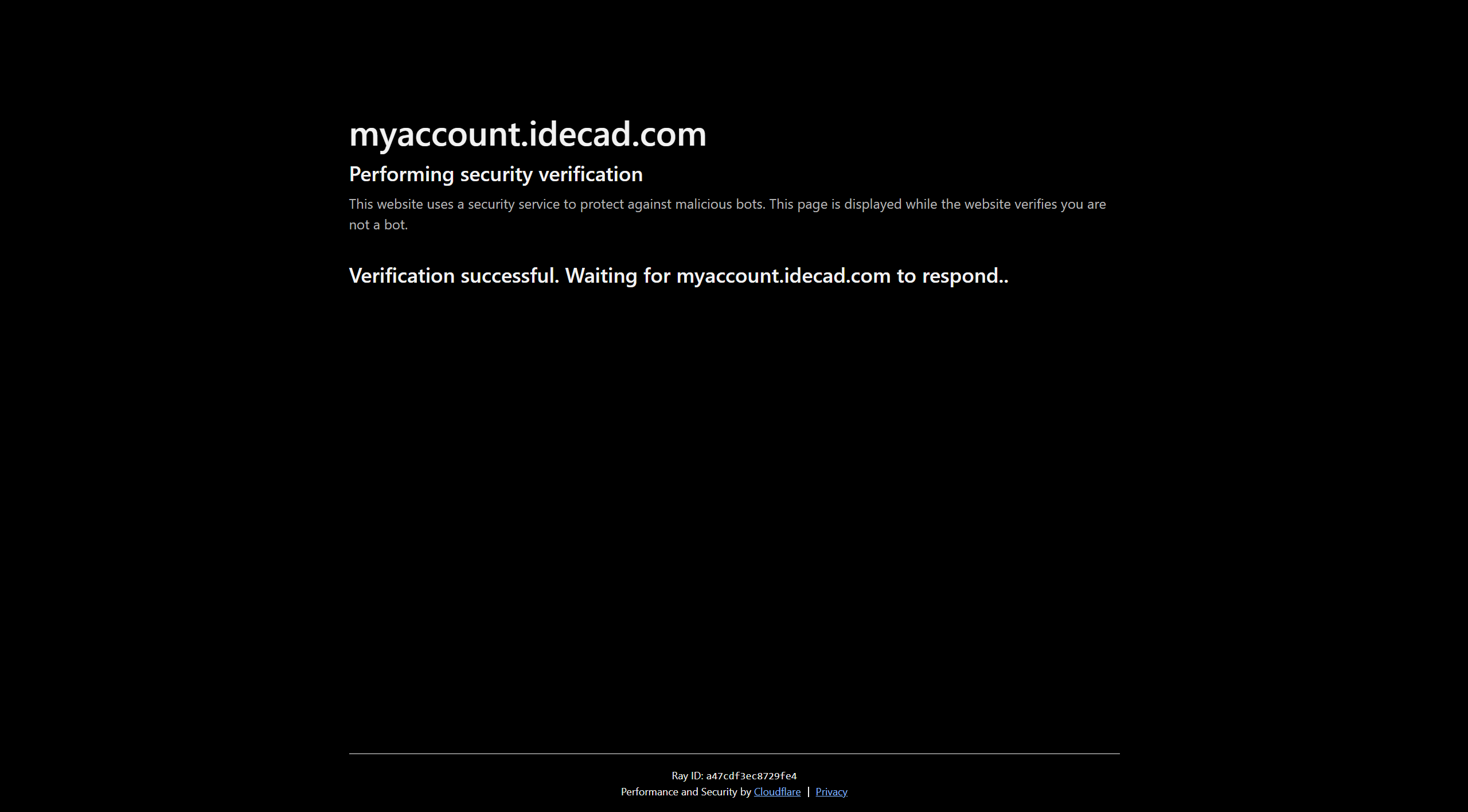
The website will automatically perform a security verification to confirm that you are not a bot.
-
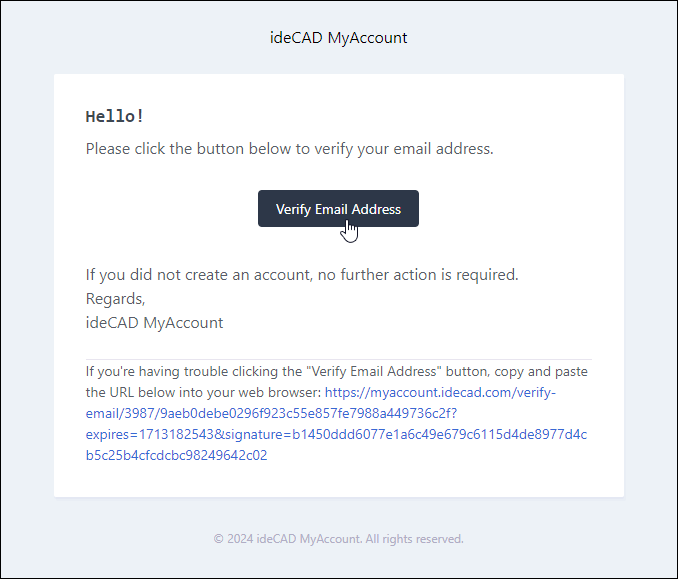
Before getting started, you have to verify your email address by clicking on the link just emailed.
-
Check the mail to verify the account. Click the Verify Email Address button in the email.
-
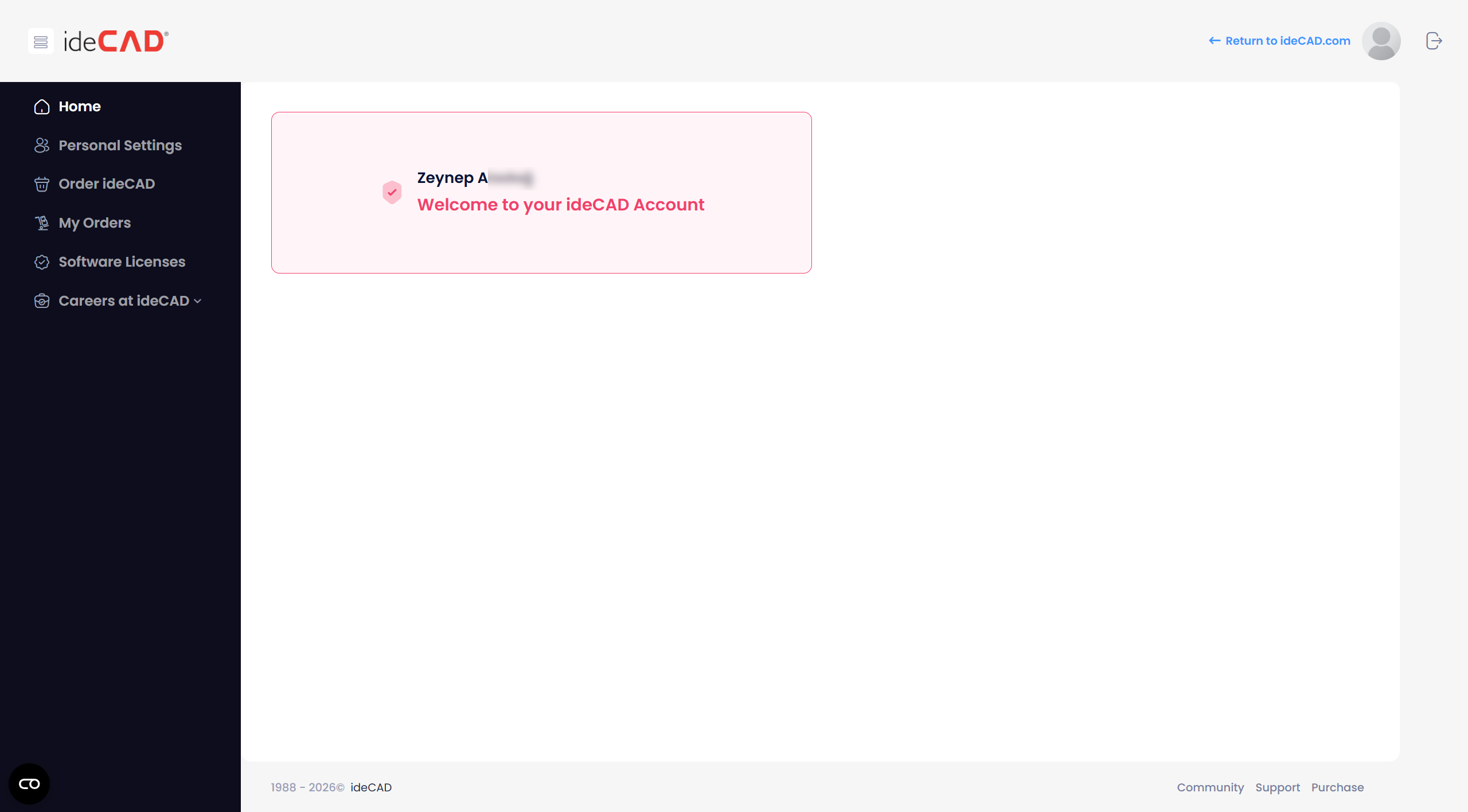
Your account is verified.
-
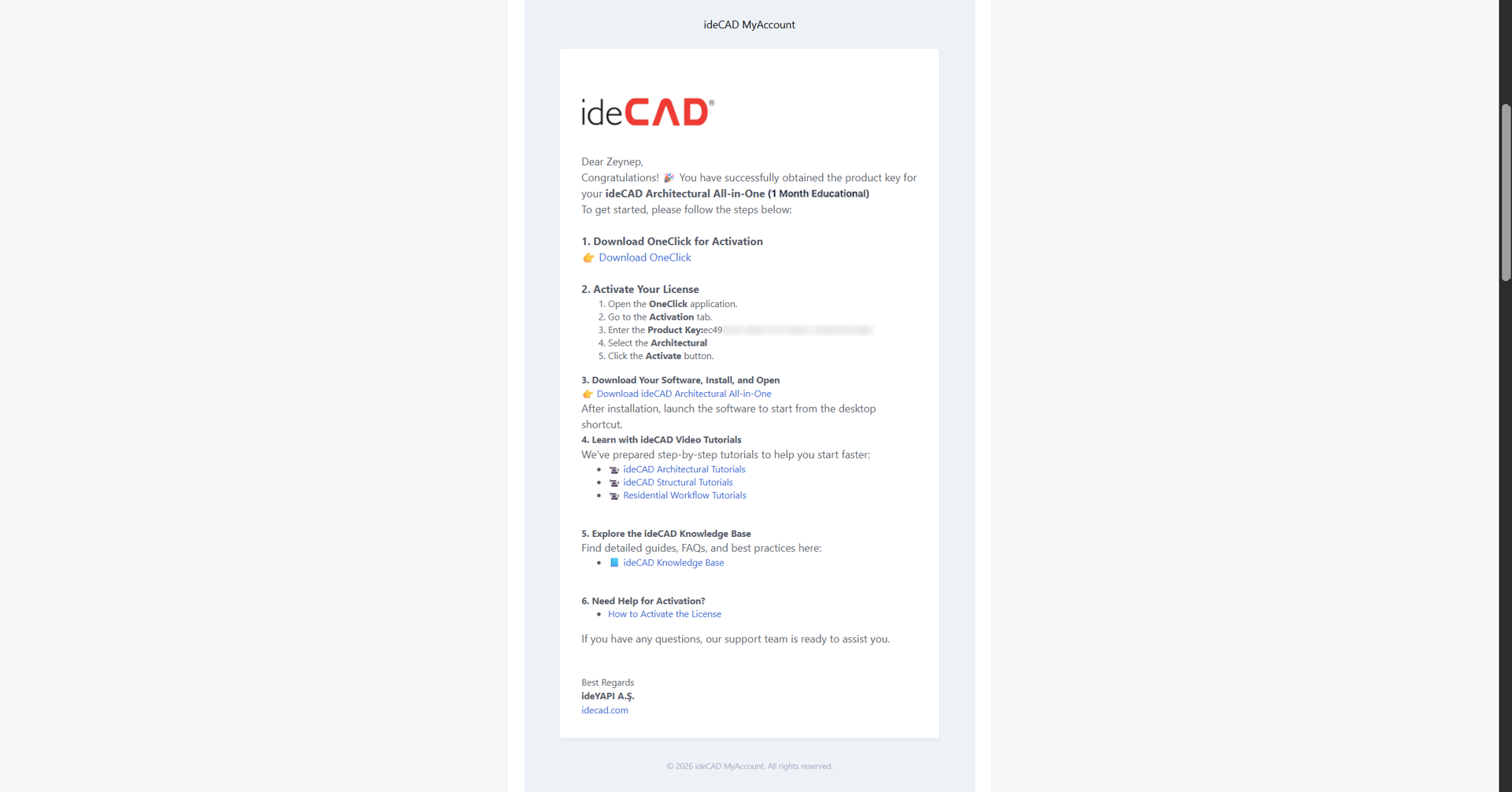
After verifying your email address, you will receive an email containing your Educational license information.
-
This email also includes links to download OneClick and ideCAD, instructions for license activation, and access to video tutorials and help pages.
The key has been produced exclusively for you, it has been approved for the use of your student projects for educational purposes only and cannot be used for commercial purposes.
To activate your Educational license;
-
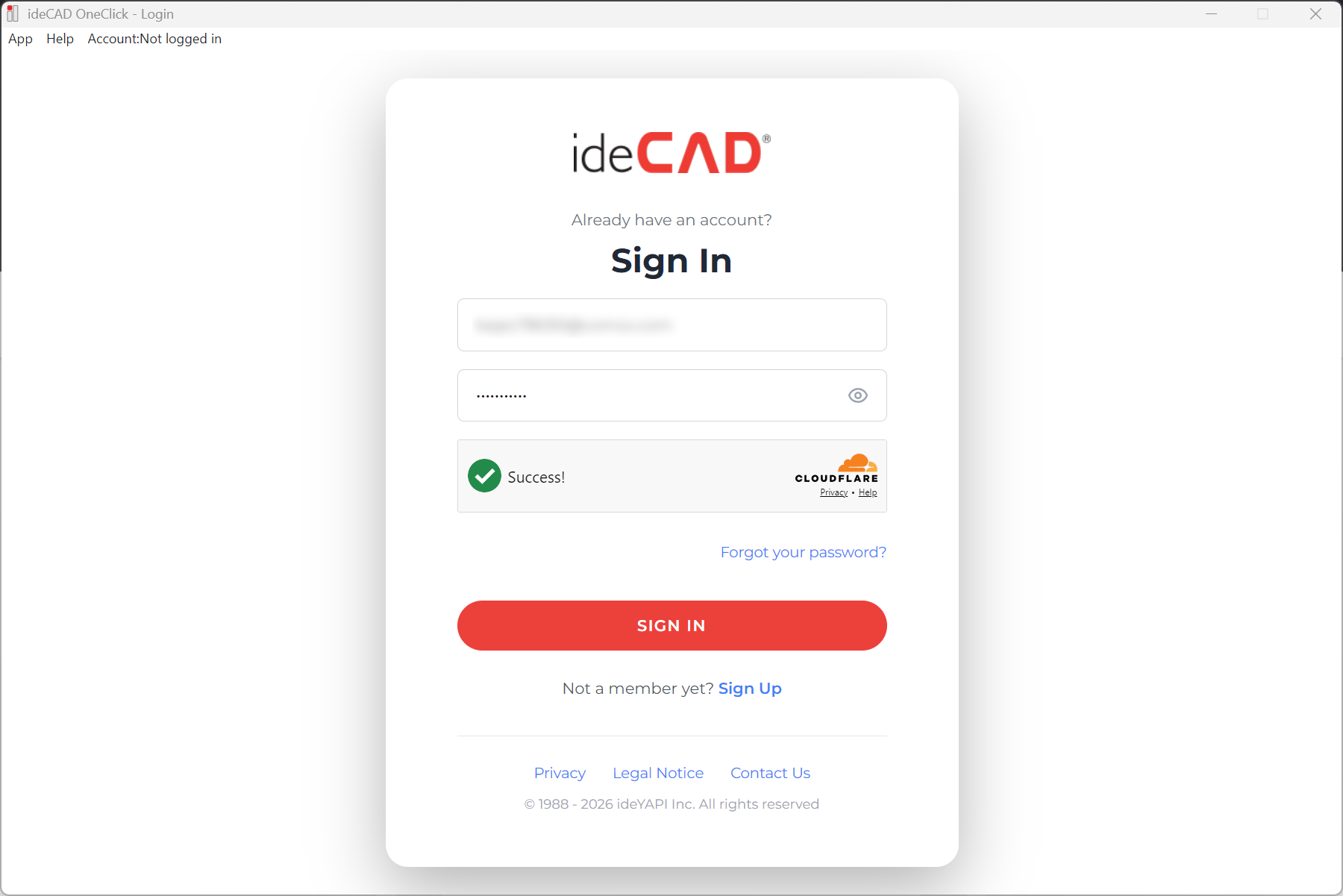
Open ideYAPI OneClick. If you have not downloaded ideYAPI OneClick, click here for download steps.
-
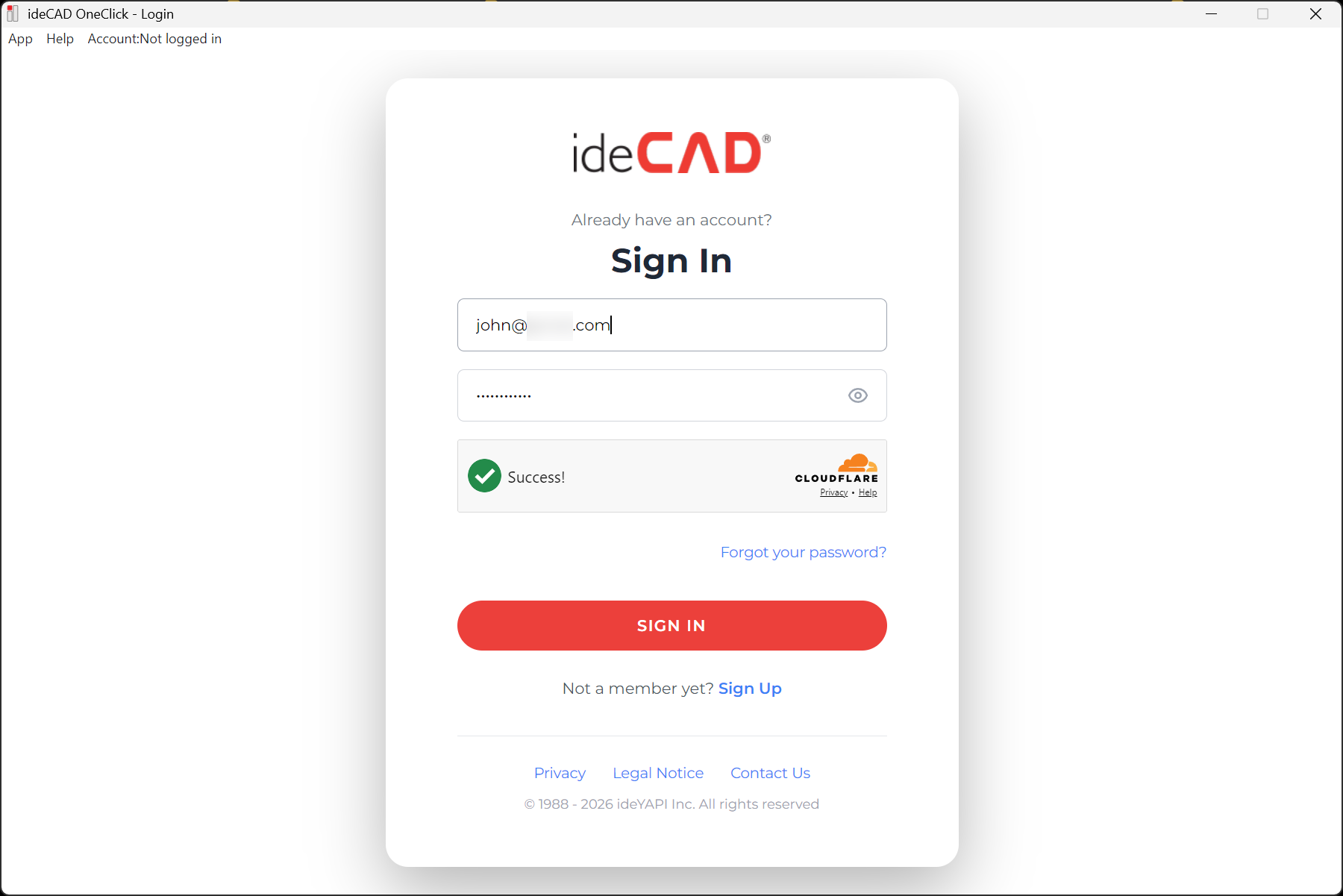
Sign in with your MyAccount information. Enter your email and password.
-
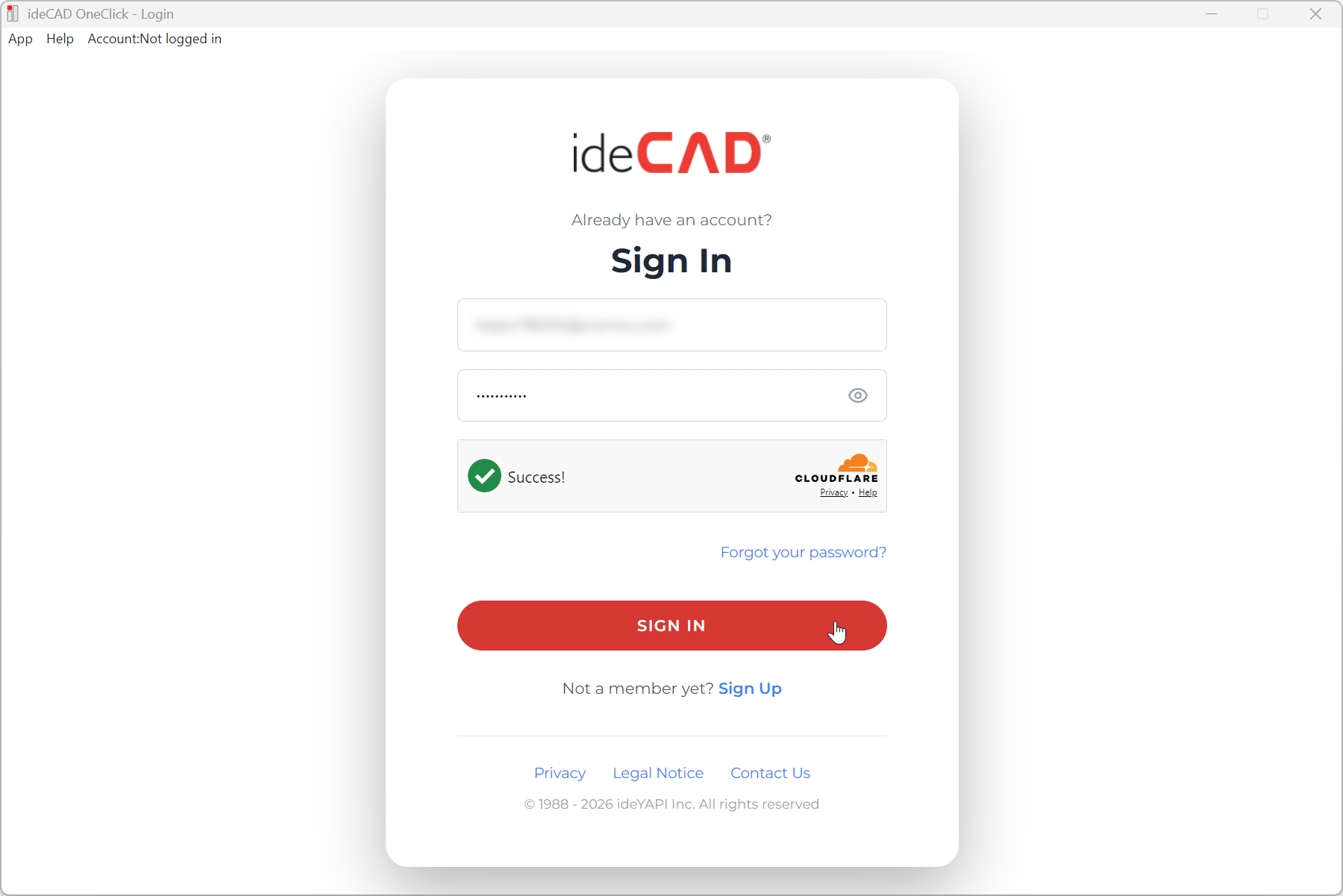
Click on the Sign In button.
-
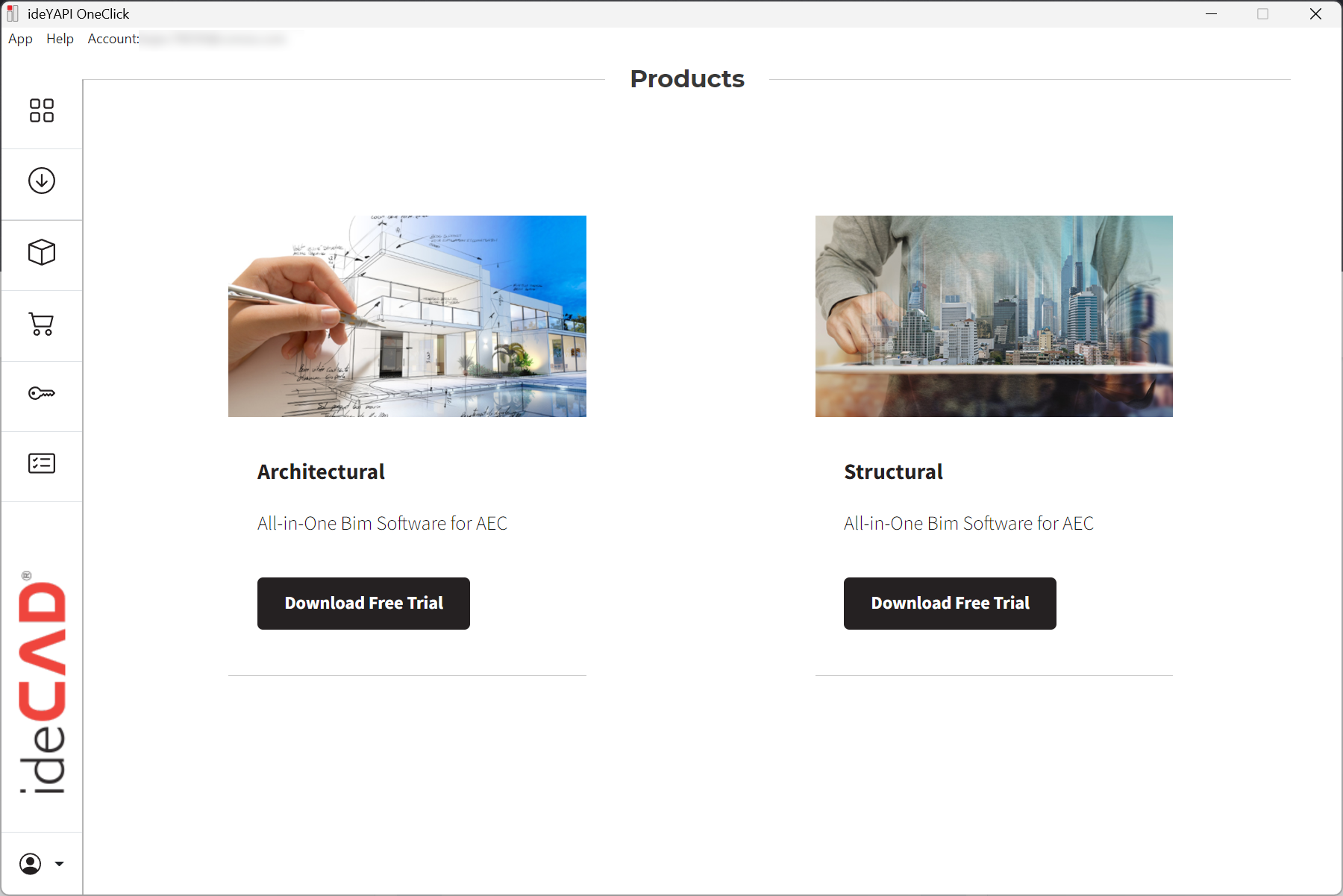
ideYAPI OneClick will open.
-
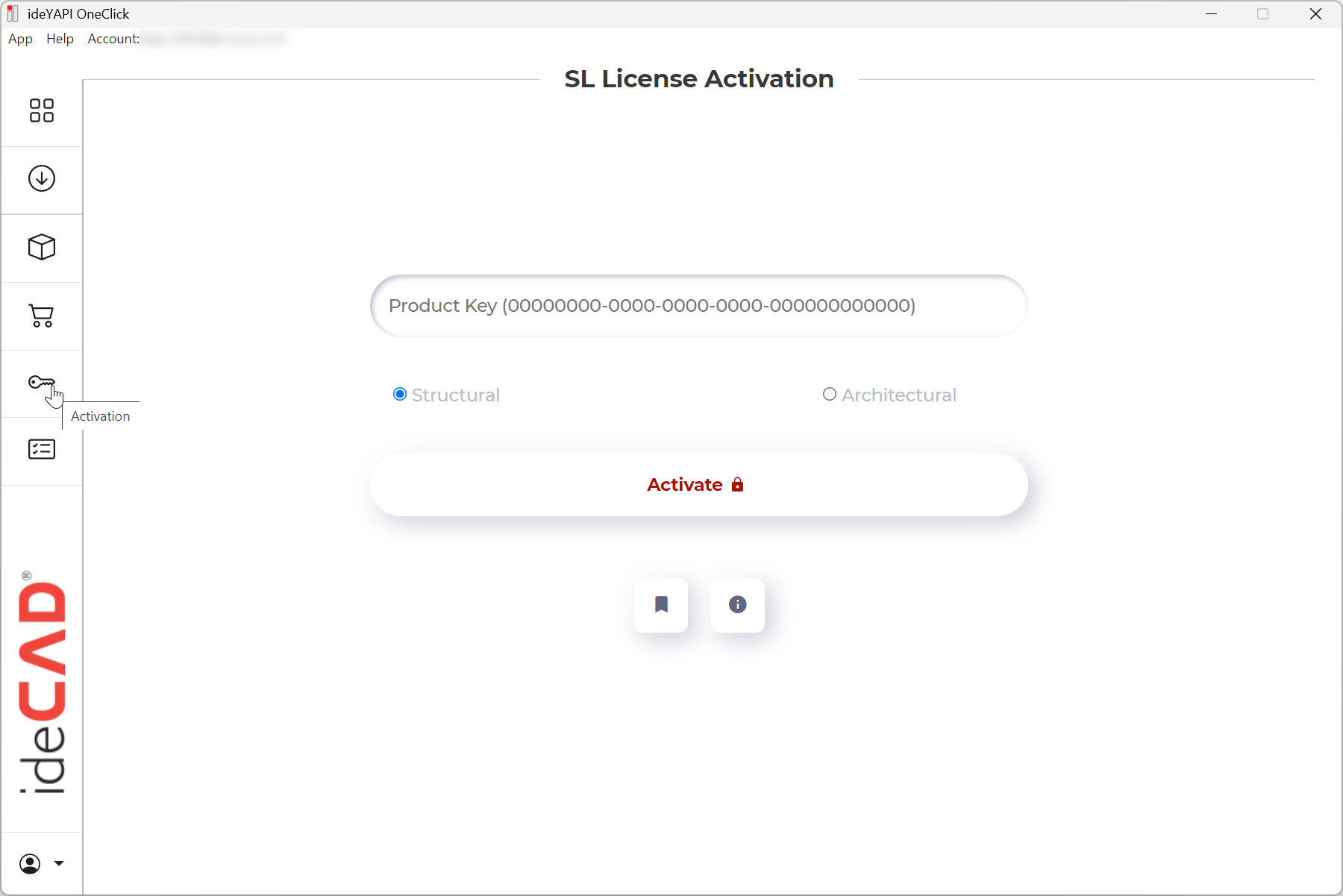
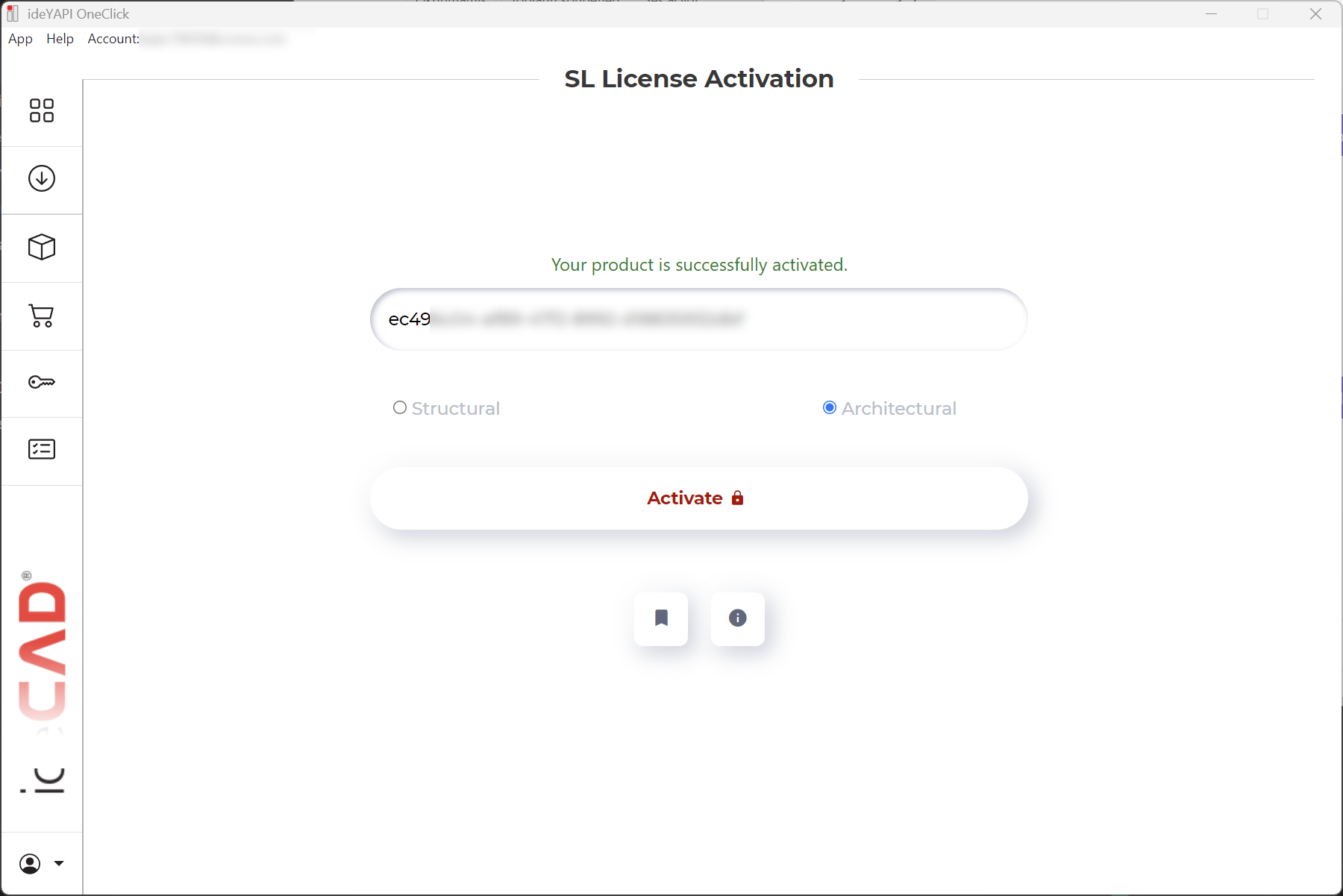
Go to the Activation tab.
-
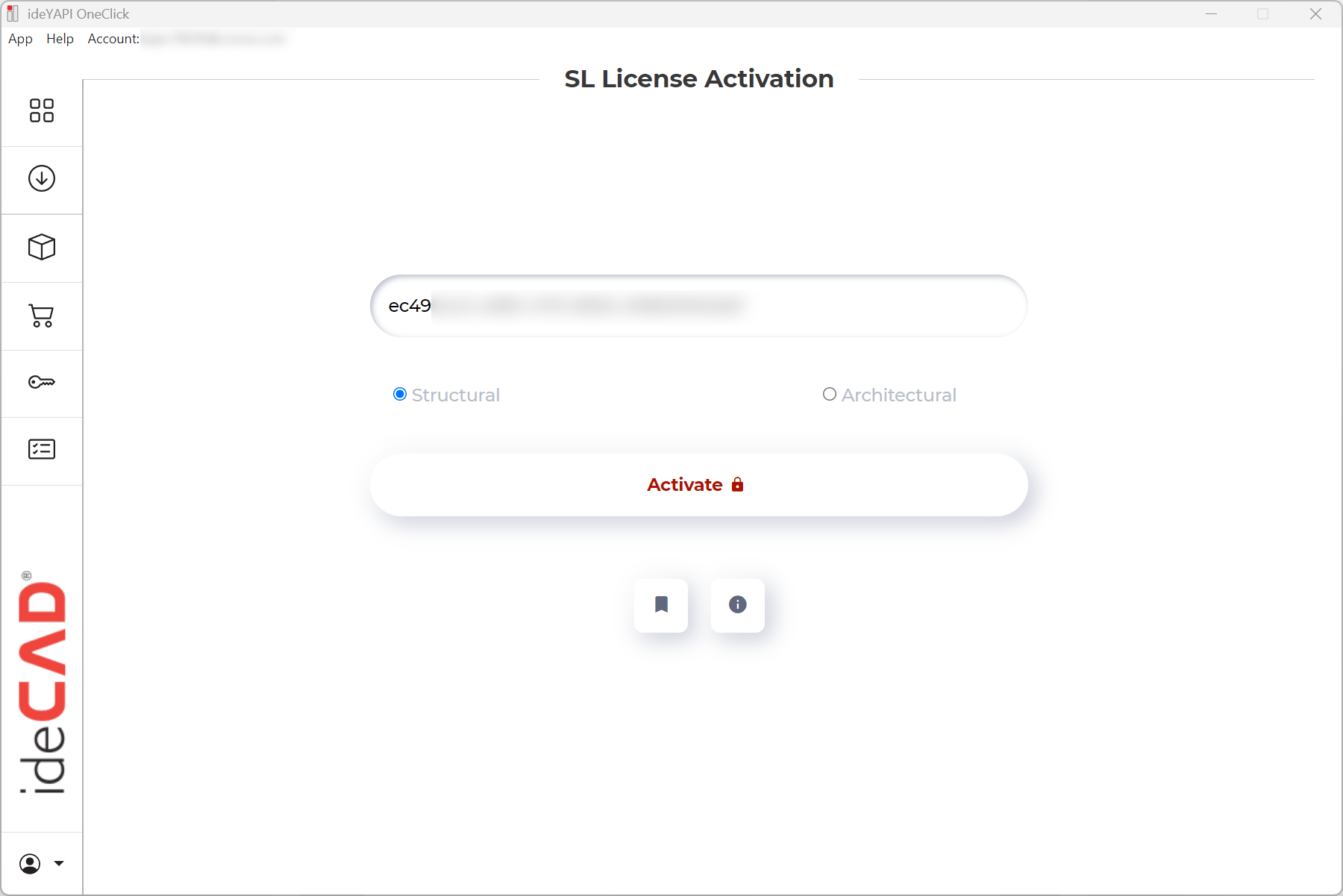
Enter the Product Key provided in the email.
-
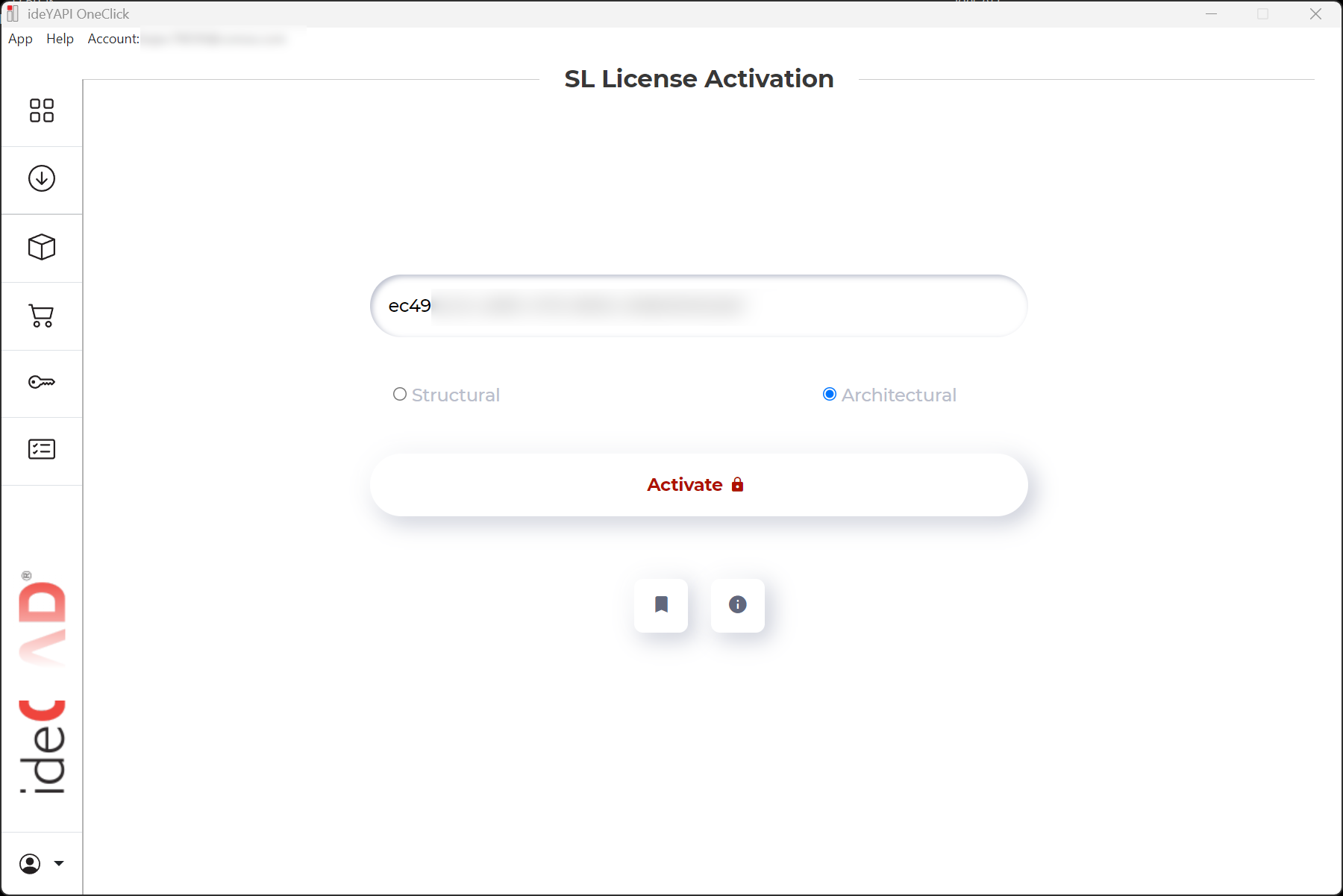
Select the ideCAD product you want to activate. In this example, select Architectural.
-
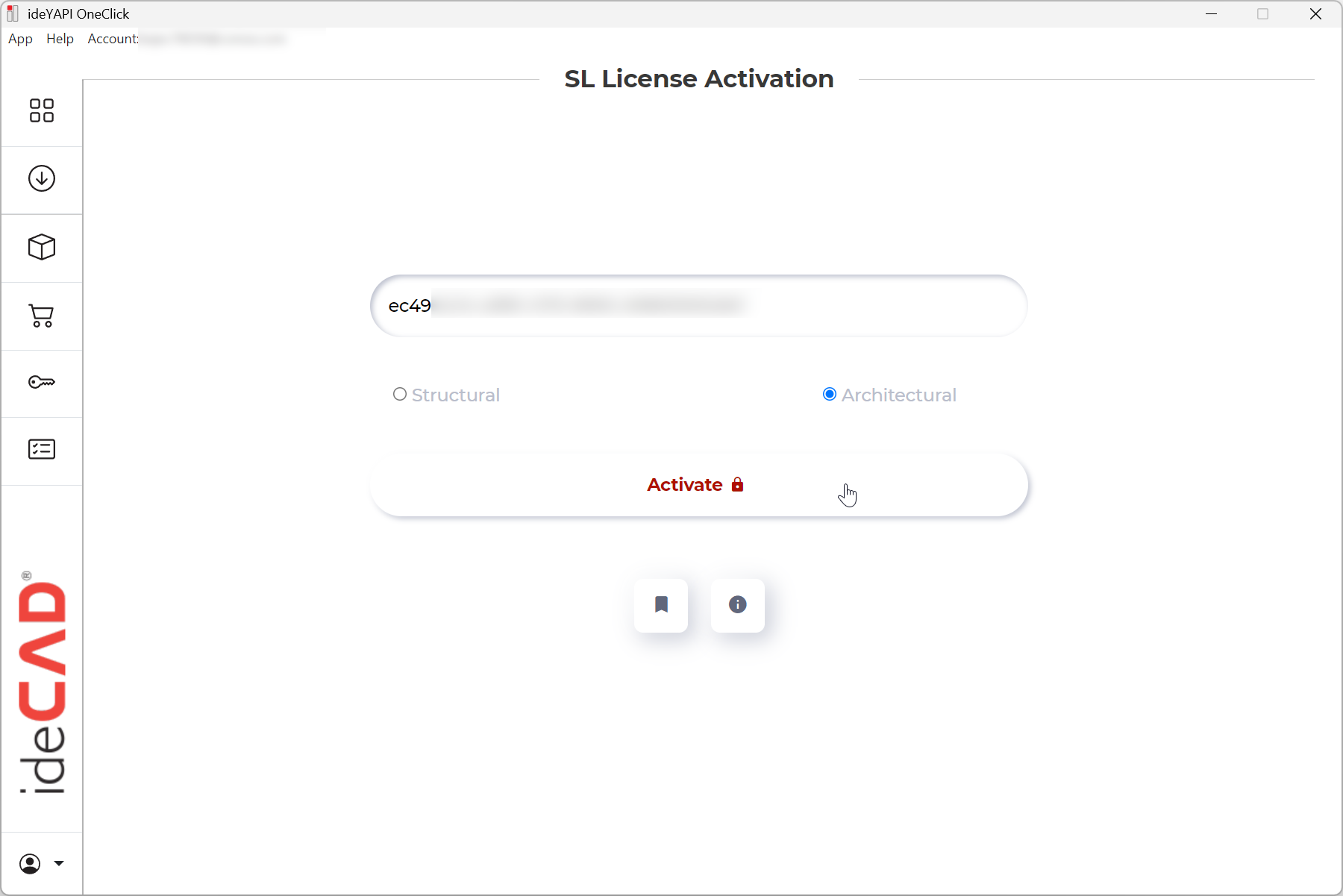
Click the Activate button.
-
The educational license for your selected ideCAD product will be activated. In this example, ideCAD Architectural Educational license will be activated.
You can download the software in two ways.
-
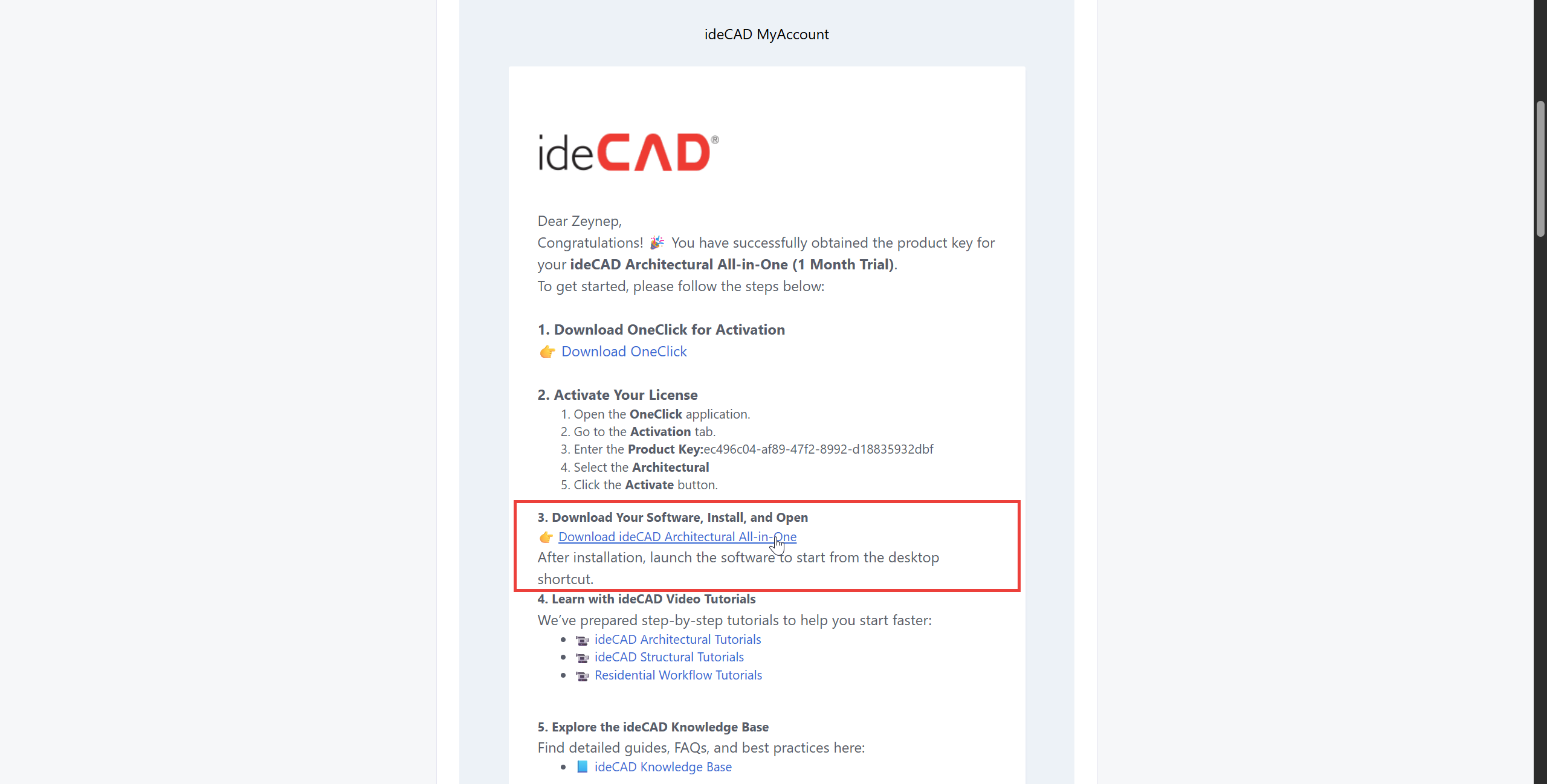
First, click the Download line for your selected ideCAD product in the email. In this example, click Download ideCAD Architectural All-in-One line.
-
The download will begin. Once the download is complete, double-click the installation file to start the installation.
-
After installation, launch the software to start from the desktop shortcut.
Alternatively, you can download the software using ideYAPI OneClick.
-
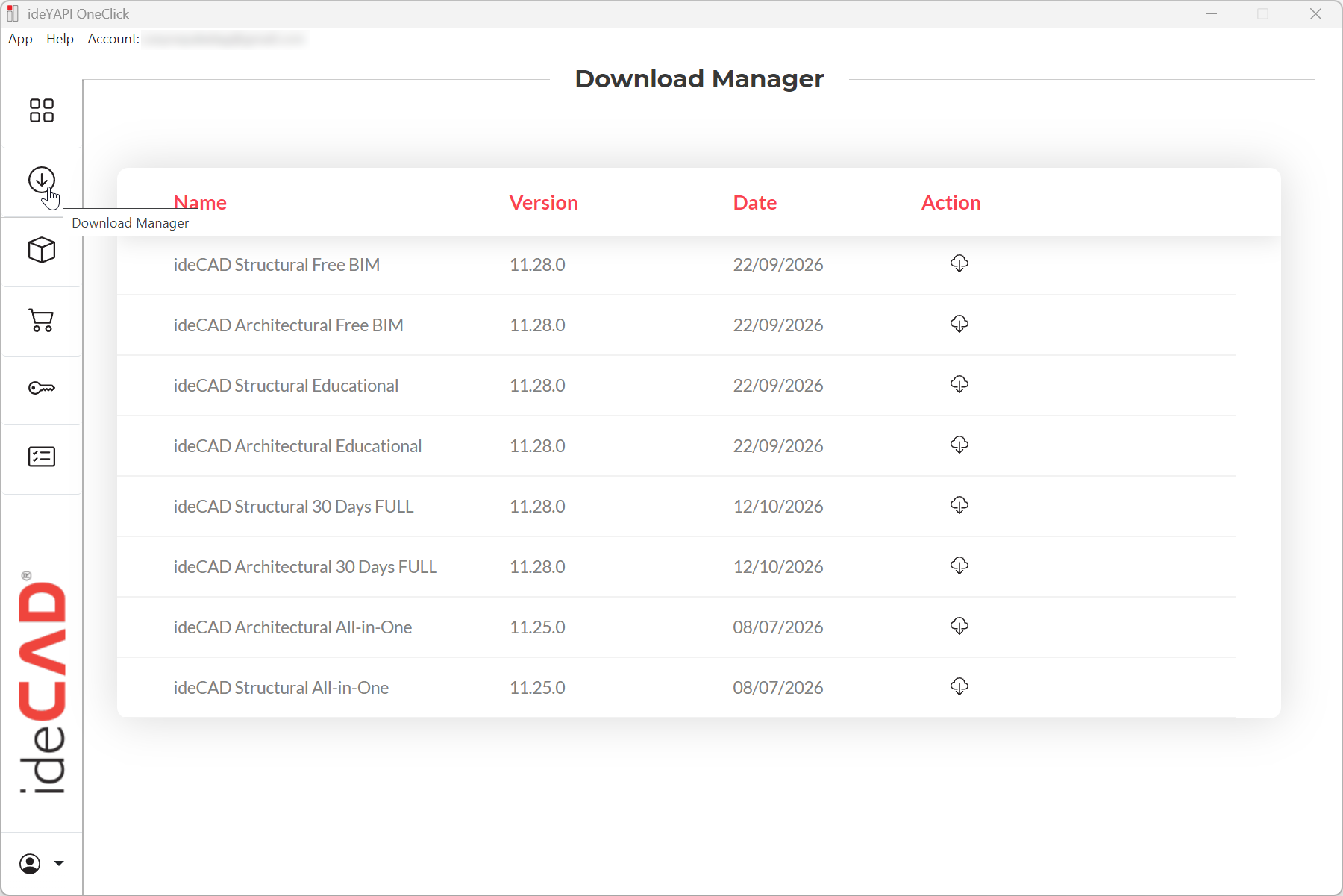
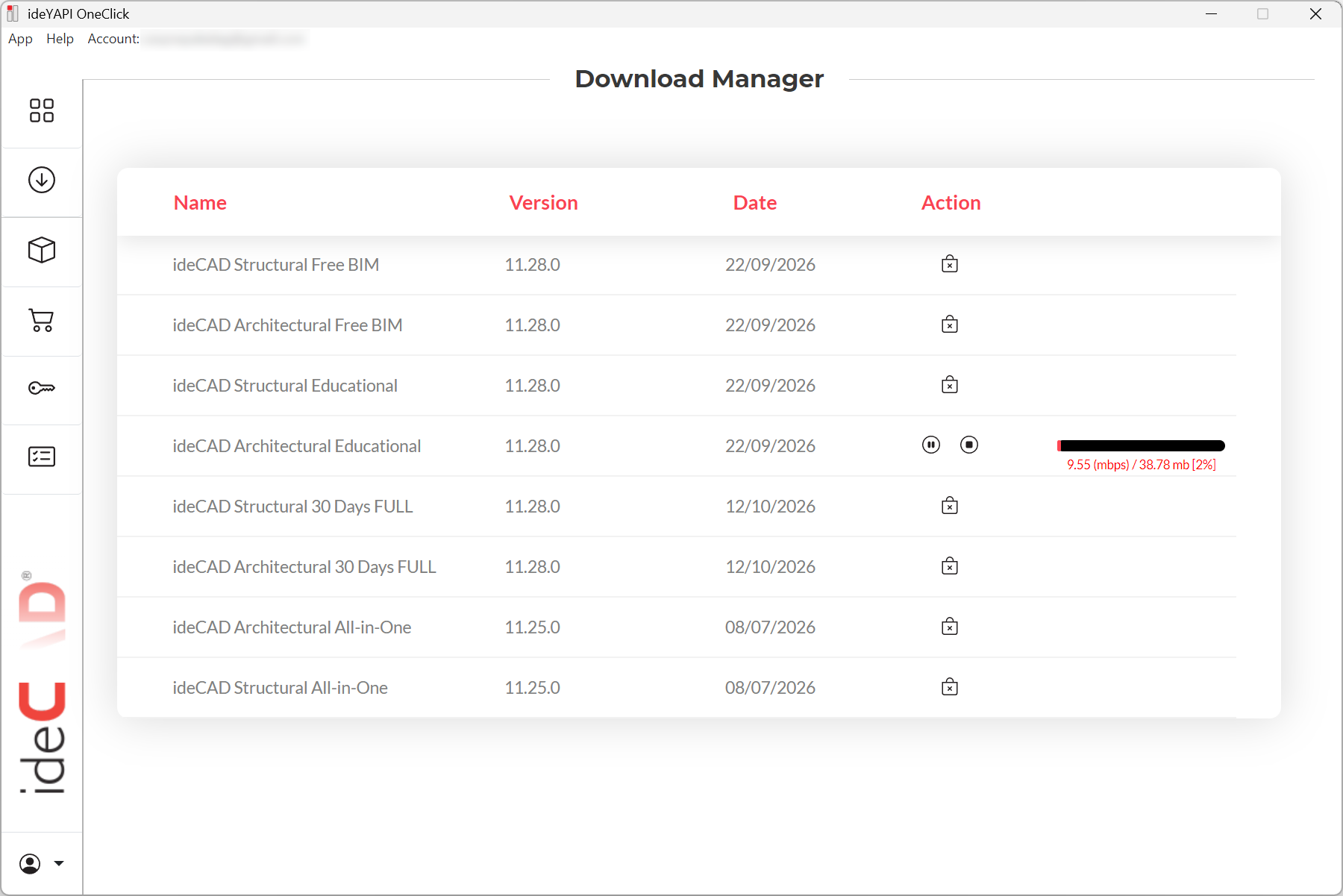
Open ideYAPI OneClick and go to the Download Manager tab.
-
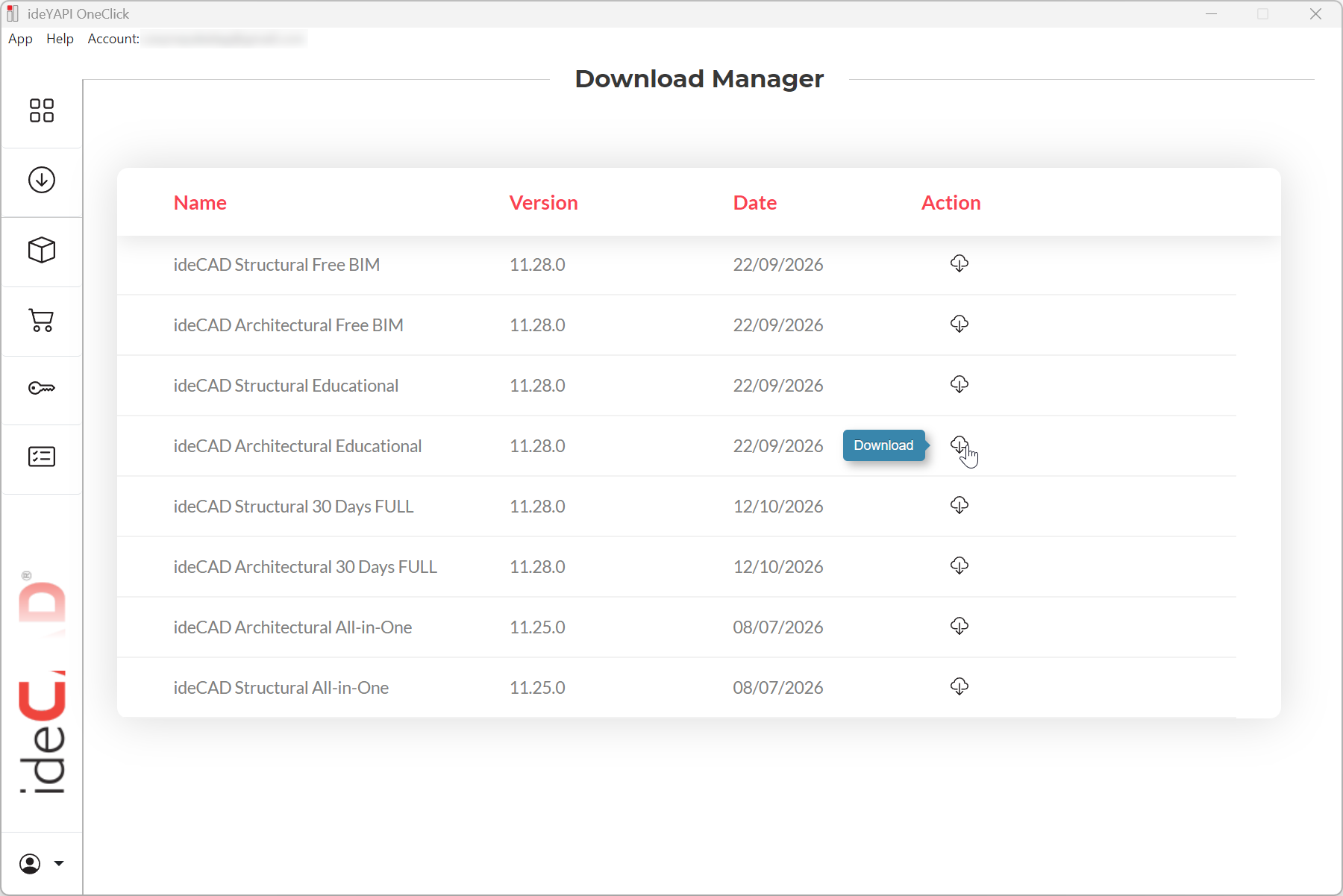
Click the Download icon for your selected ideCAD product. In this example, click the Download icon for ideCAD Architectural Educational.
-
The download will begin.
-
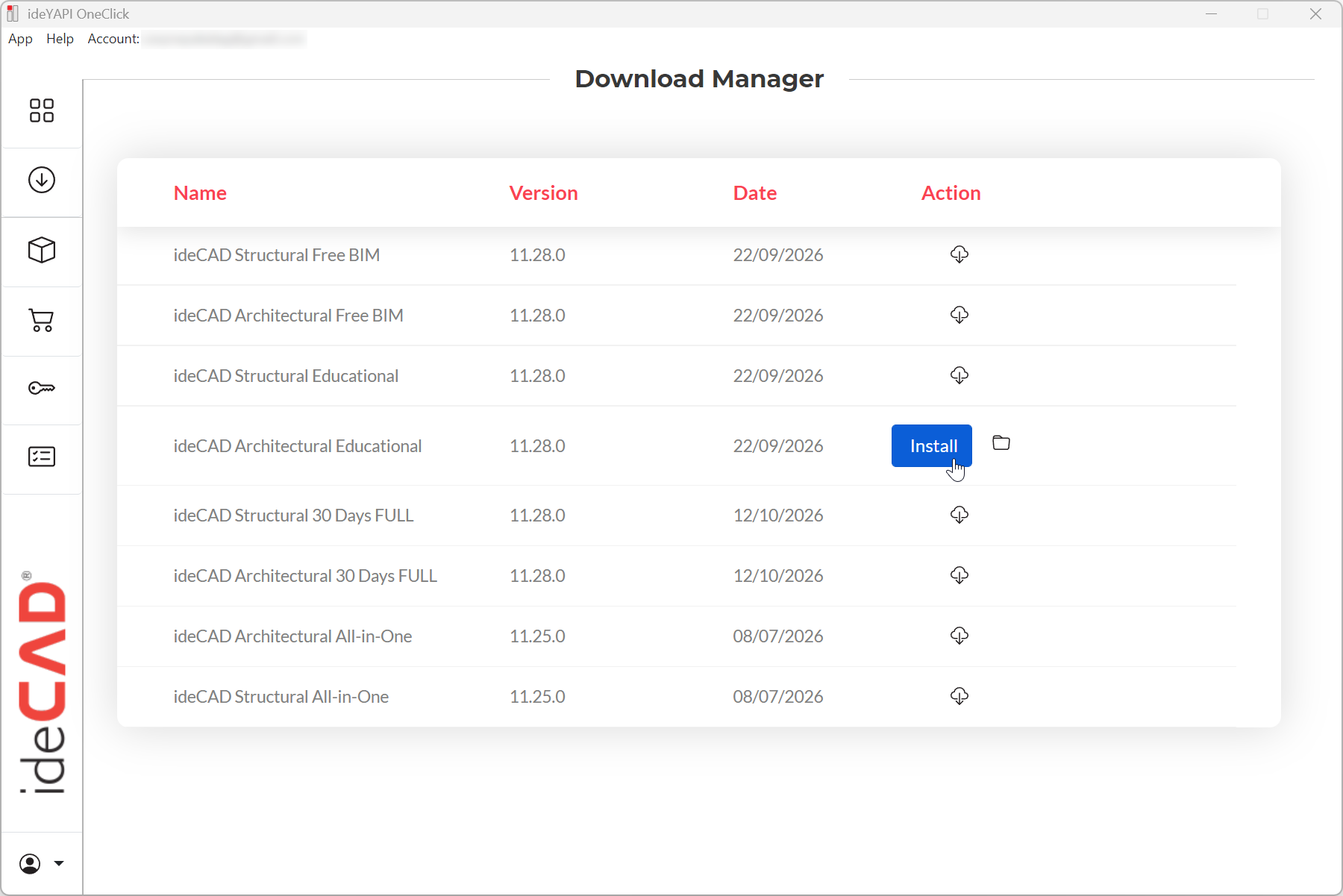
After the download is complete, the installation process will start automatically.
-
If the installation process has not started, you can start the installation process by clicking the Install button.
-
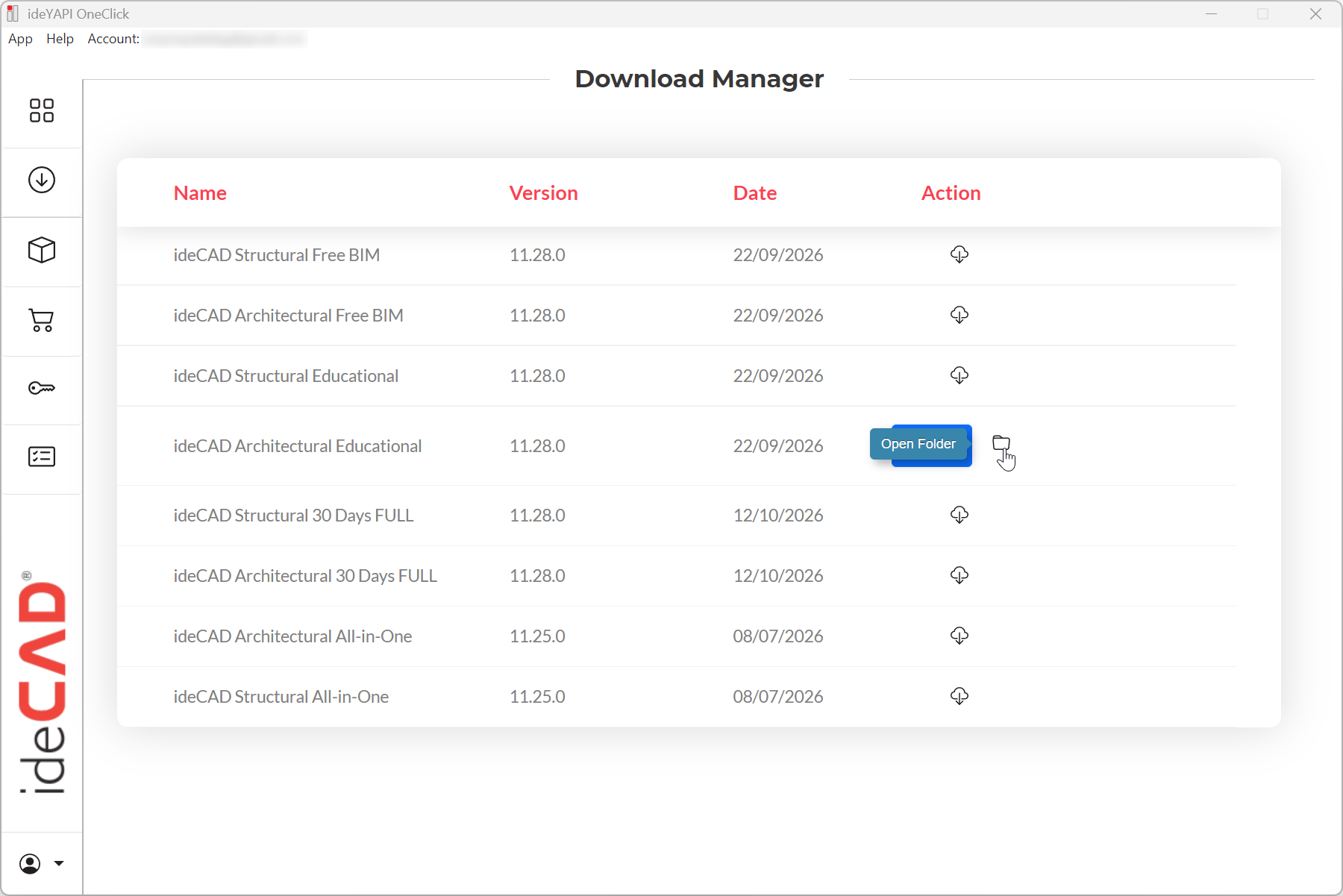
If the installation does not start automatically, you can also click the Open Folder icon next to the Install button to open the folder containing the installation file.
-
Double-click the installation file to start the installation manually.
-
After installation, launch the software to start from the desktop shortcut.
Next Topic