
This page presents instructions for new ideCAD Software users on downloading and installing the software using the email we sent. It also explains how to access our YouTube channel, knowledge base, and customer portal.
What You Need to Prepare Before We Start
-
Registered email address and password for ideCAD MyAccount.
-
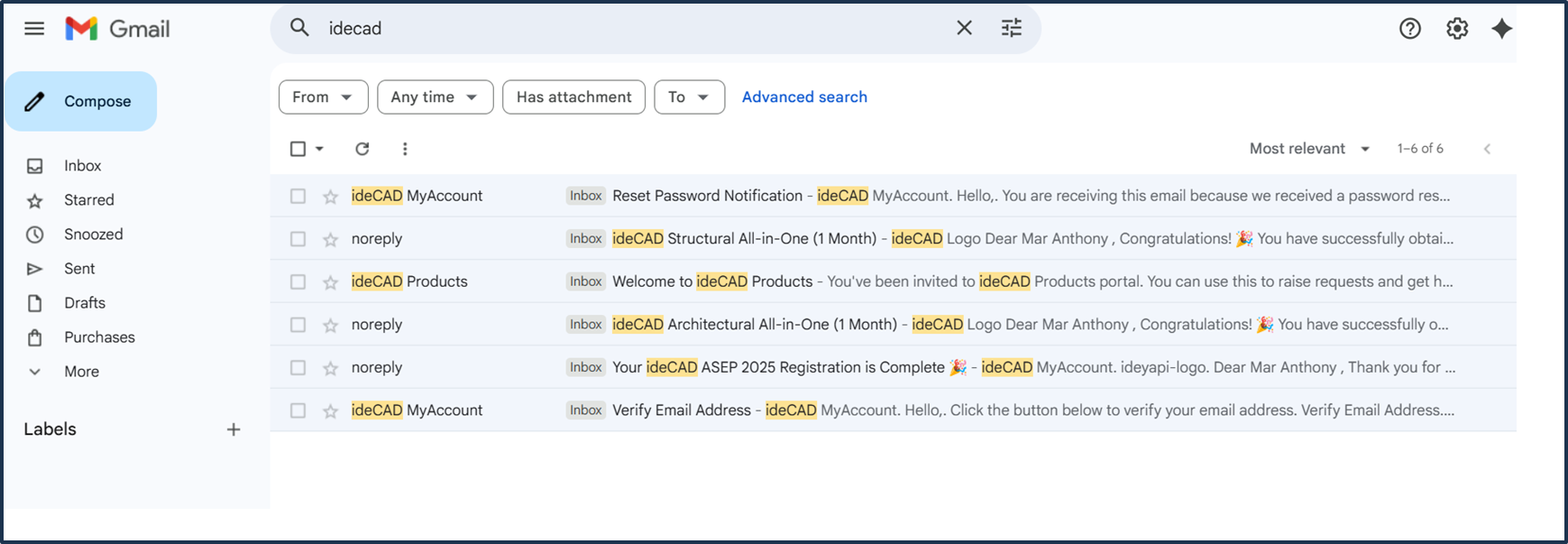
Go to your email inbox and locate the following three (3) emails shown in the image below.
-
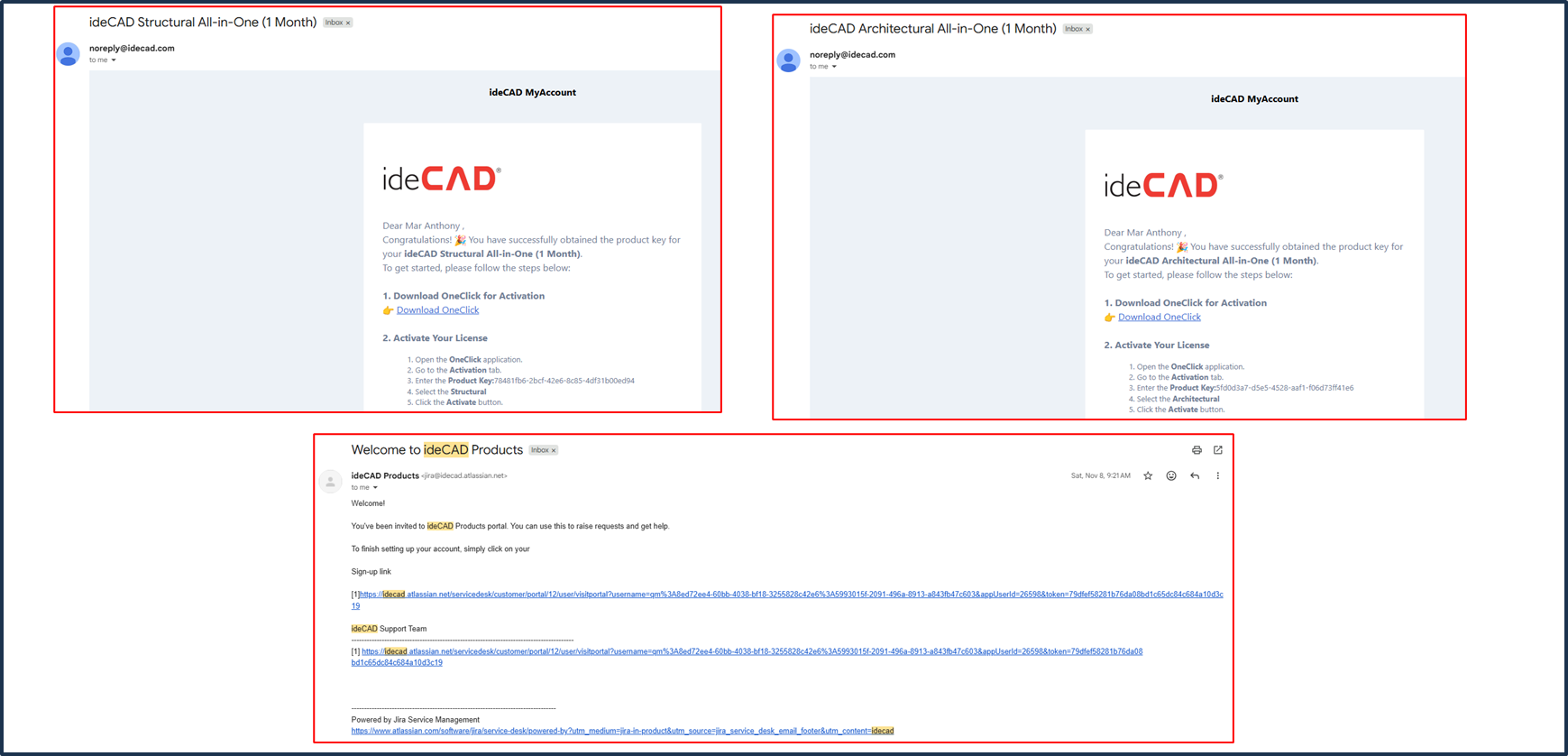
The content of the three (3) emails should be just like the image below.
How to Download and Sign In on ideYAPI OneClick
-
STEP 1: Go to your email inbox.
-
STEP 2: Open either the ideCAD Structural email or ideCAD Architectural email.

-
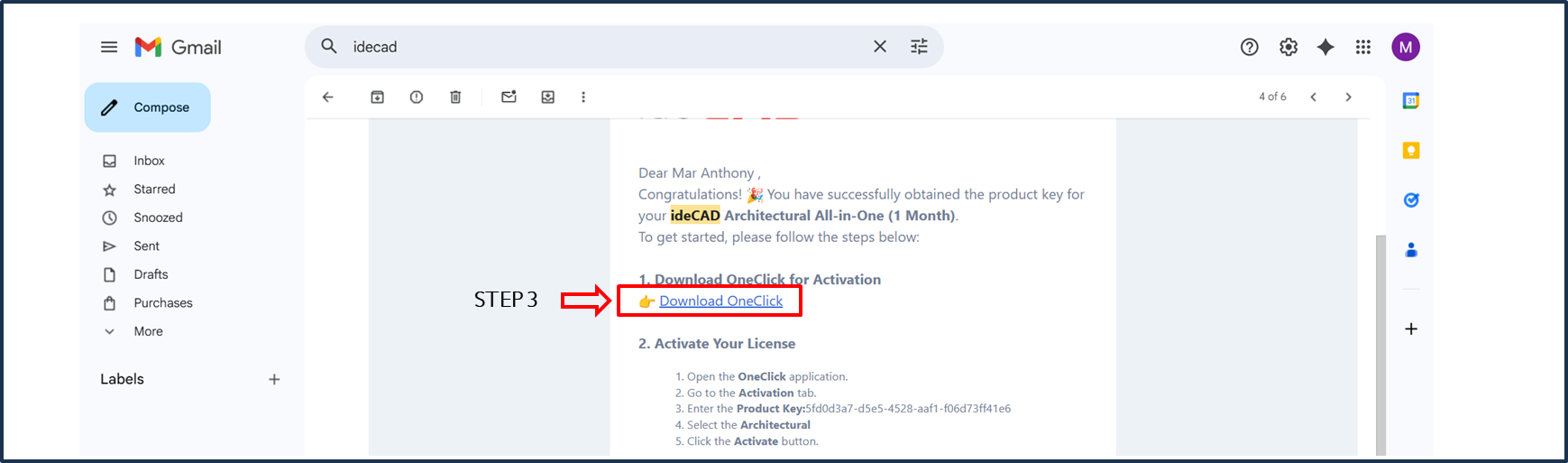
STEP 3: Click on the Download ideYAPI OneClick.
-
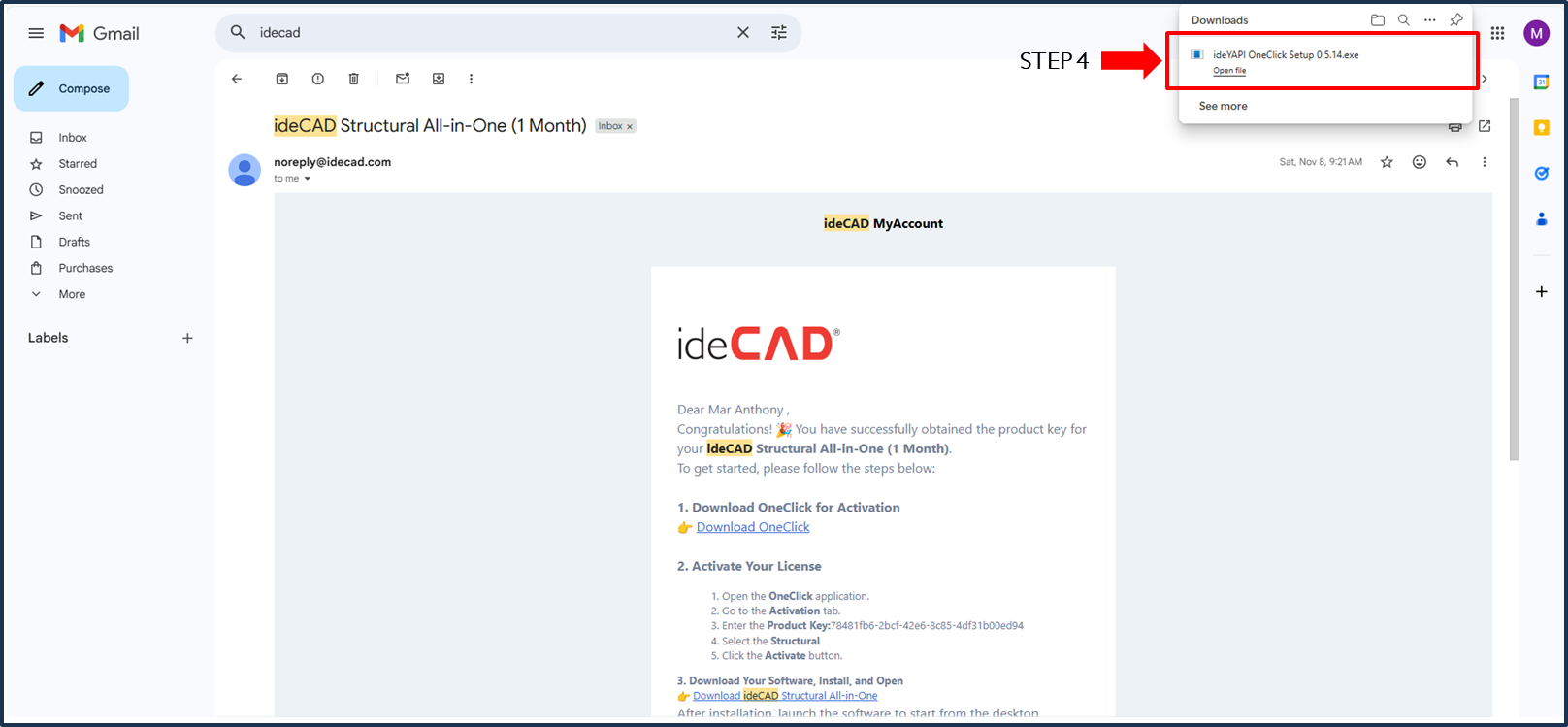
STEP 4: Click on the downloaded ideYAPI OneClick Setup to begin the installation.
-
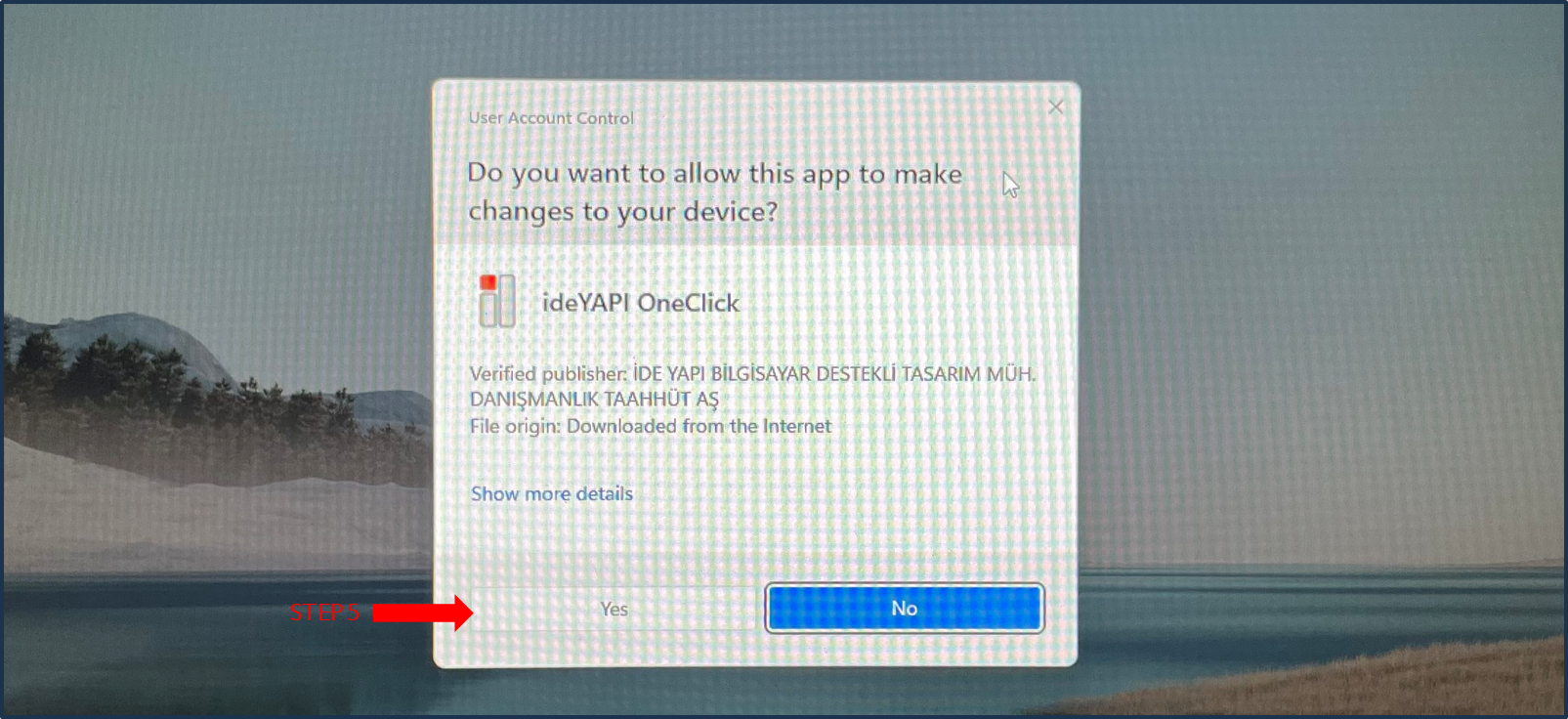
STEP 5: Click Yes.
-
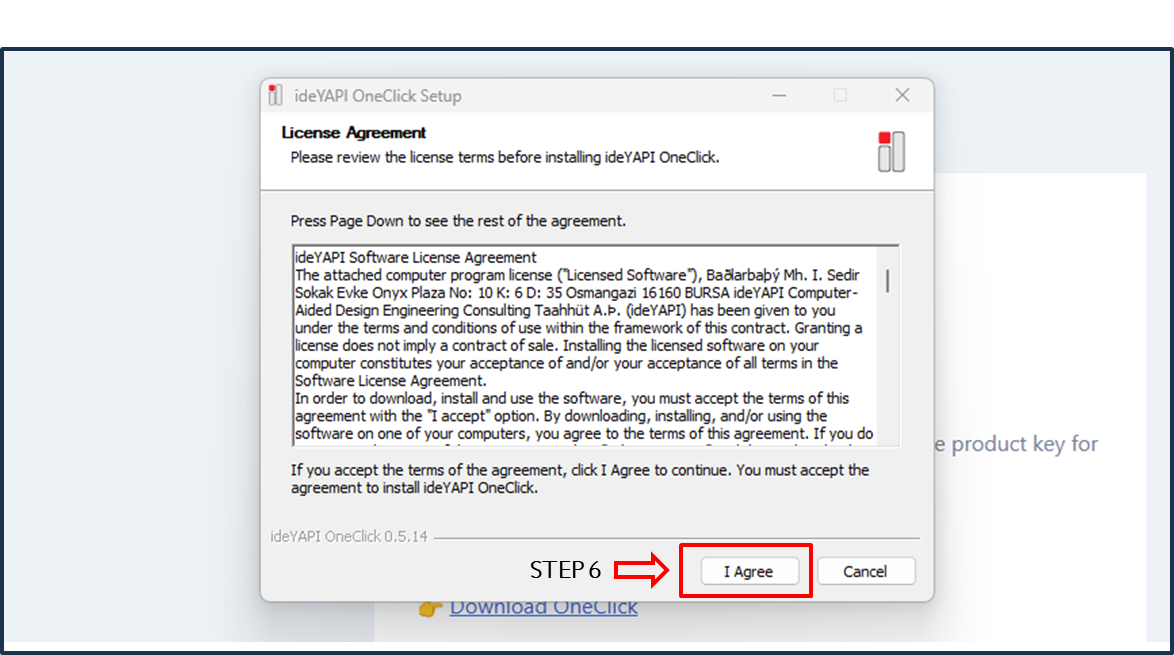
STEP 6: Read the License Agreement, then click I Agree. ideYAPI OneClick will automatically open once the installation is finished.
-
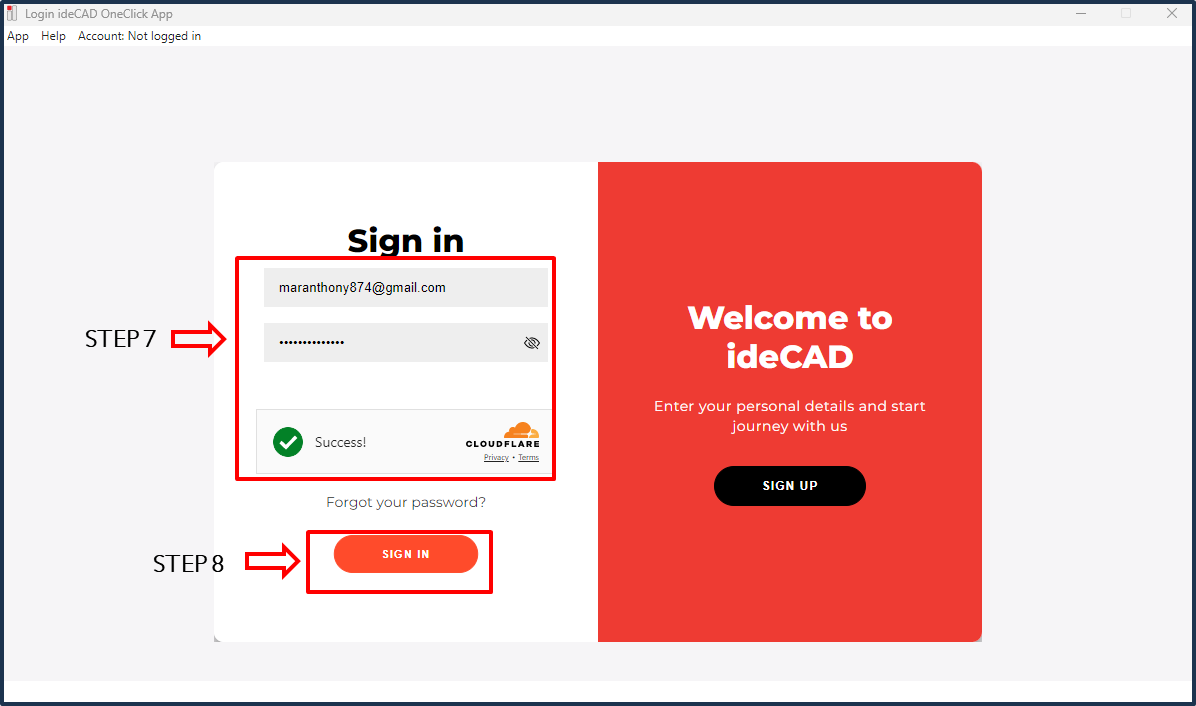
STEP 7: Enter your email and password.
-
STEP 8: Click on the Sign In button.
How to Sign In on ideYAPI OneClick When You Forgot Your Password
-
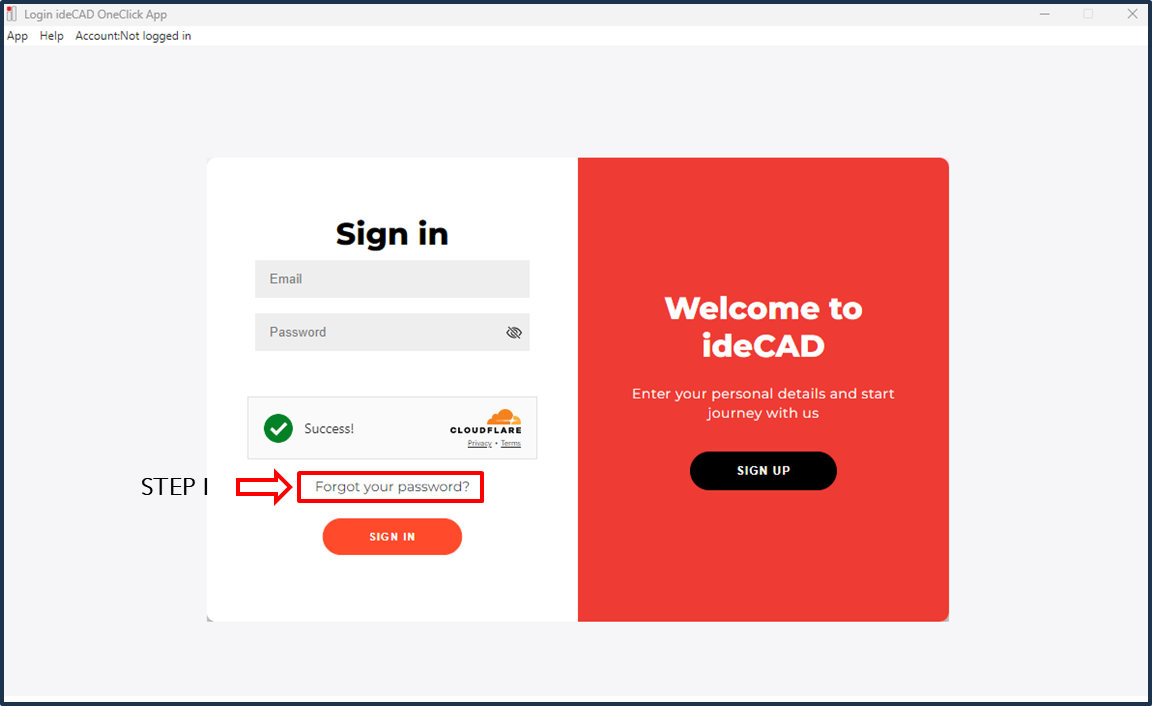
STEP 1: Click Forgot your password?.
-
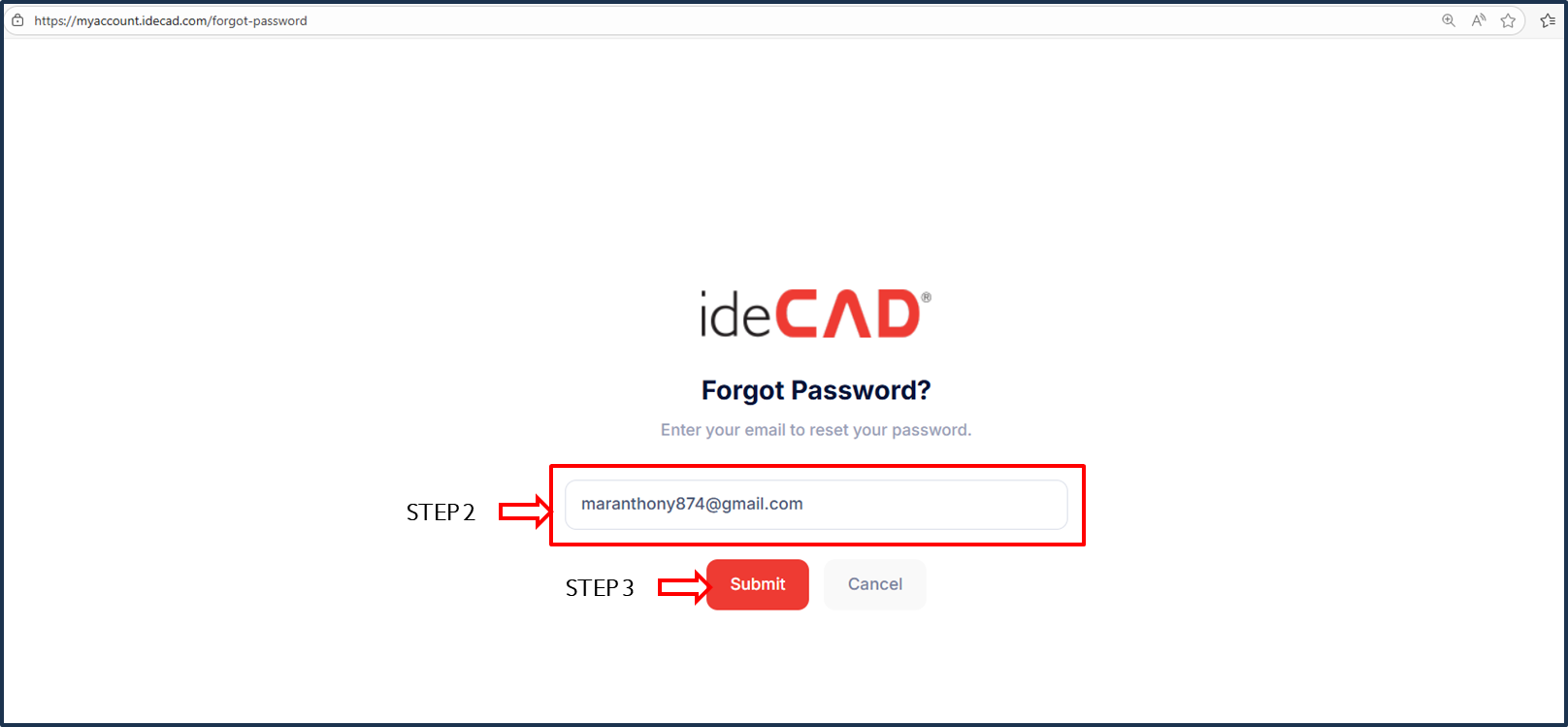
STEP 2: Enter your registered email address for ideCAD MyAccount.
-
STEP 3: Click Submit and wait for an email to be sent by ideCAD MyAccount.
-
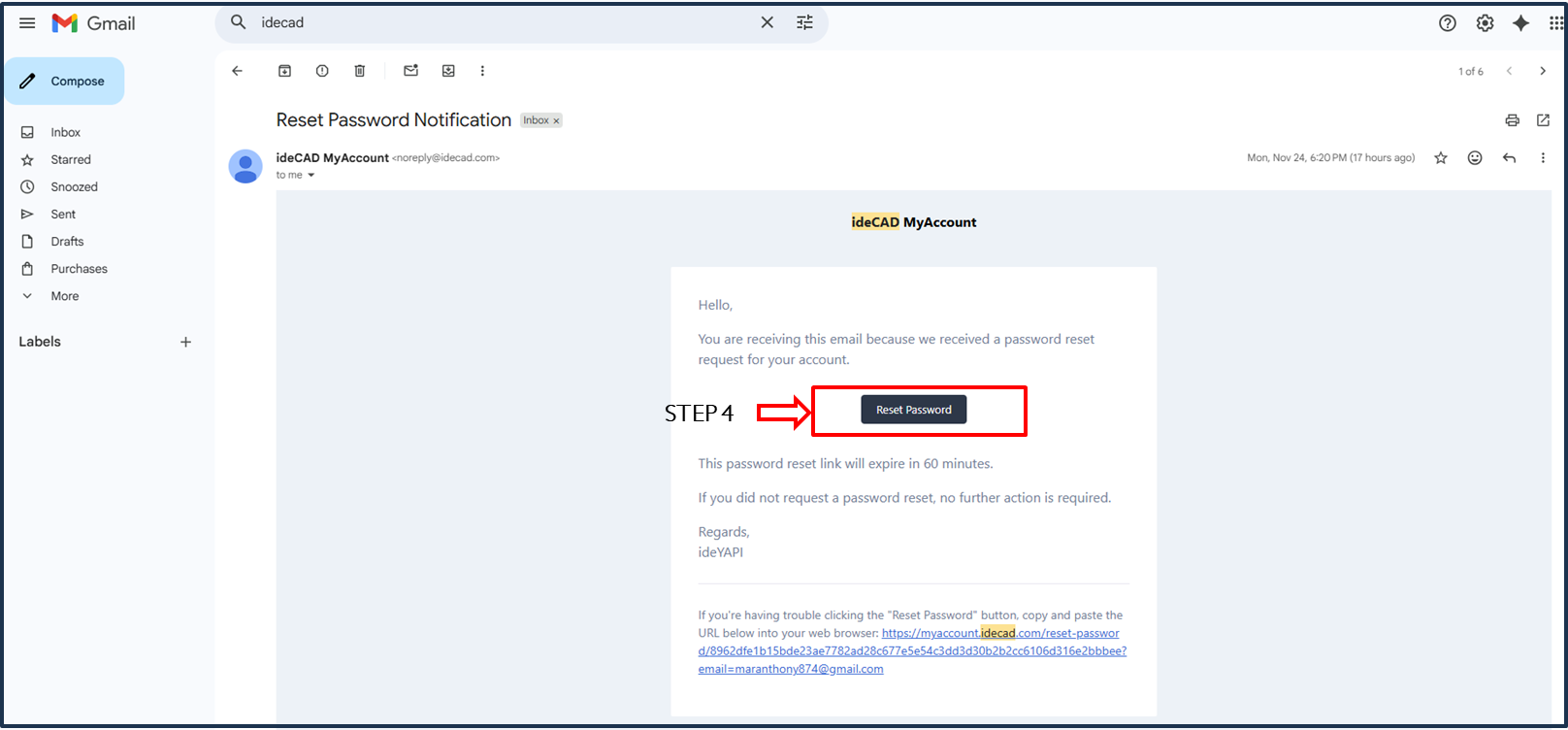
STEP 4: Open the email sent by ideCAD MyAccount and click Reset Password.
-
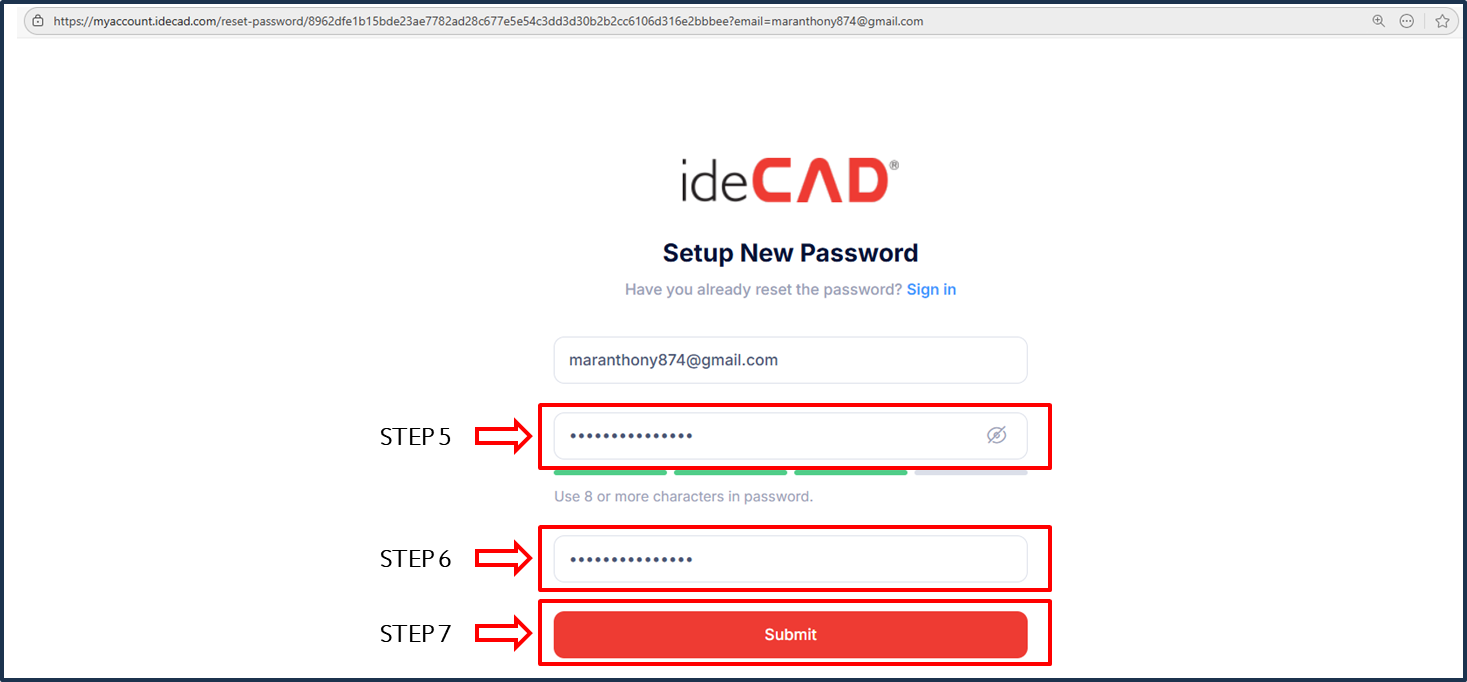
STEP 5: Enter your new password.
-
STEP 6: Re-enter your new password.
-
STEP 7: Click Submit.
-
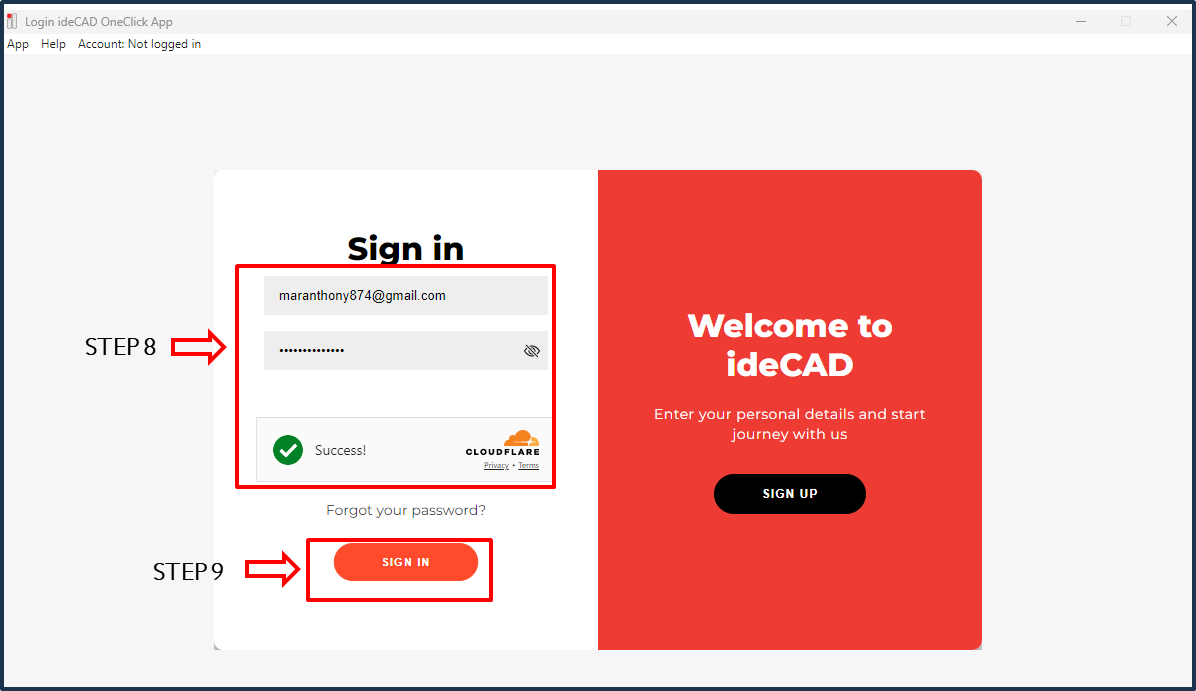
STEP 8: Return to ideYAPI OneClick and enter your email address and password.
-
STEP 9: Click on the Sign In button.
How to Activate Your Structural License
-
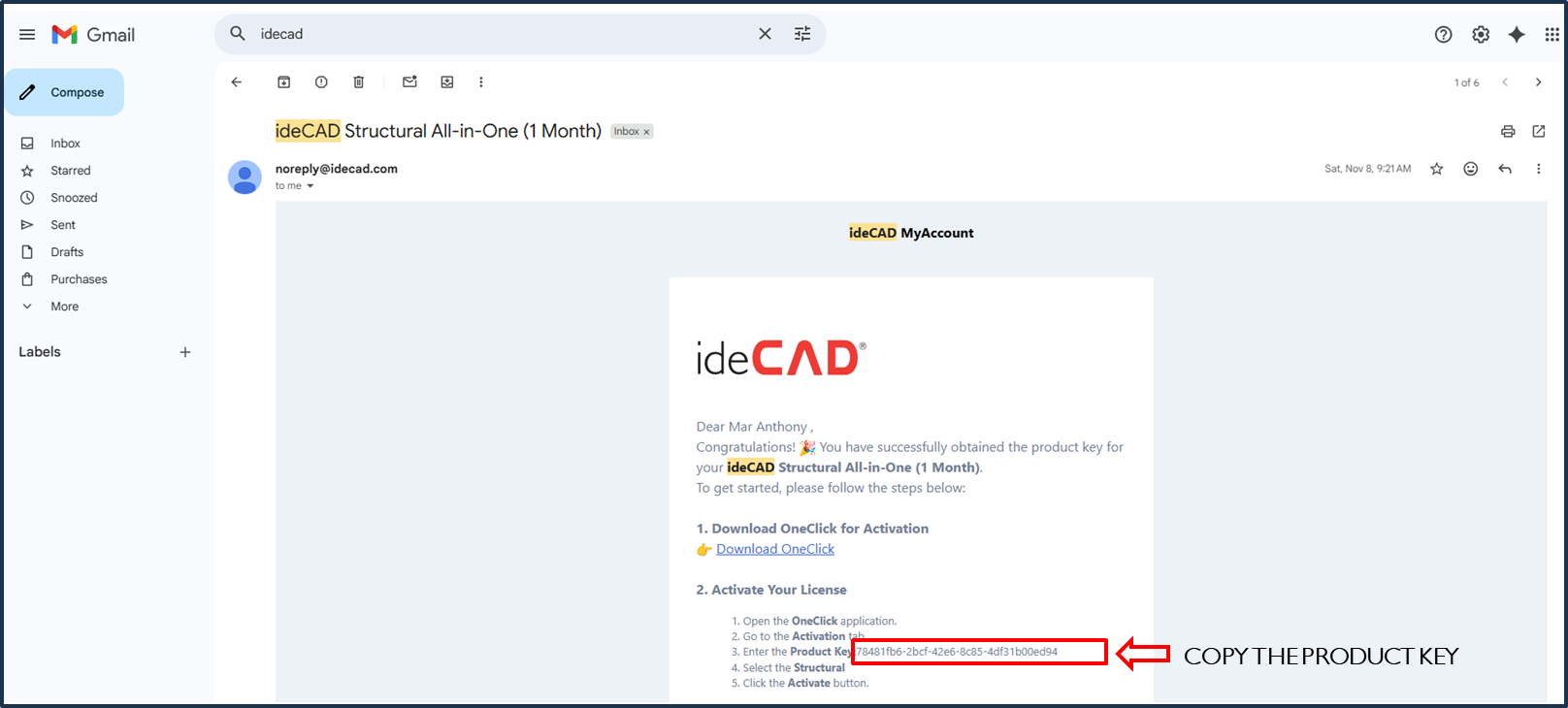
STEP 1: Go to your email inbox and copy the product key for ideCAD Structural All-in-One.
-
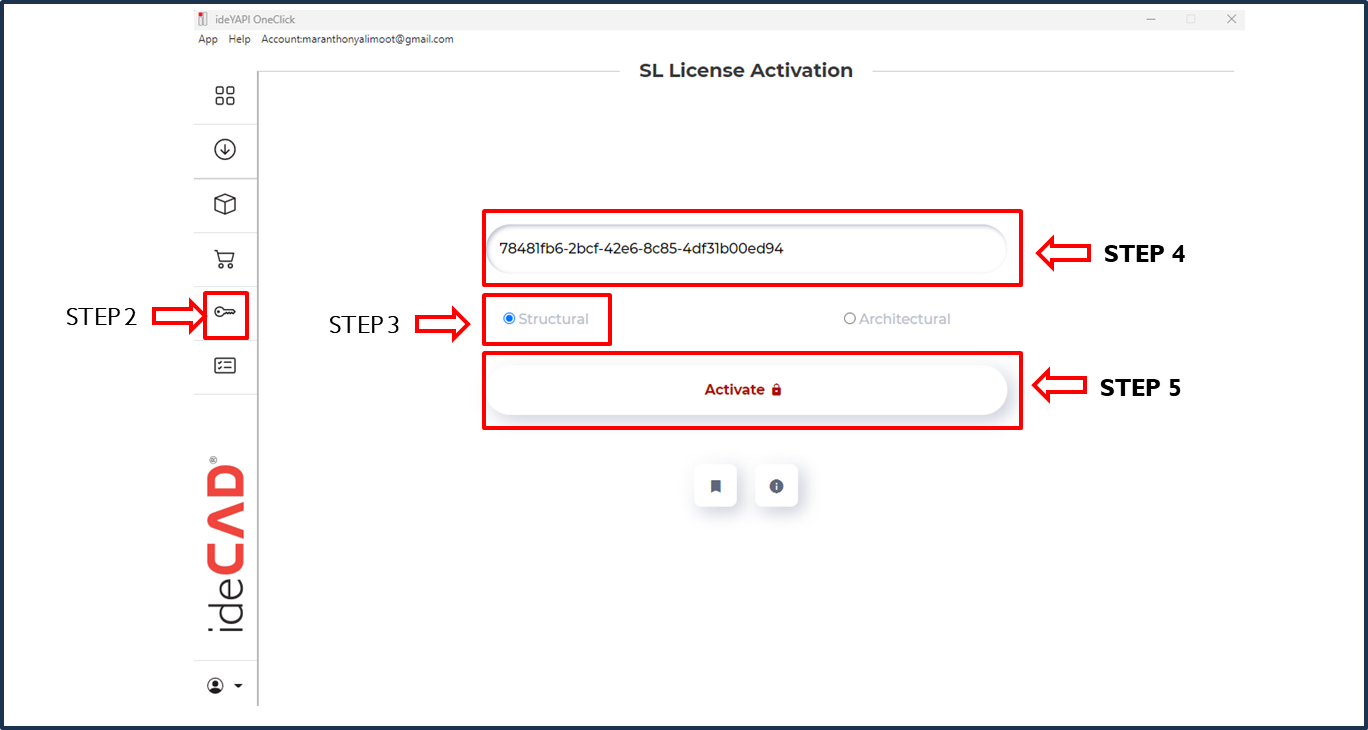
STEP 2: On ideYAPI OneClick, click on the Activation tab.
-
STEP 3: Click on the Structural option.
-
STEP 4: Enter the product key for ideCAD Structural that was sent to your email.
-
STEP 5: Click on the Activate button.
How to Activate Your Architectural License
-
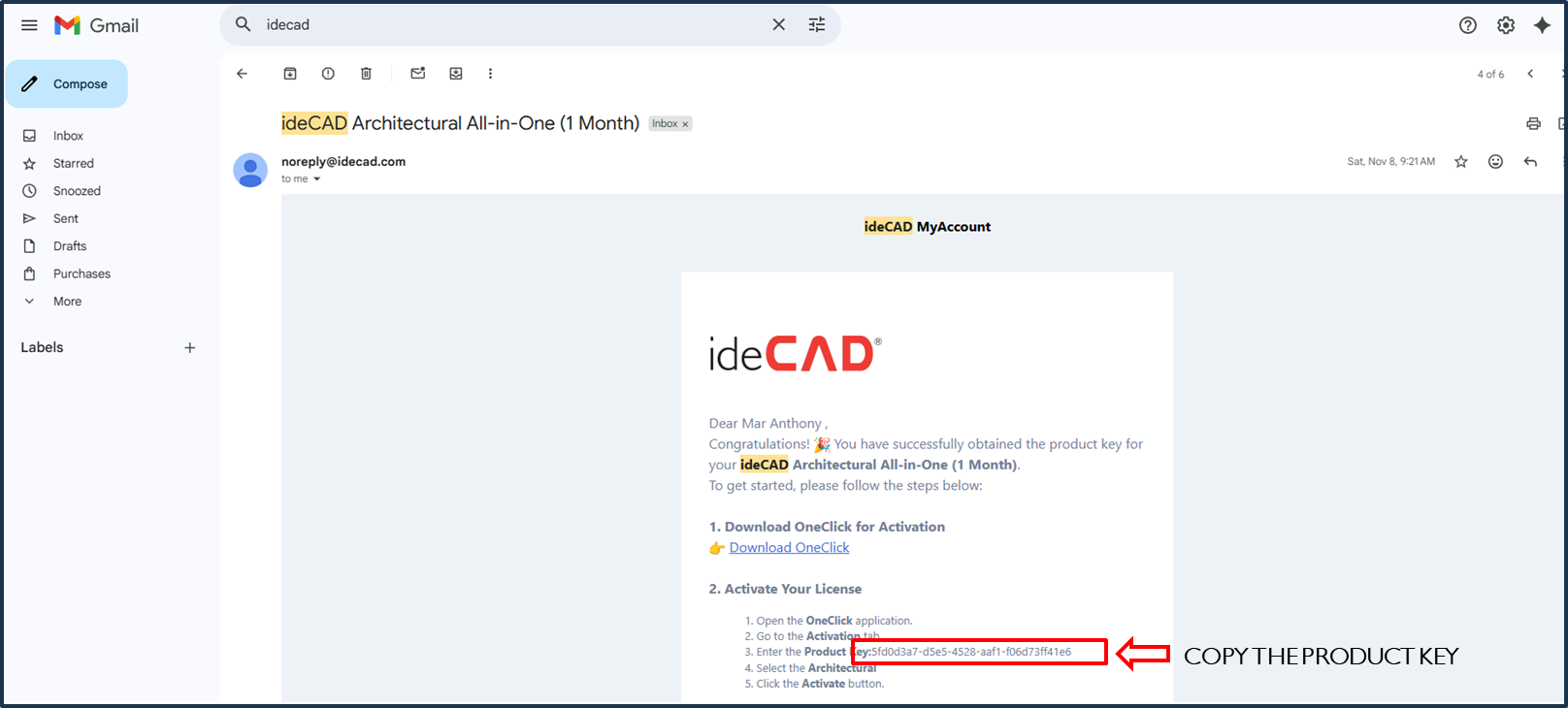
STEP 1: Go to your email inbox and copy the product key for ideCAD Architectural All-in-One.
-
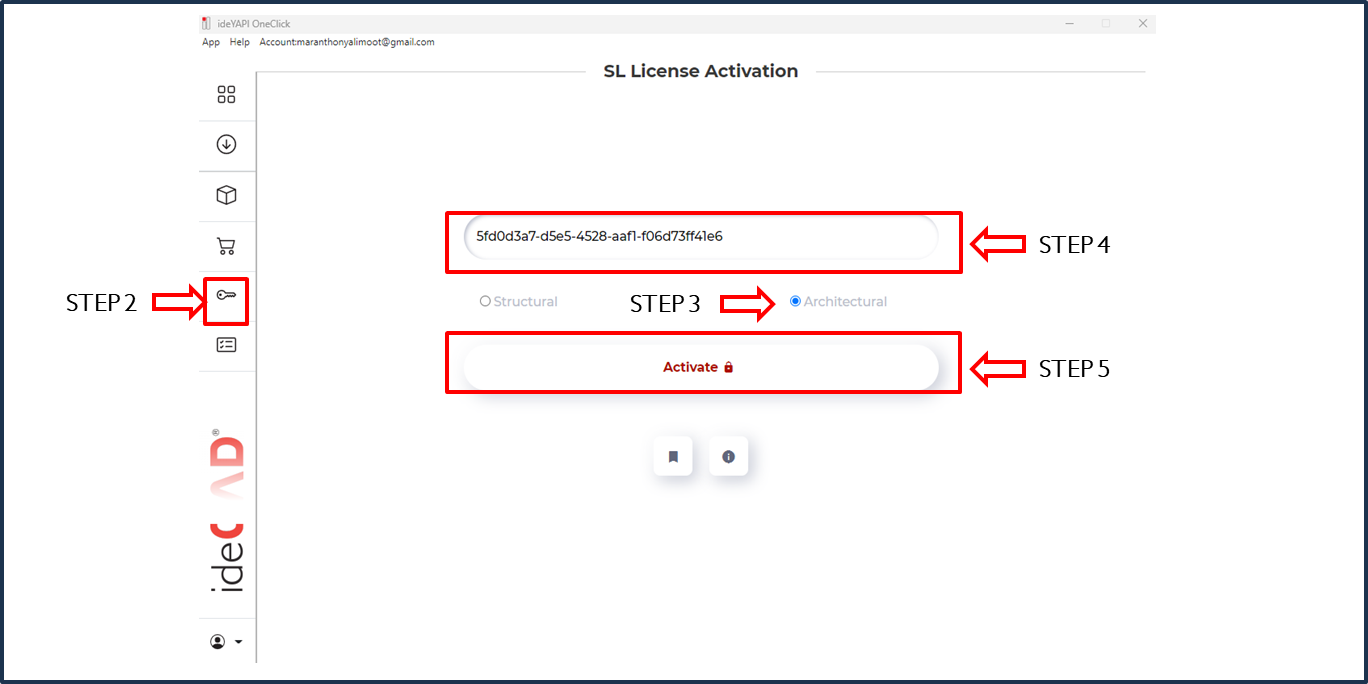
STEP 2: Click on the Activation tab.
-
STEP 3: Click on the Architectural option.
-
STEP 4: Enter the product key for ideCAD Architectural that was sent to your email.
-
STEP 5: Click on the Activate button.
How to Download the Licensed Version of ideCAD Structural
-
STEP 1: Go to your email inbox.
-
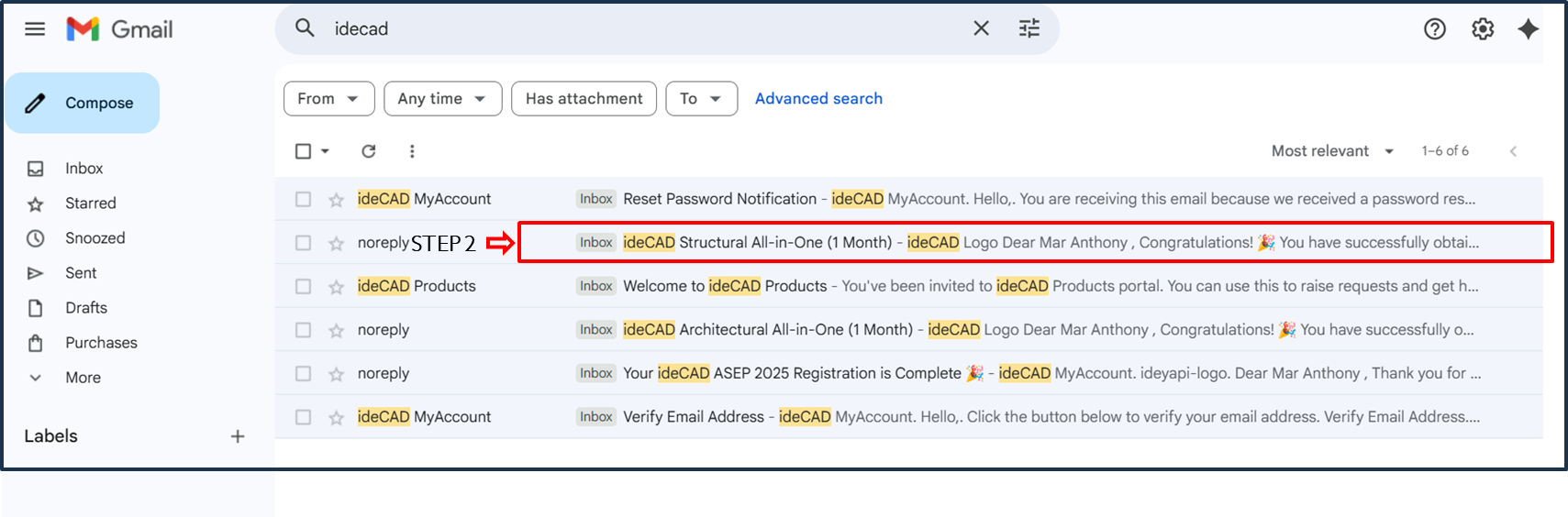
STEP 2: Open the ideCAD Structural All-in-One email.
-
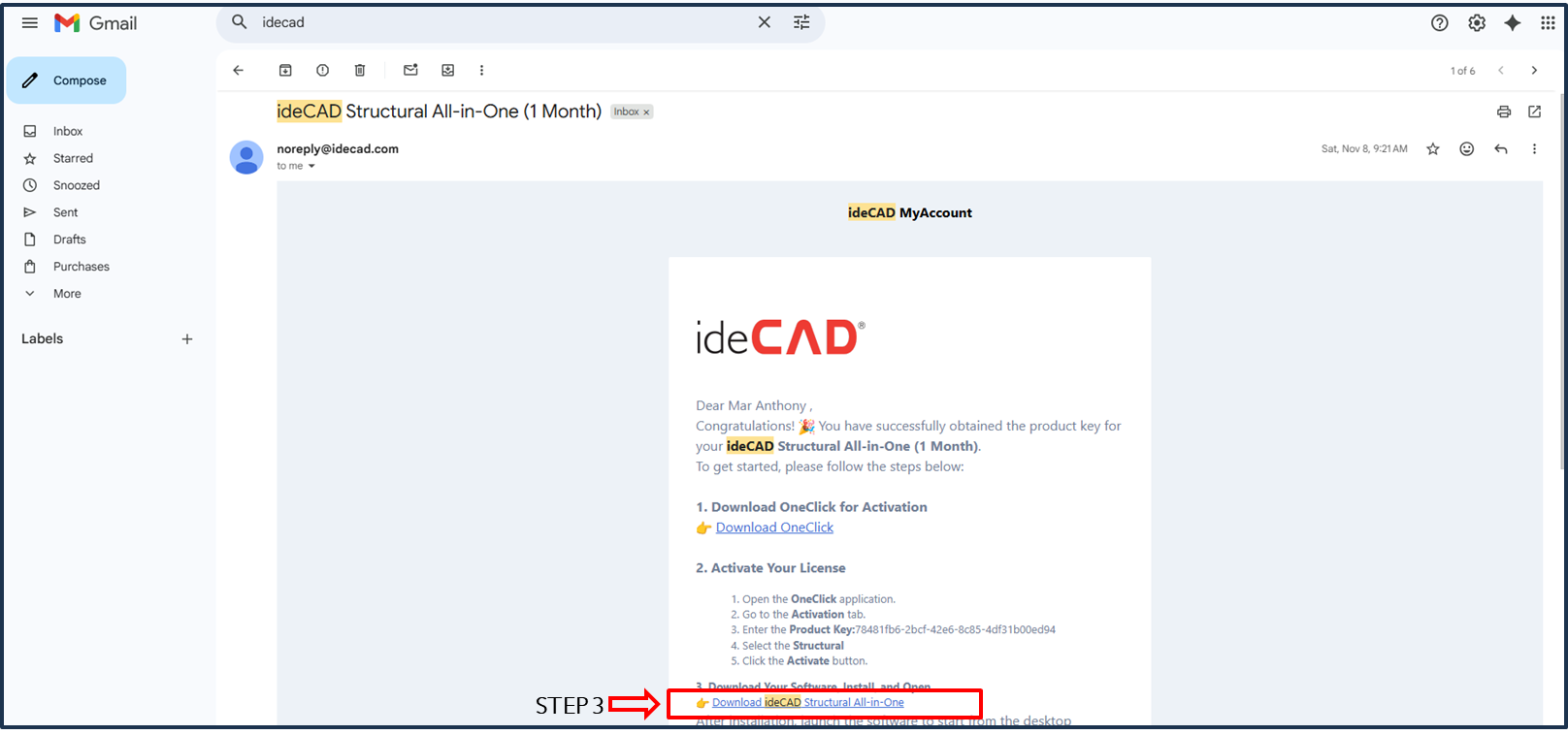
STEP 3: Click on the Download ideCAD Structural All-in-One.
-
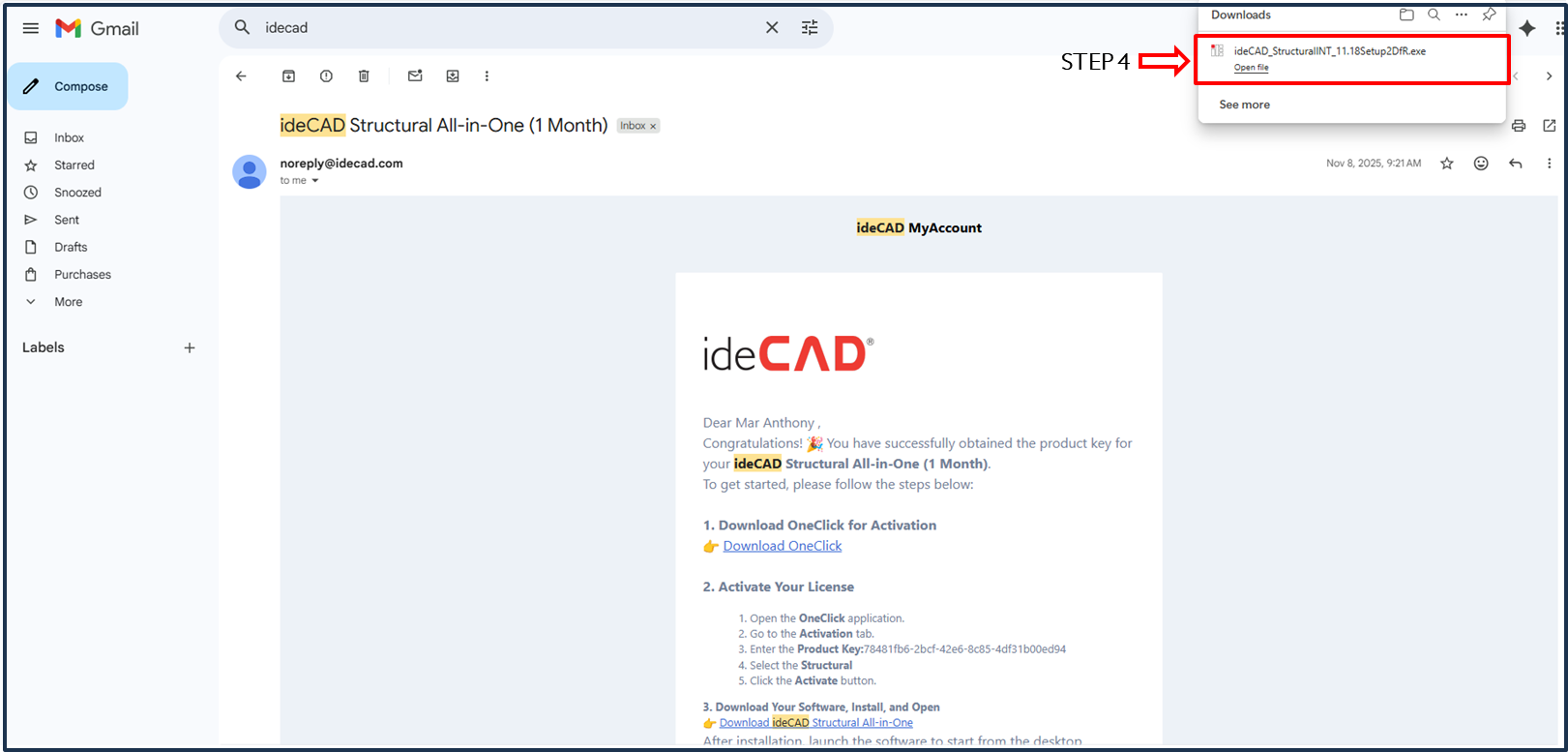
STEP 4: Click on the downloaded ideCAD Structural Setup to install.
-
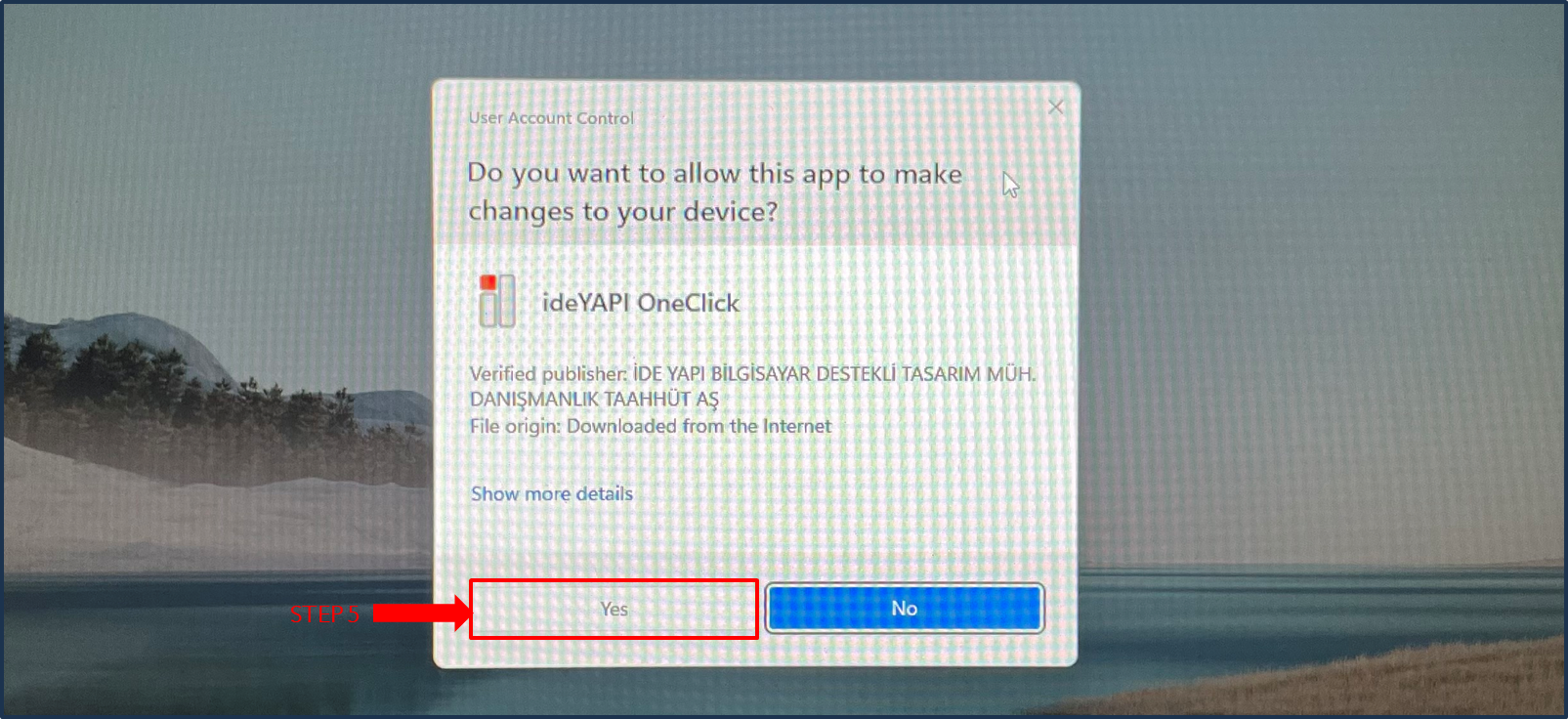
STEP 5: Click Yes.
-
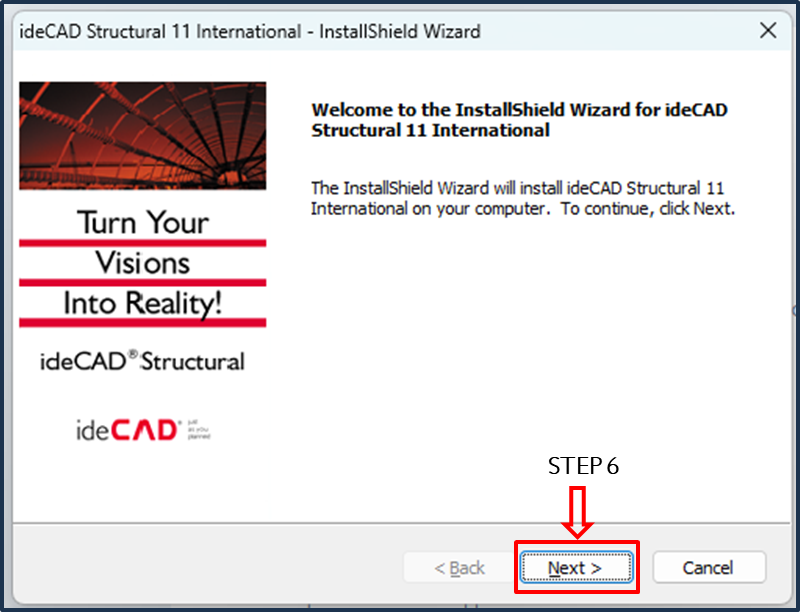
STEP 6: Click Next.
-
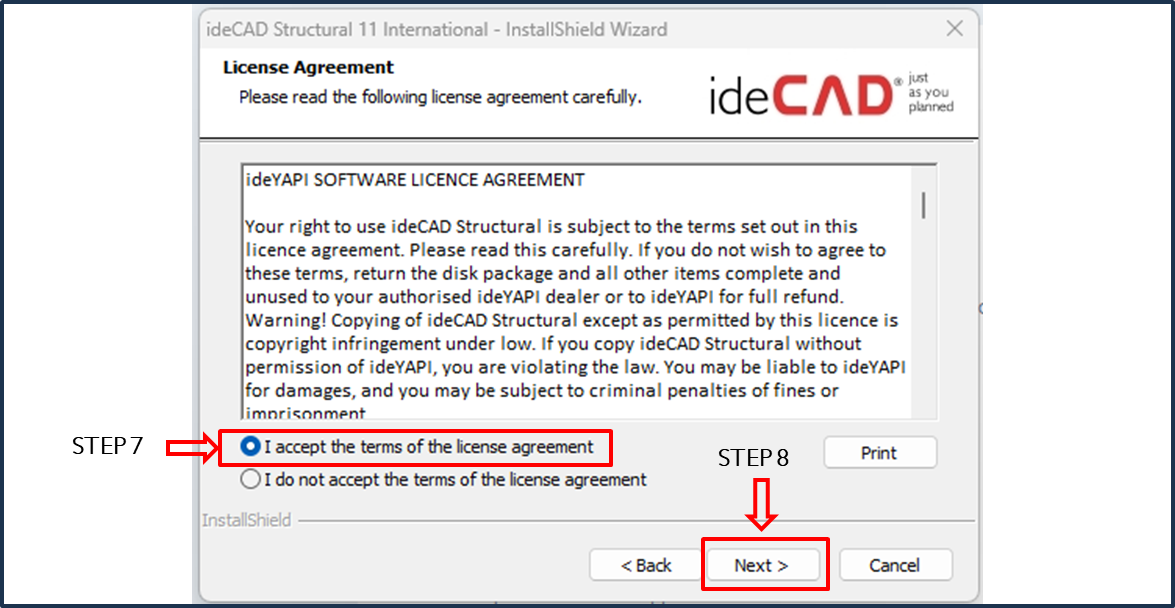
STEP 7: Read the license agreement and click 'I accept the terms of the license agreement'.
-
STEP 8: Click on Next.
-
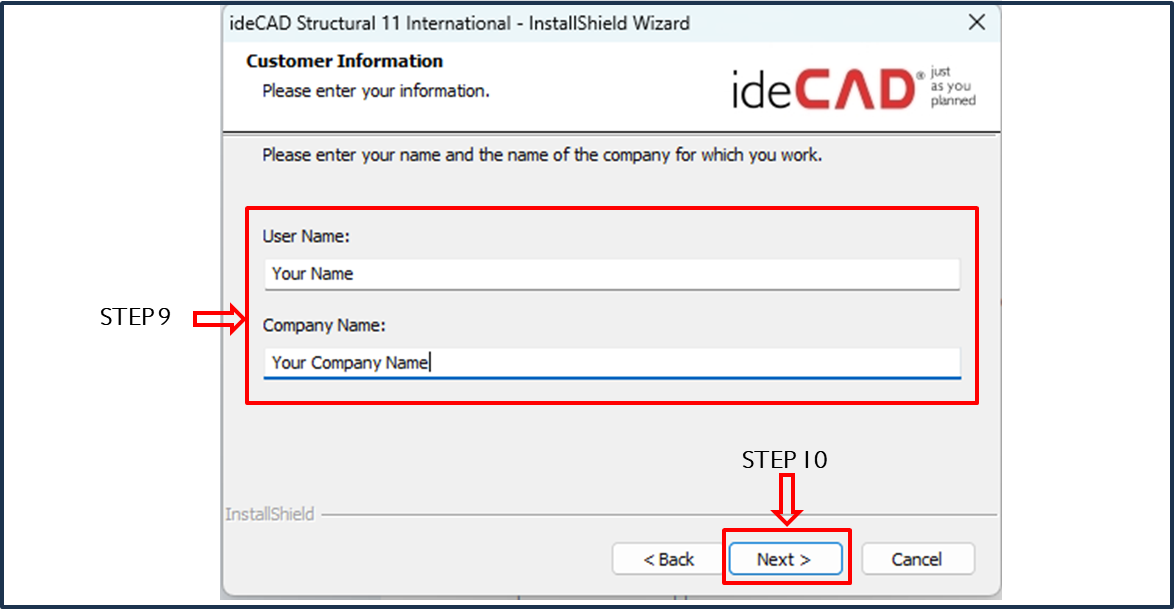
STEP 9: Enter your Name and Company Name.
-
STEP 10: Click on Next.
-
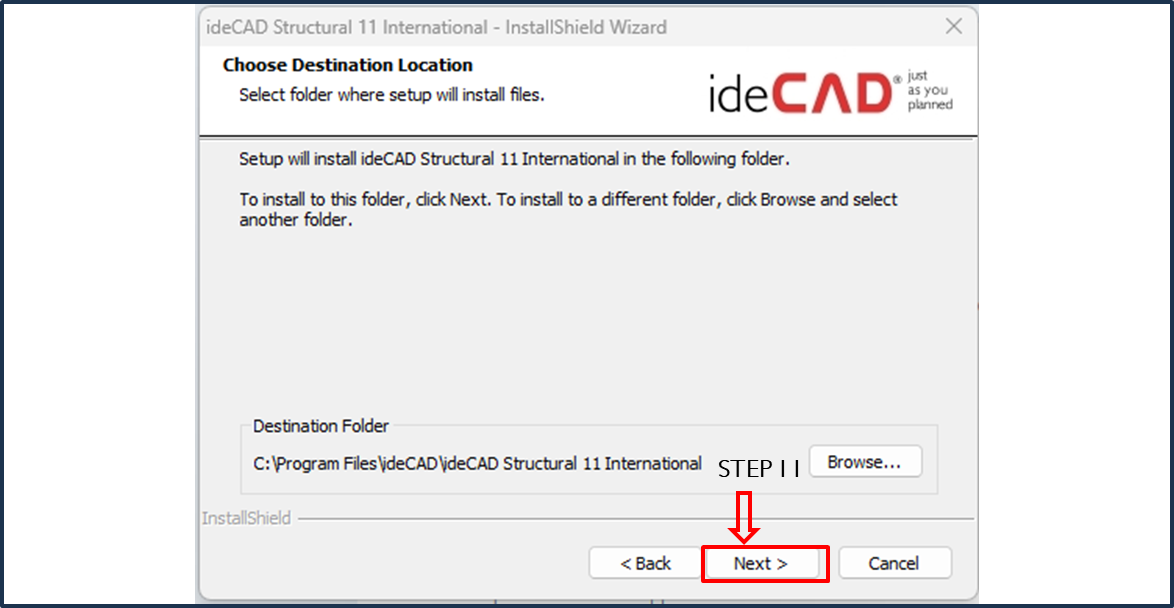
STEP 11: Click on Next.
-
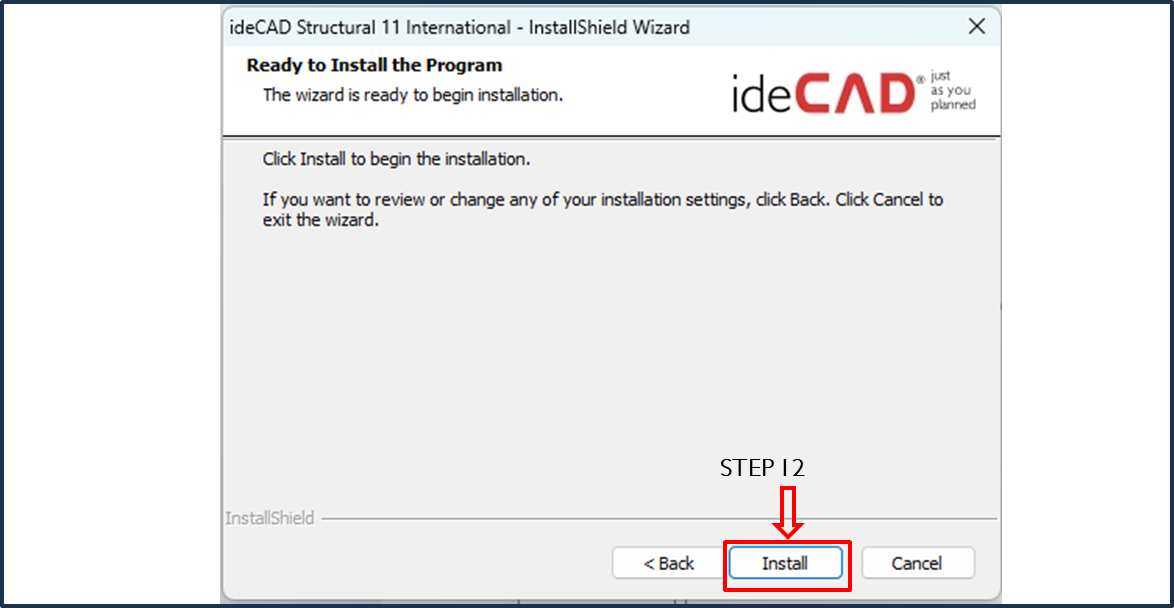
STEP 12: Click on Install.
-
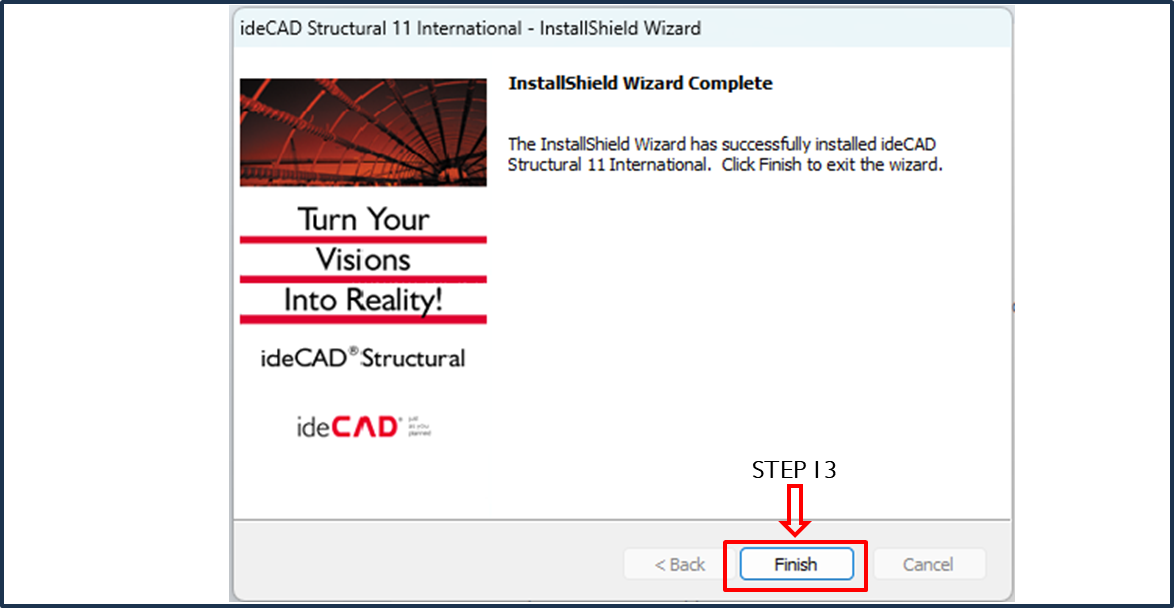
STEP 13: Click on Finish.
How to Download the Licensed Version of ideCAD Architectural
-
STEP 1: Go to your email inbox.
-
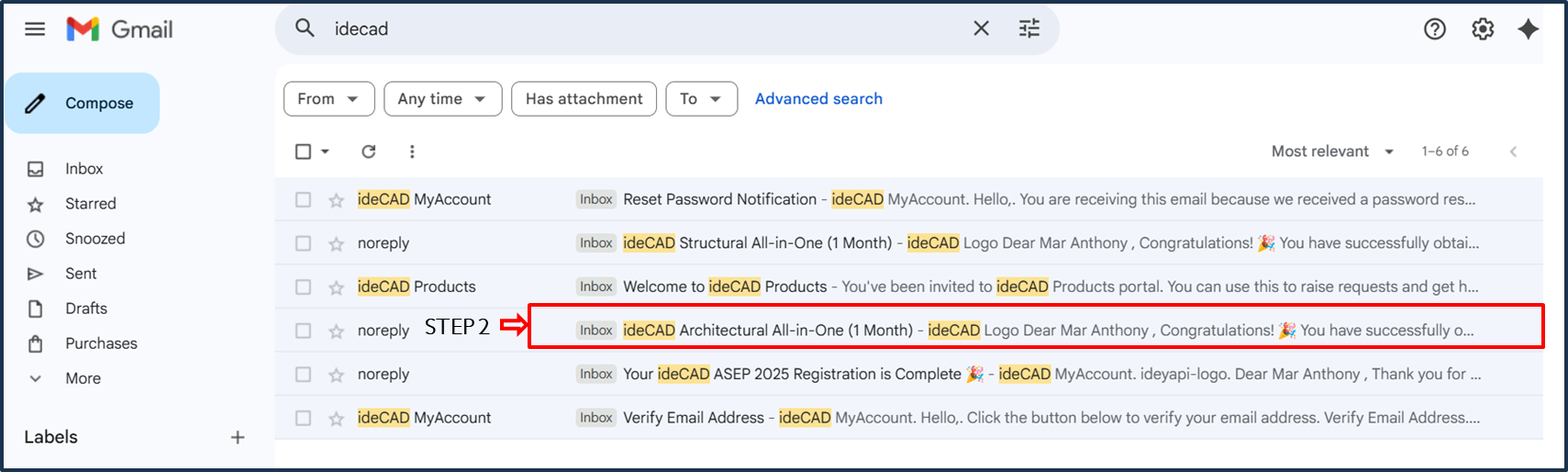
STEP 2: Open the ideCAD Architectural All-in-One email.
-
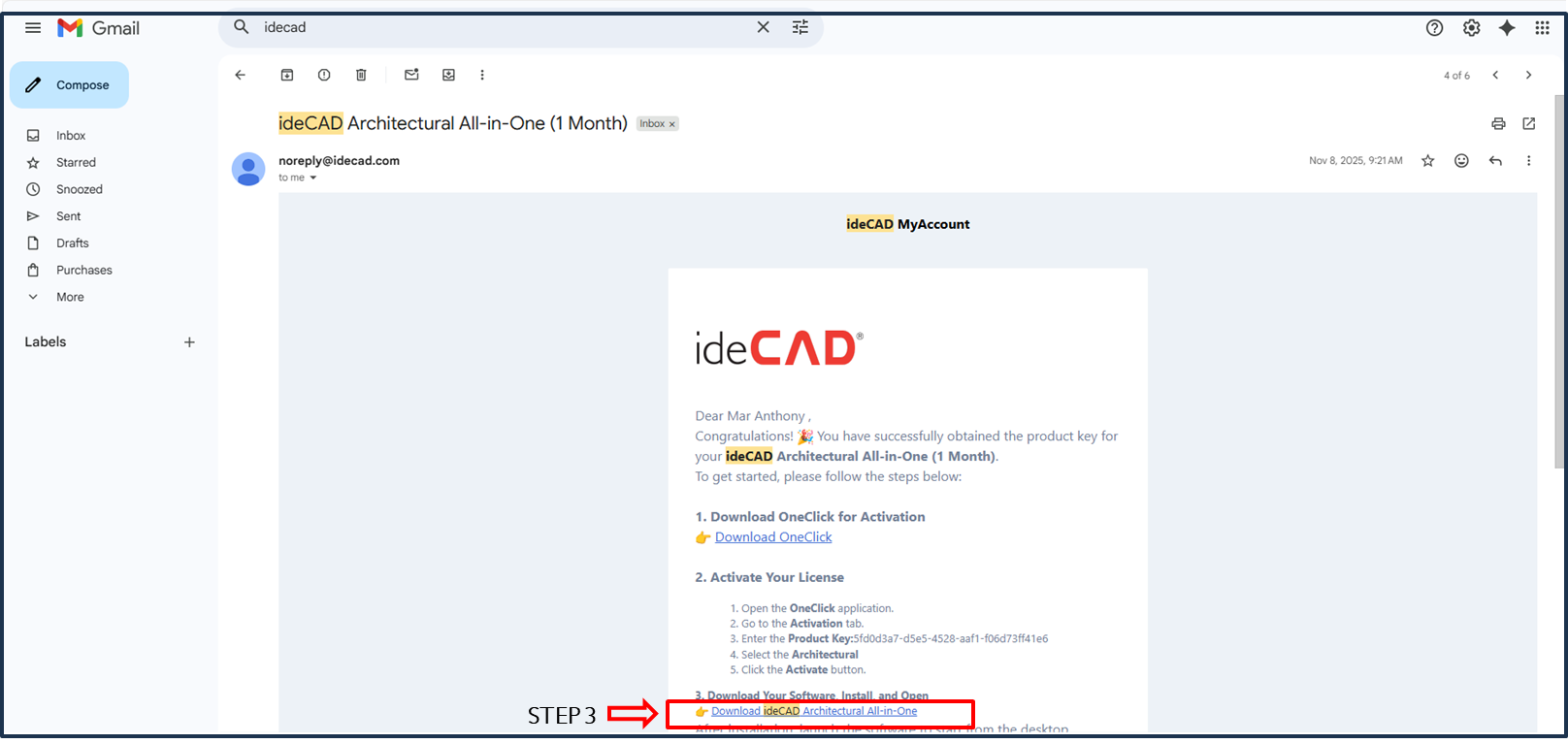
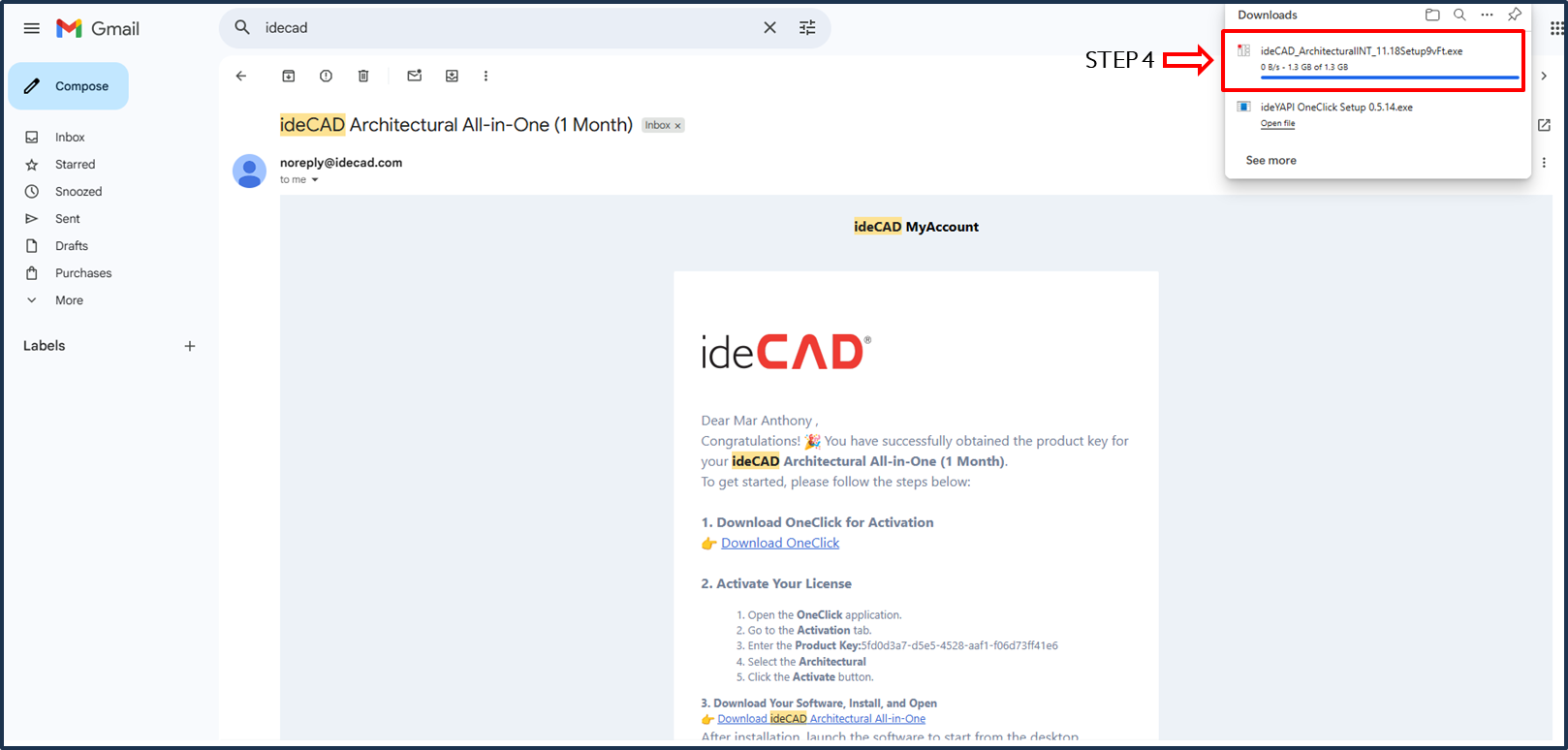
STEP 3: Click on “Download ideCAD Architectural All-in-One.”
-
STEP 4: Click on the downloaded ideCAD Architectural Setup to install.
-
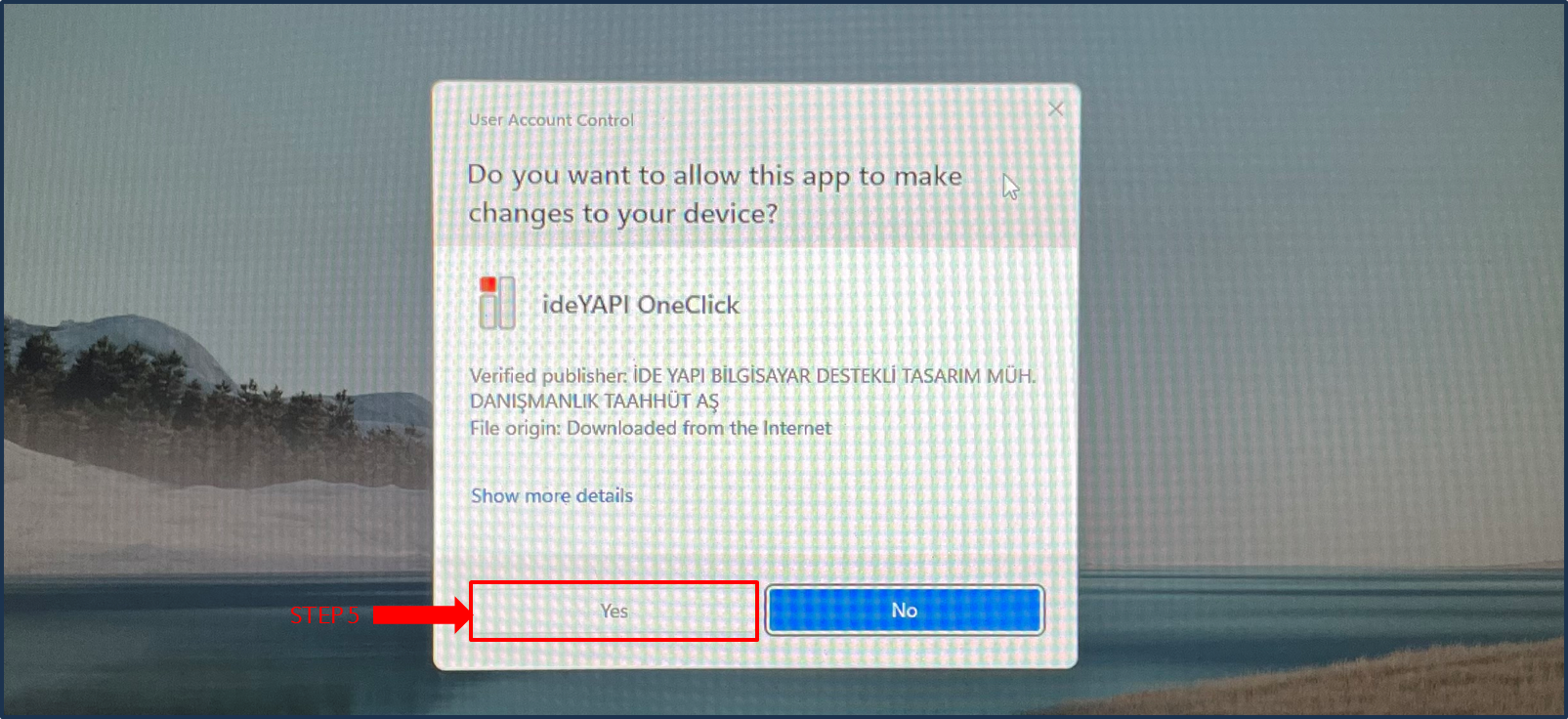
STEP 5: Click Yes.
-
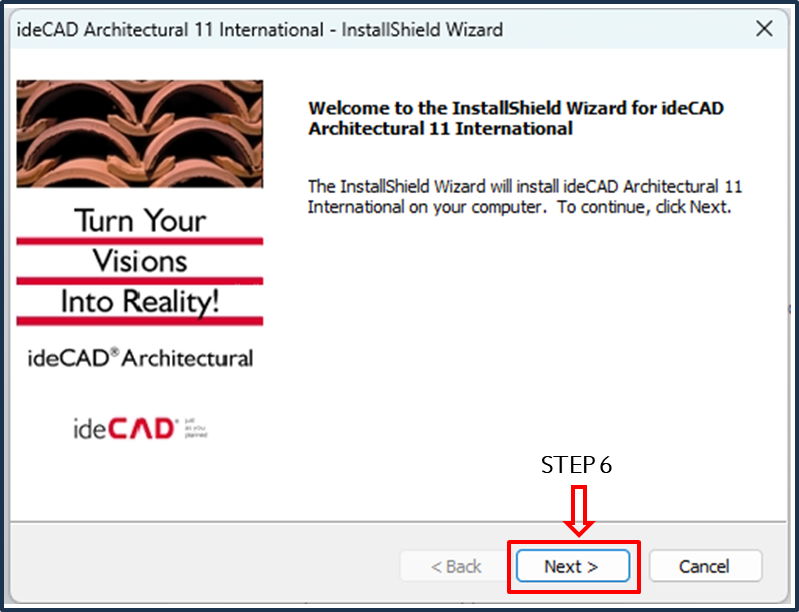
STEP 6: Click Next.
-
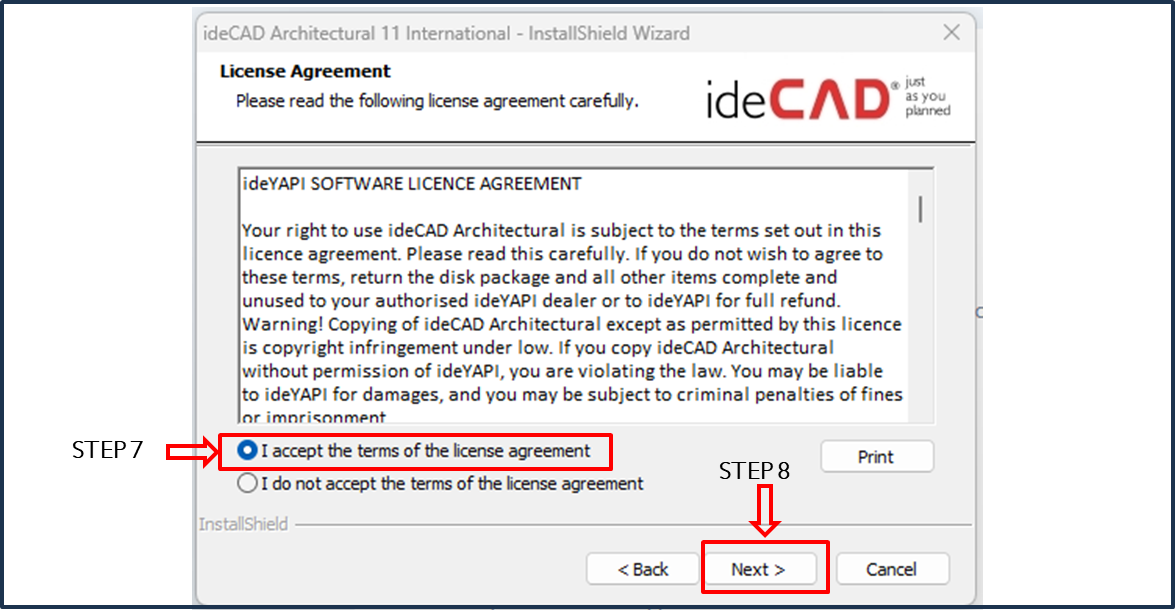
STEP 7: Click “I accept the terms of the license agreement.”
-
STEP 8: Click on Next.
-
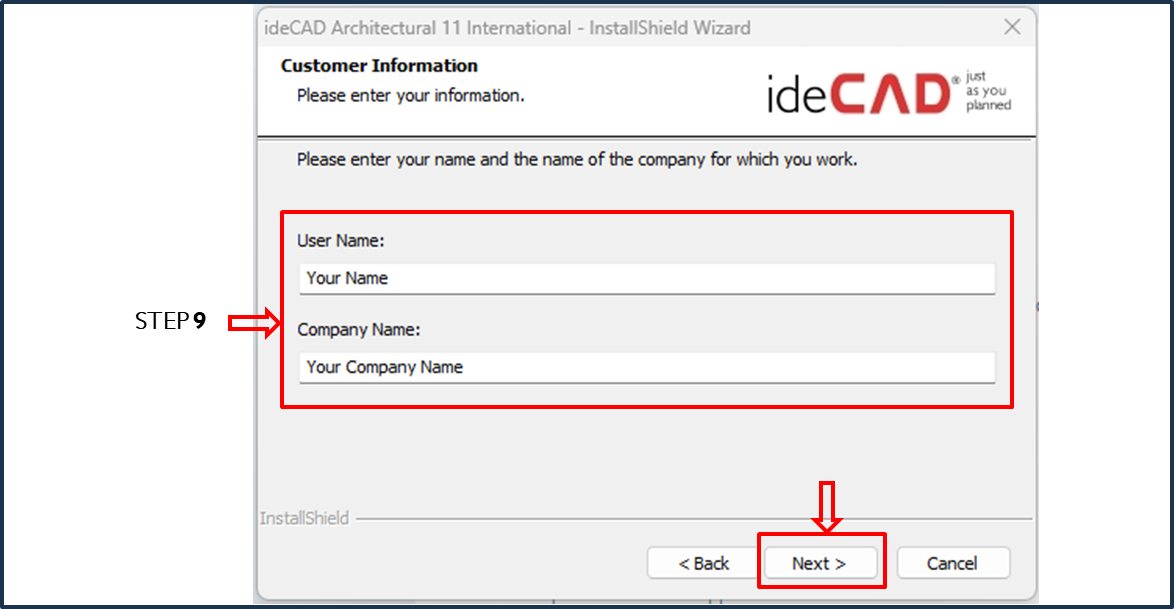
STEP 9: Enter your Name and Company Name.
-
STEP 10: Click on Next.
-
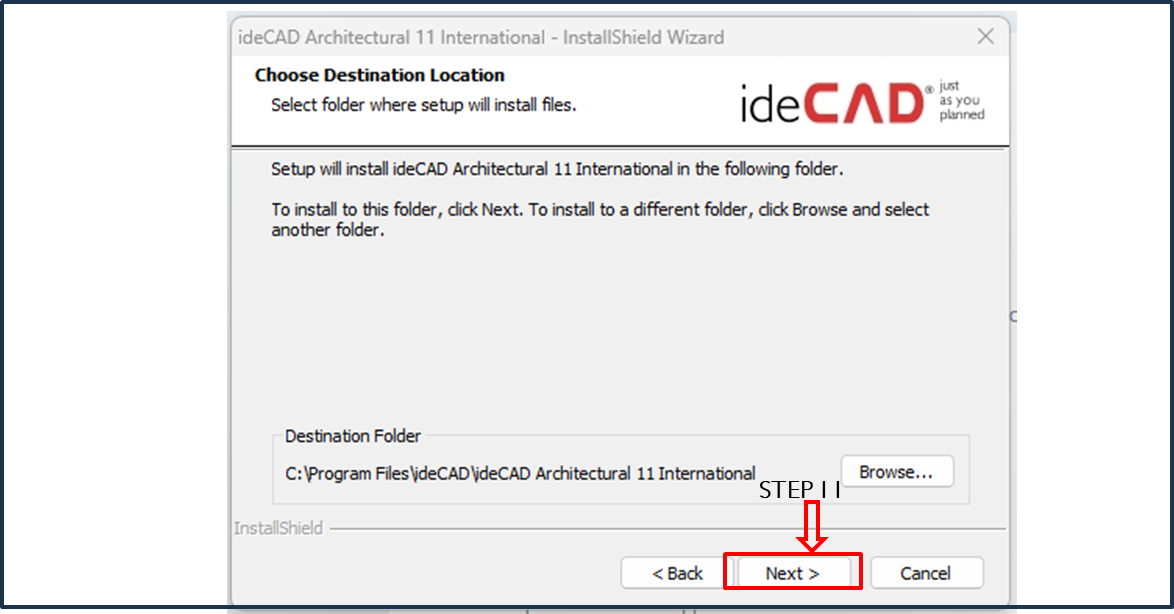
STEP 11: Click on Next.
-
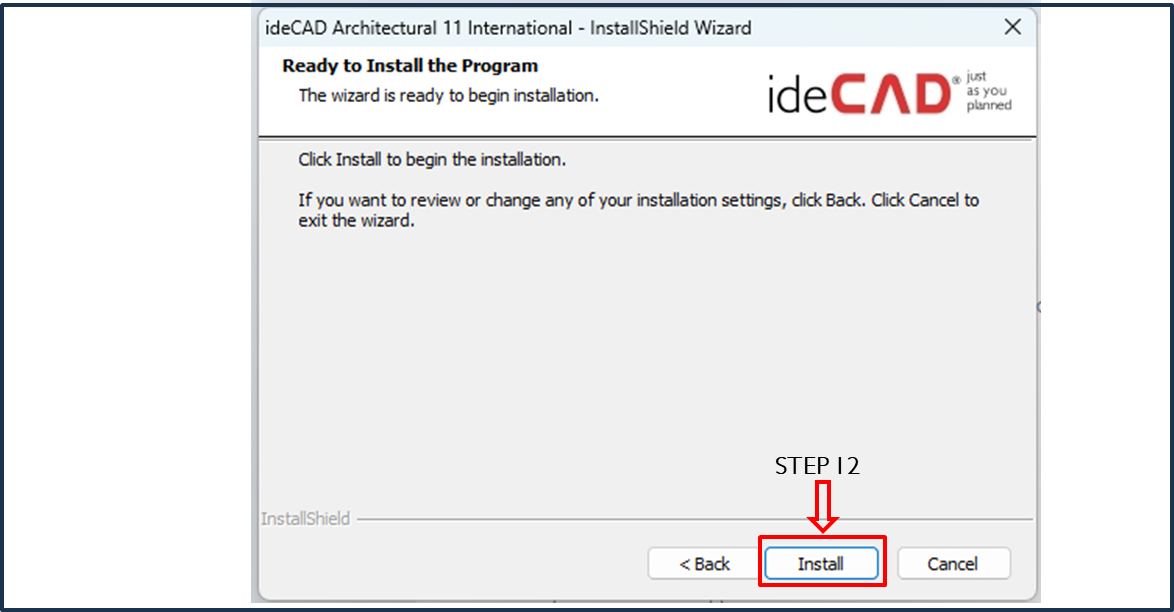
STEP 12: Click on Install.
-
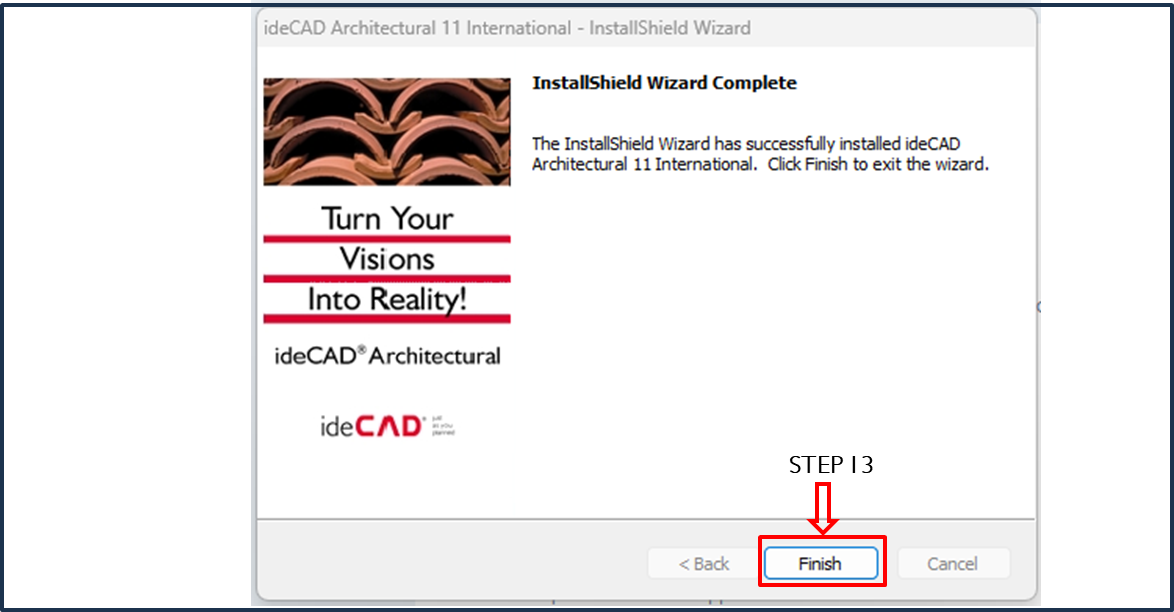
STEP 13: Click on Finish.
Learn with ideCAD Video Tutorials
-
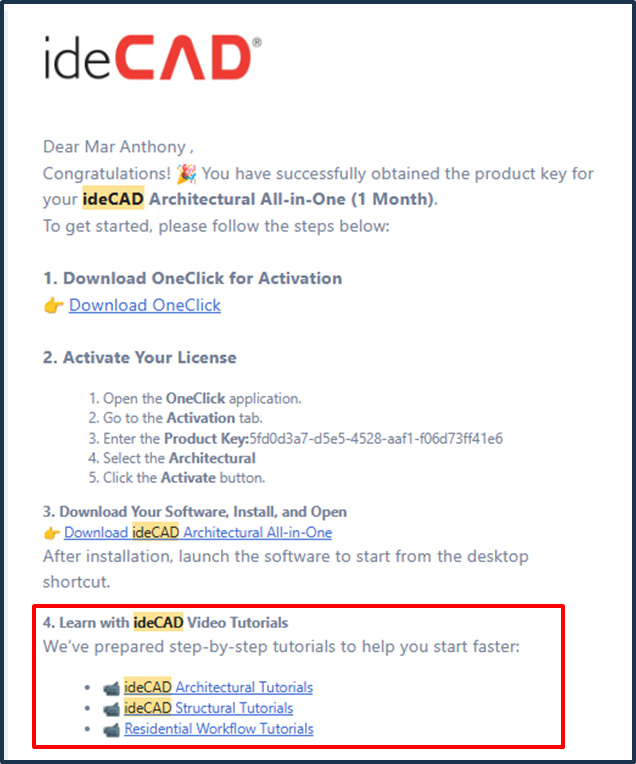
We included links in our emails for quick access to video tutorials on our YouTube channel. Click these links to go directly to our channel.
-
You can also visit our YouTube channel via the YouTube app or website and search for ideCAD as shown.

Explore the ideCAD Knowledge Base
-
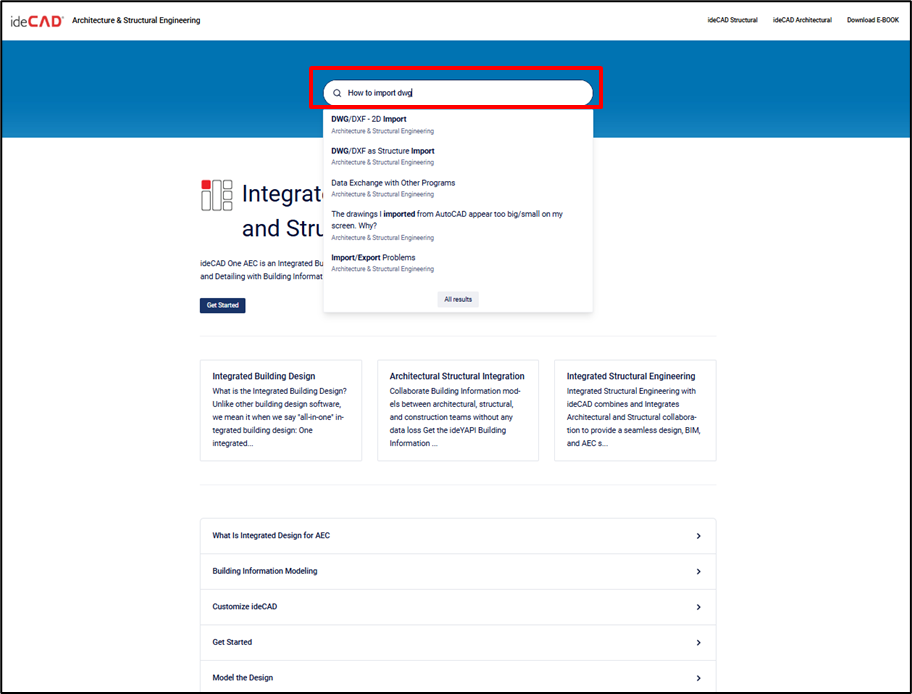
Go to https://help.idecad.com/ website.
-
Type your question or topic in the search bar.
-
Pressing F1 after clicking a command will instantly open the corresponding ideCAD help page.
How to Create a Password for the Customer Portal
-
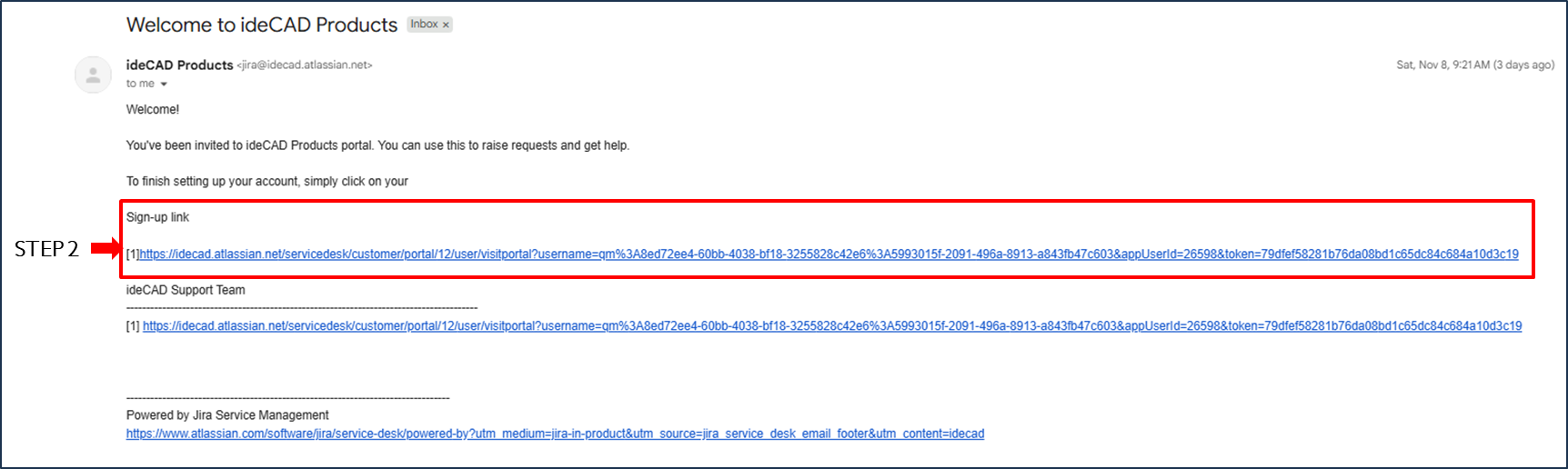
STEP 1: Go to your email and look for ideCAD Products.
-
STEP 2: Click the Sign-up link in the email.
-
STEP 3: Enter your Full name and Password.
-
STEP 4: Click Set password.

The invitation mail has expired. How do I create a password?

-
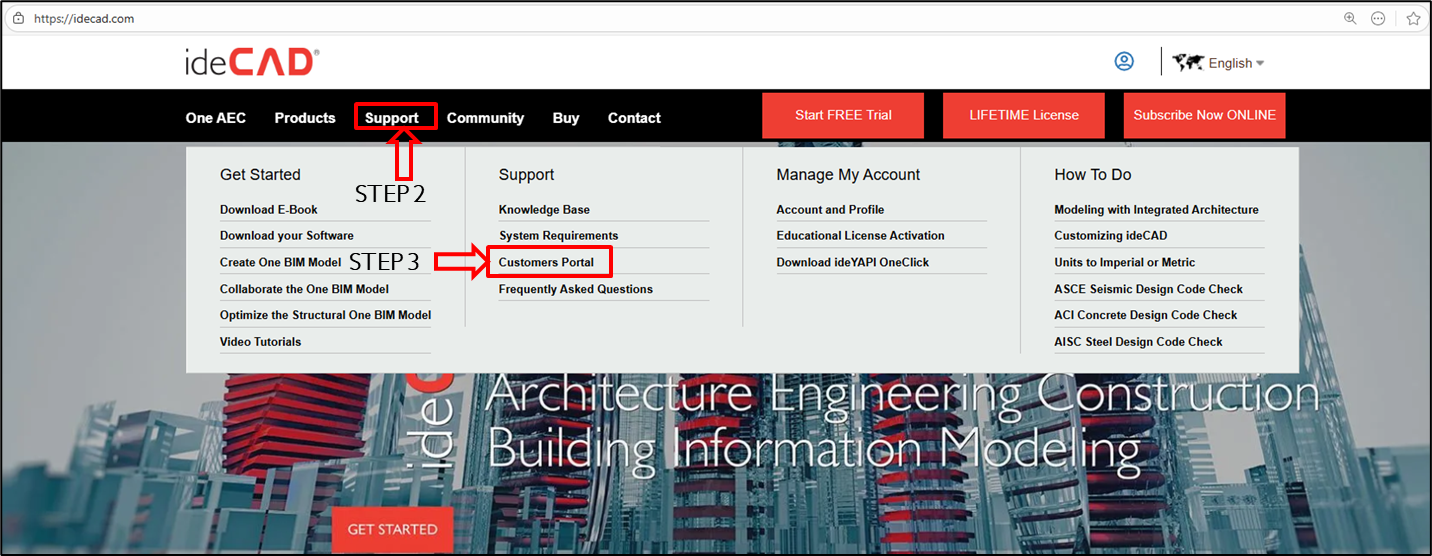
STEP 1: Go to https://idecad.com/ website.
-
STEP 2: Click on Support.
-
STEP 3: Click on the Customers Portal.
-
STEP 4: Enter your e-mail address.
-
STEP 5: Click on Next.

-
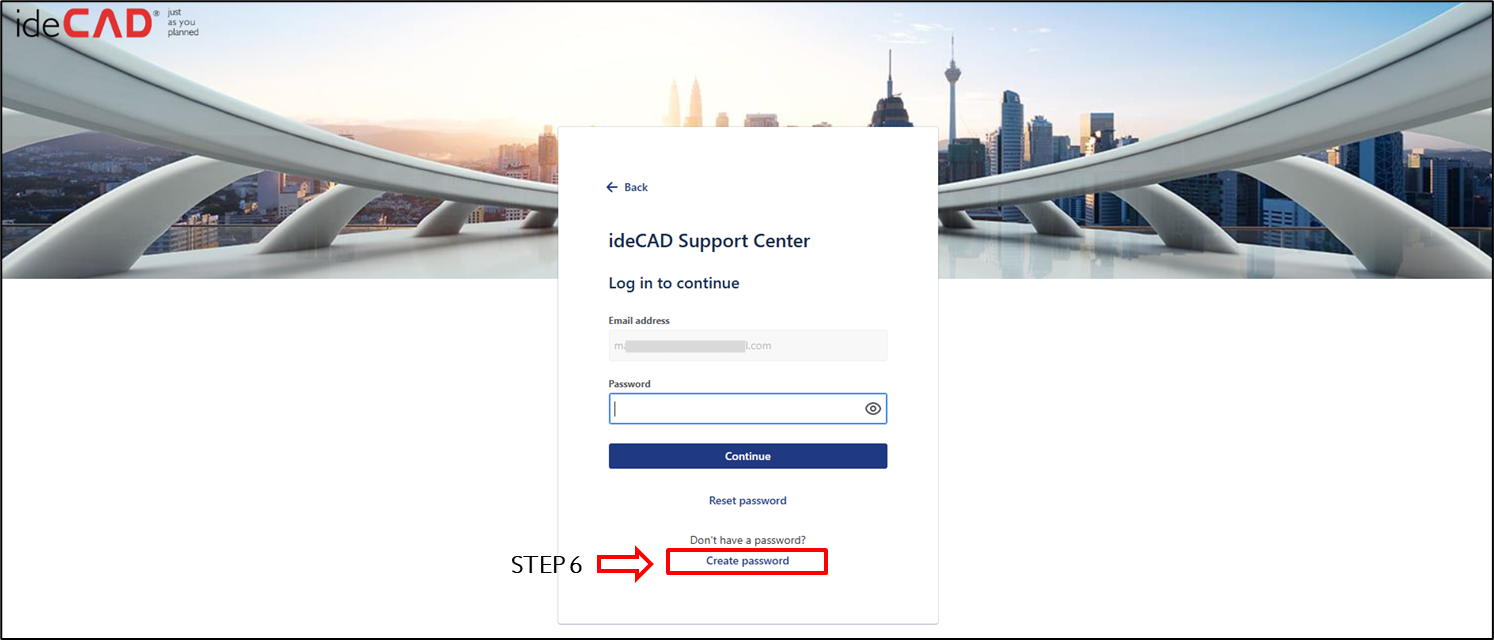
STEP 6: Click Create password.
-
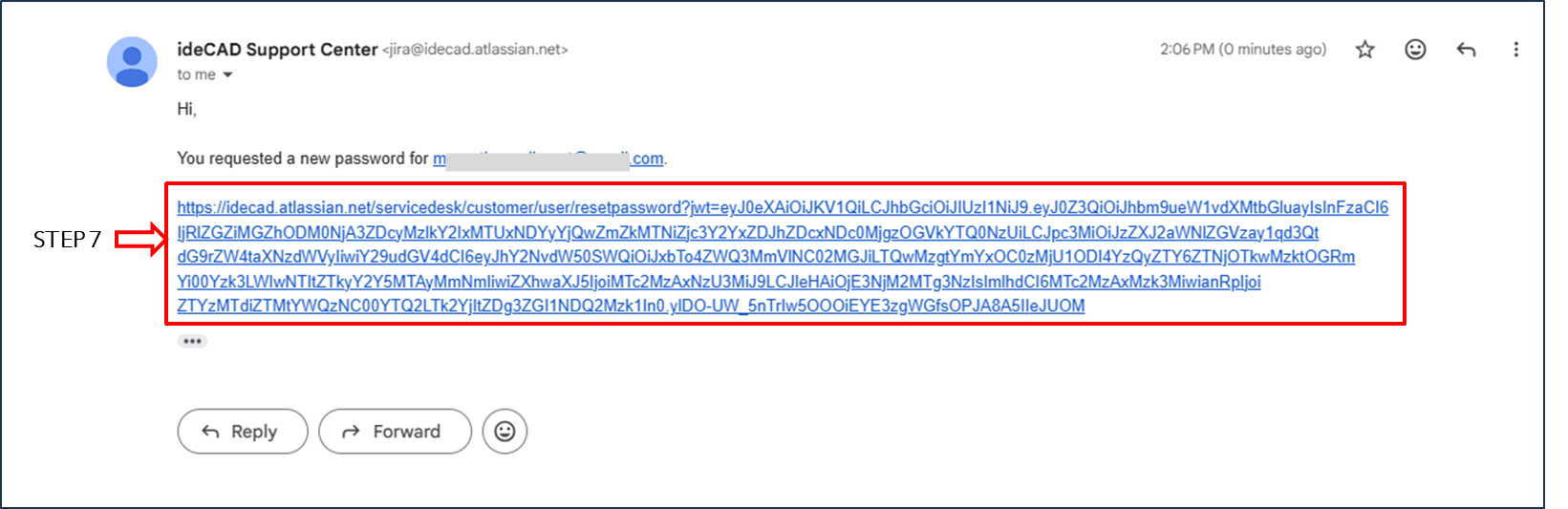
STEP 7: Click the link.
-
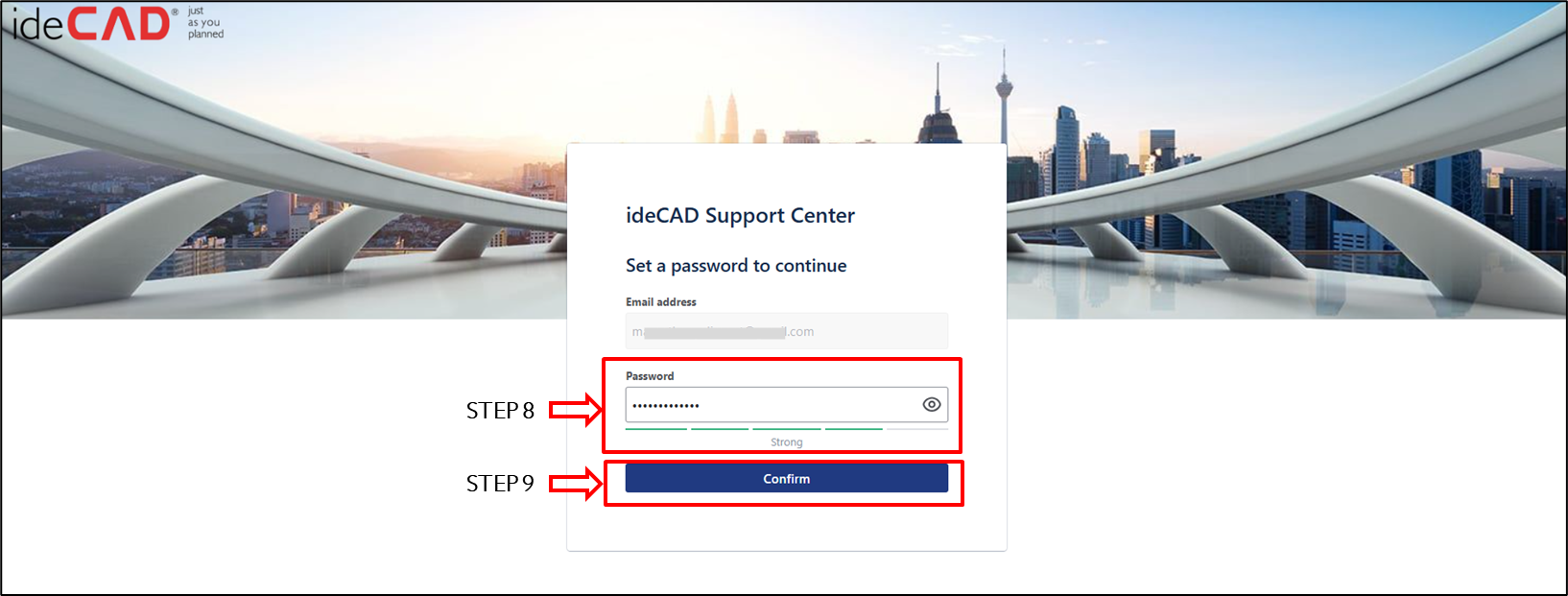
STEP 8: Enter a password.
-
STEP 9: Click Confirm.
How to Reach the Customers Portal
-
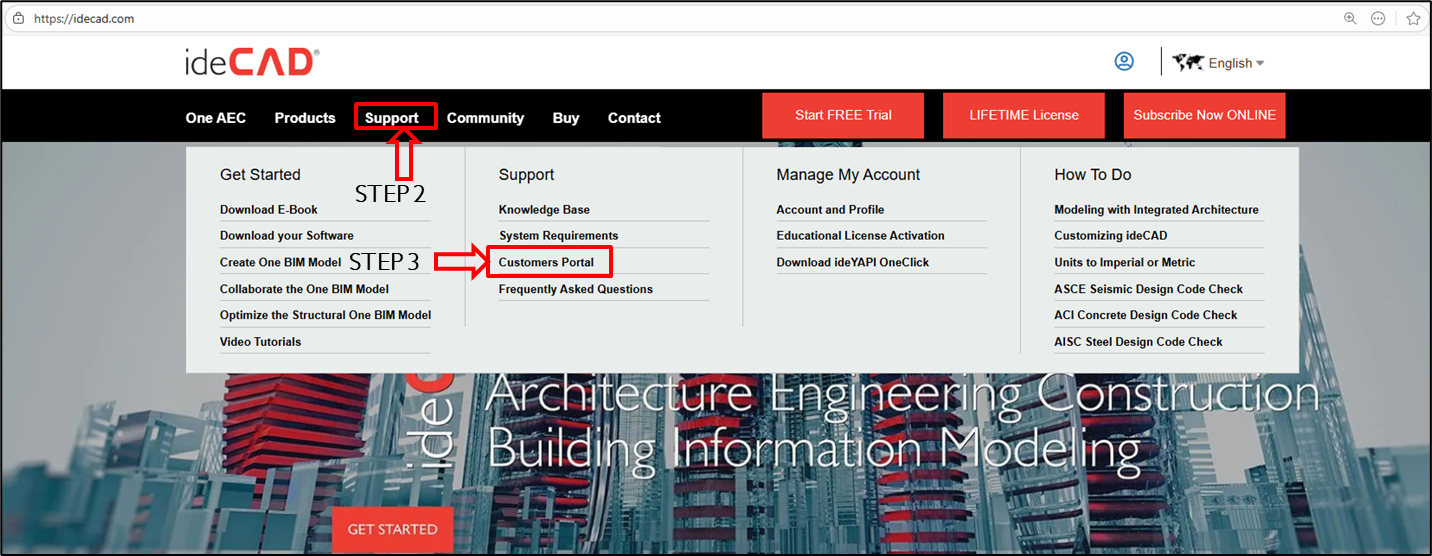
STEP 1: Go to https://idecad.com/ website.
-
STEP 2: Click on Support.
-
STEP 3: Click on the Customers Portal.
-
STEP 4: Enter your e-mail address.
-
STEP 5: Click the Next button.

-
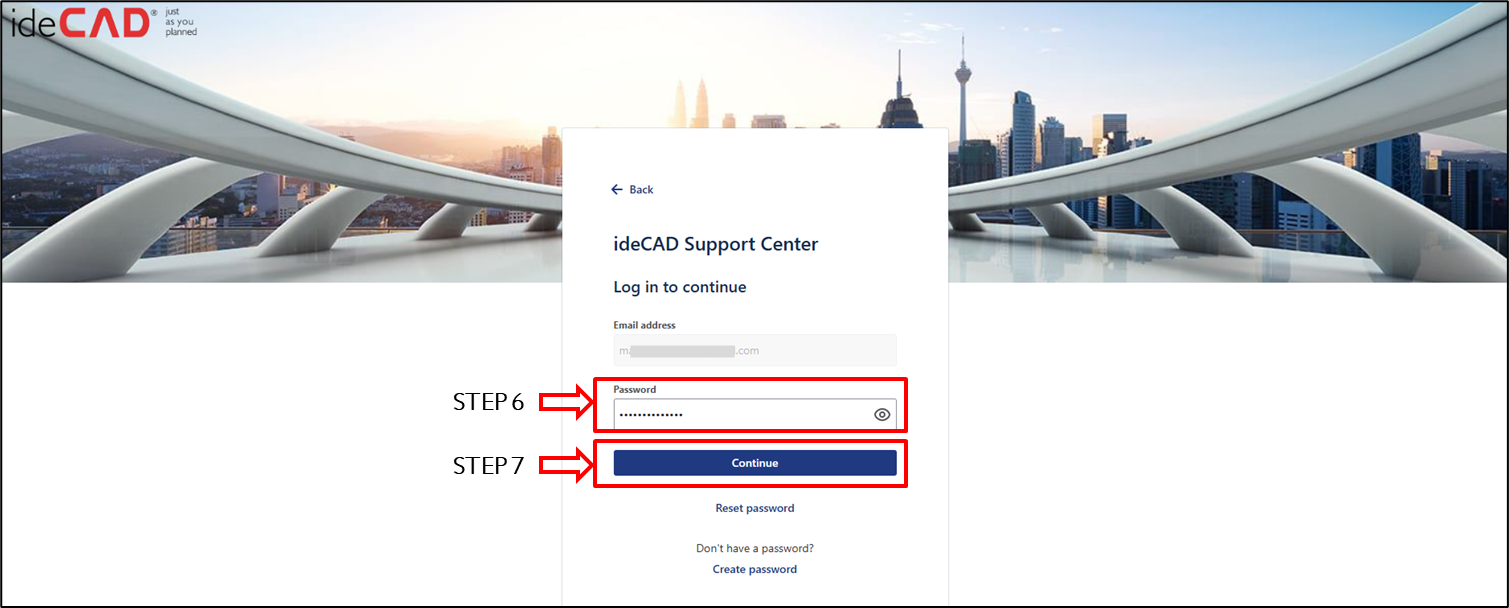
STEP 6: Enter your password.
-
STEP 7: Click Continue.
-
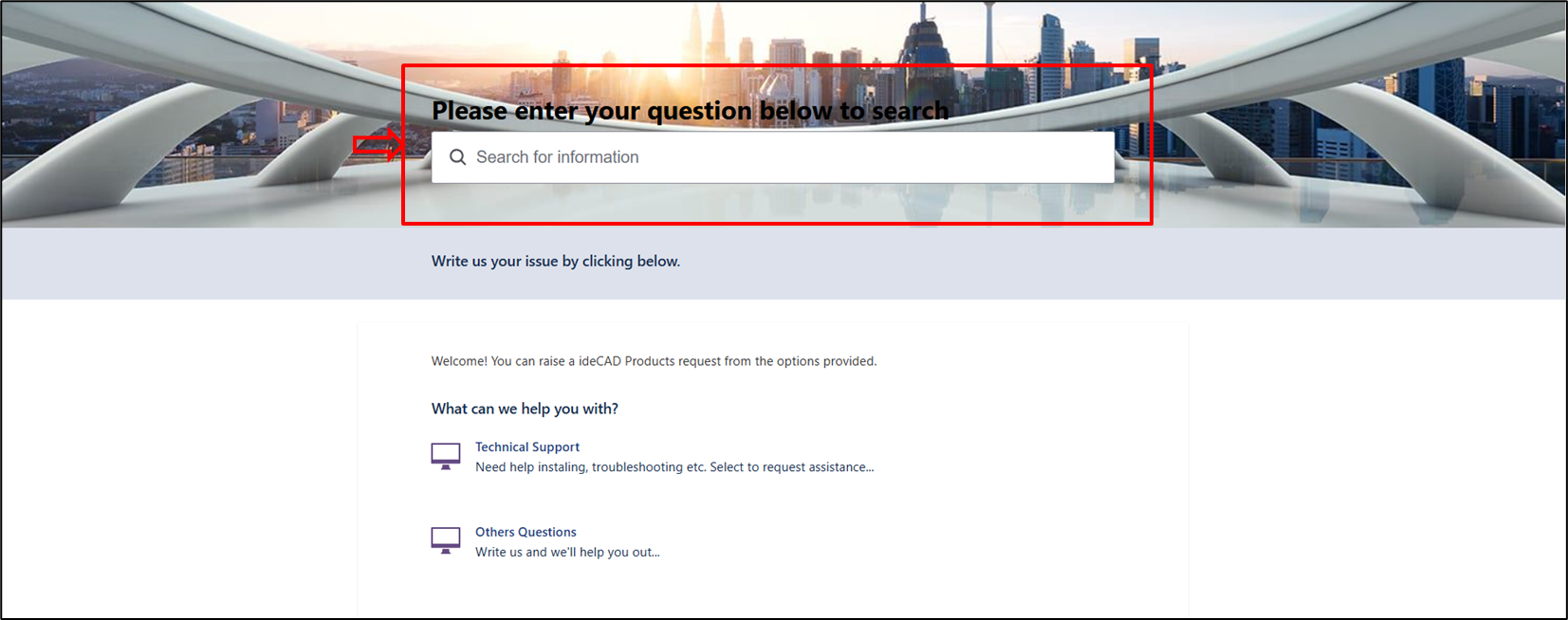
After you 'successfully logged into the Customers Portal', you land on the main support page. Here, you initiate a support request.
-
Before submitting a new ticket, 'please enter your question below to search.'
-
This search bar checks our extensive knowledge base. It offers the quickest route to an answer, often providing an instant solution.
-
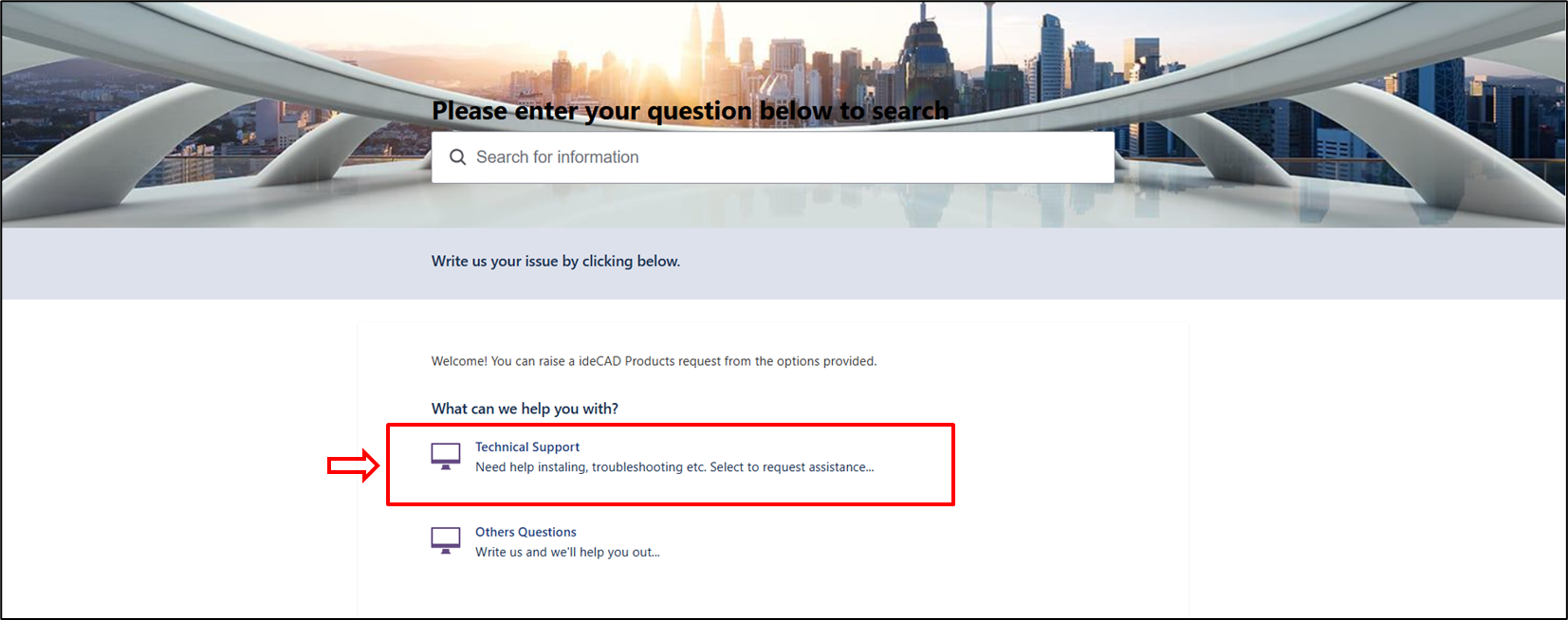
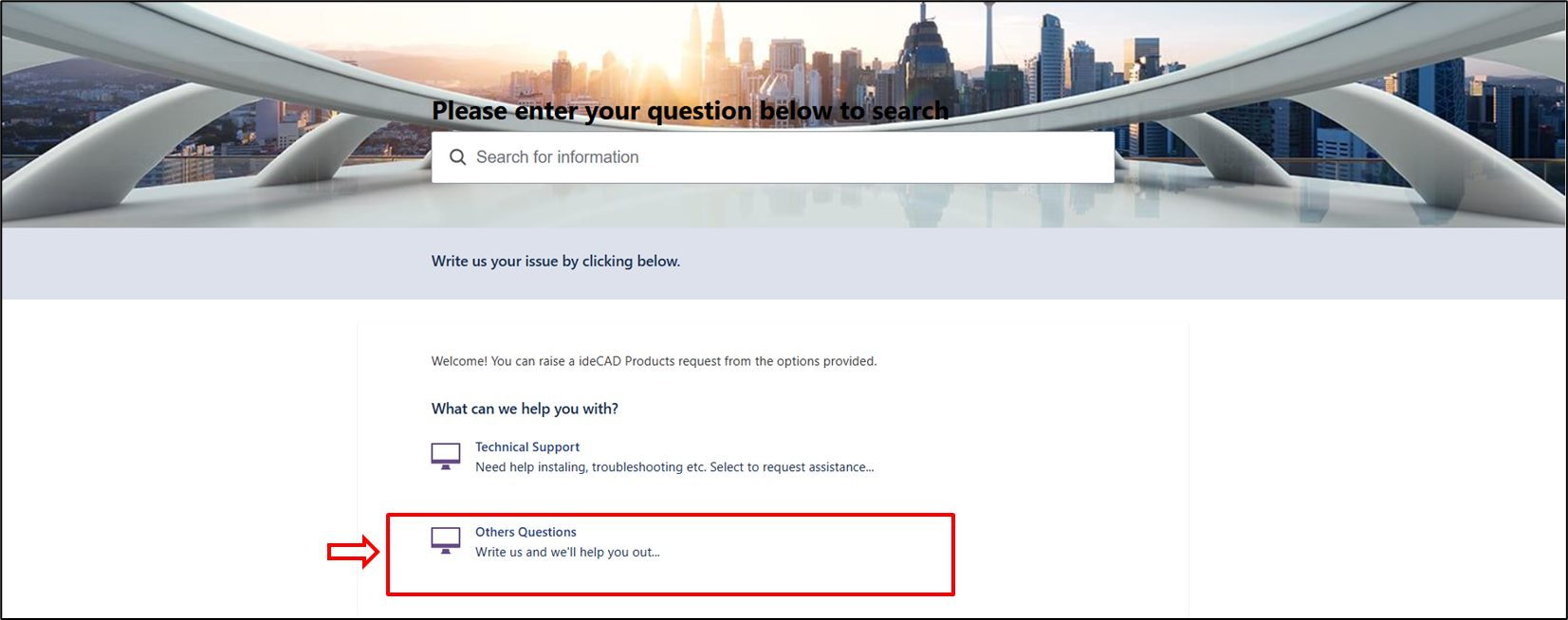
If your search does not provide an answer, select one of the two options below:
-
Technical Support: Choose this for hands-on issues such as installation problems, troubleshooting, or an error encountered while using the software.
-
Others Questions: Use this for general inquiries, such as licensing questions, membership details, or non-technical feedback.
How to Ask Questions in the Customer Portal
-
Selecting either of the two options above opens the support form. To assist you promptly, please complete it clearly.
-
Required fields are marked with an asterisk (*)."
-
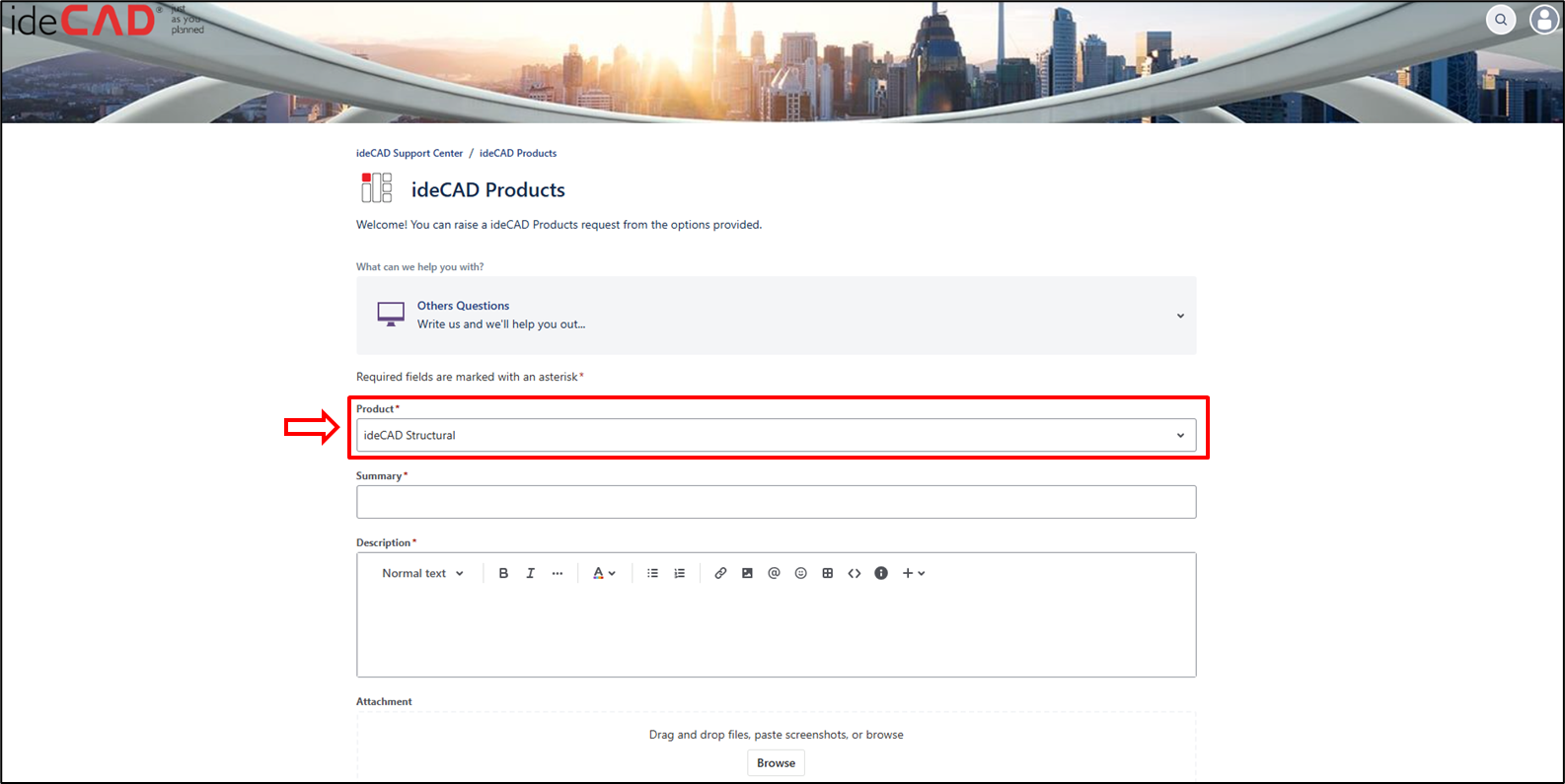
In the Product: select your ideCAD product from the drop-down menu.
-
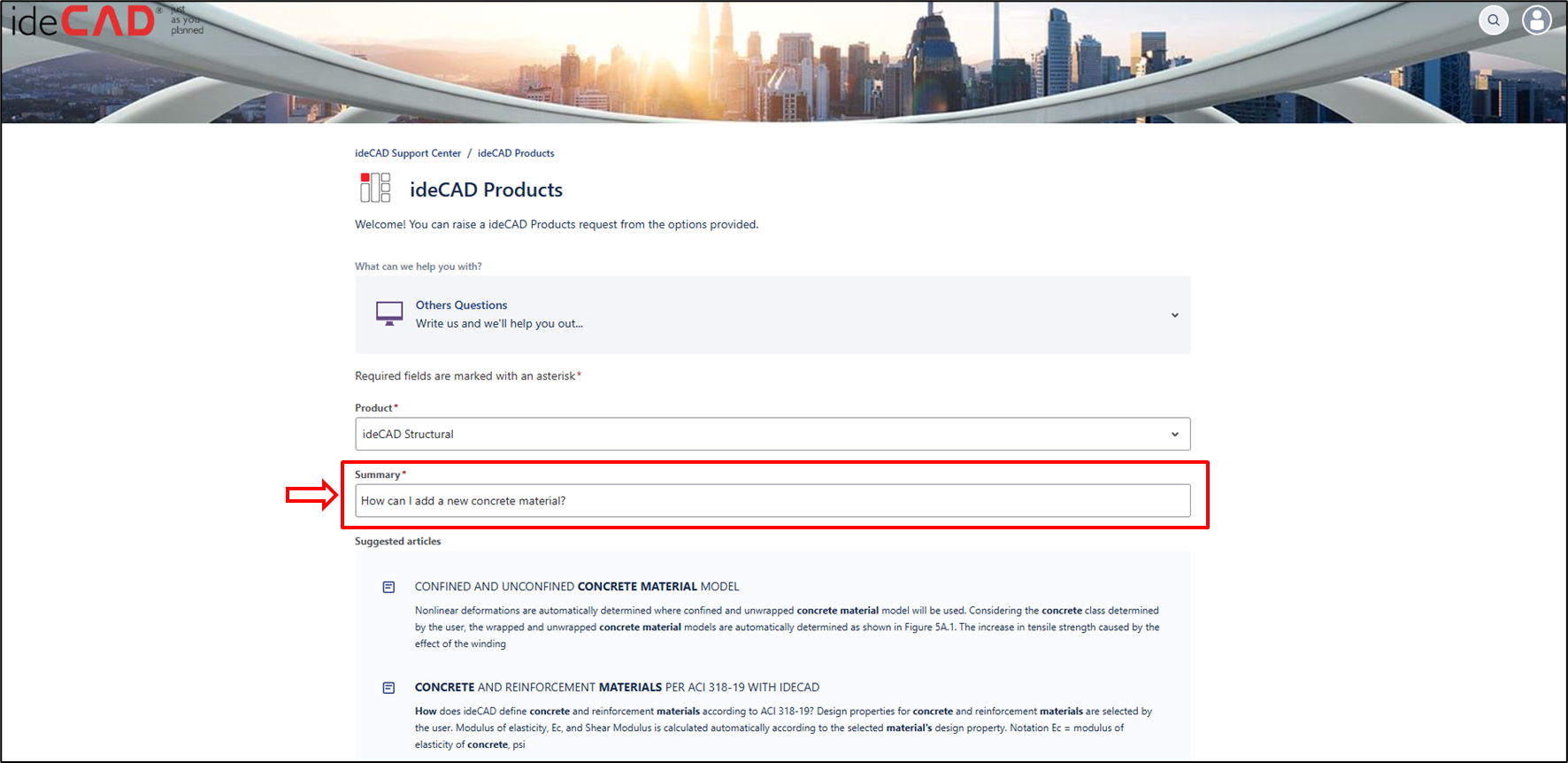
In the summary: This is your clear, concise headline. It must describe the core issue in one sentence, e.g., How can I define a new concrete material?
-
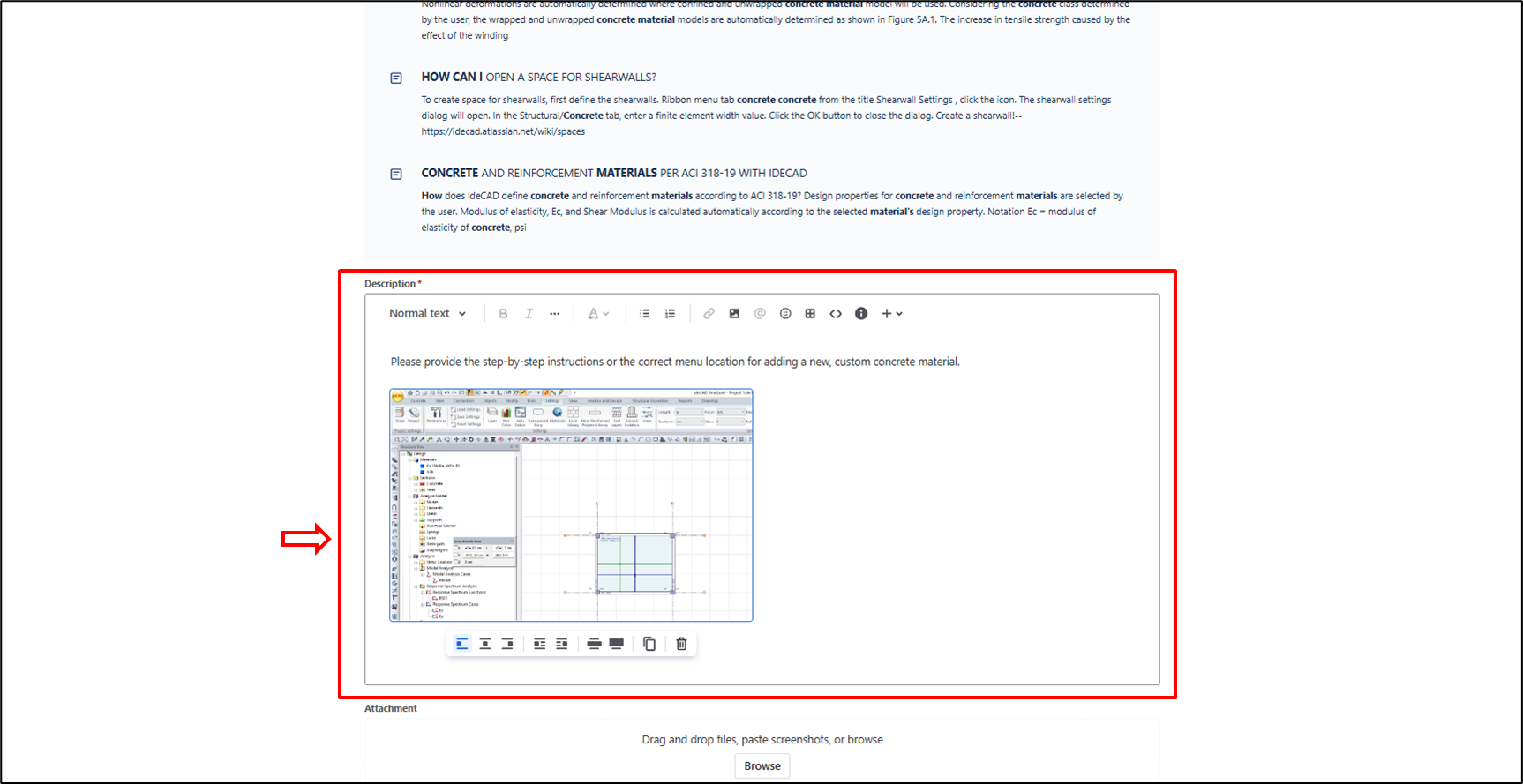
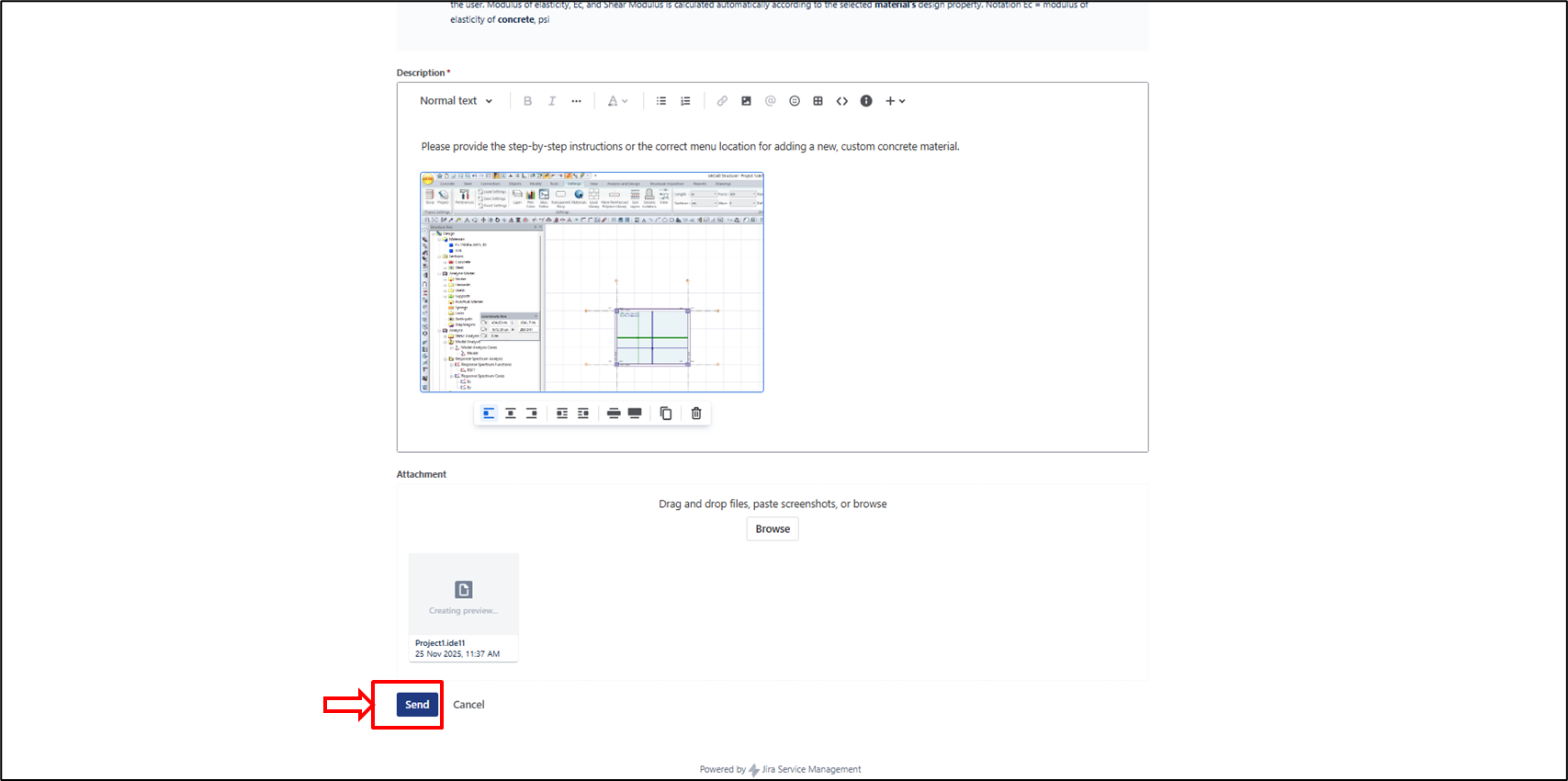
In the Description: detail the event, exact steps taken, and the expected versus actual outcomes. Providing detailed context is crucial for quick resolution. You may also include screenshots.
-
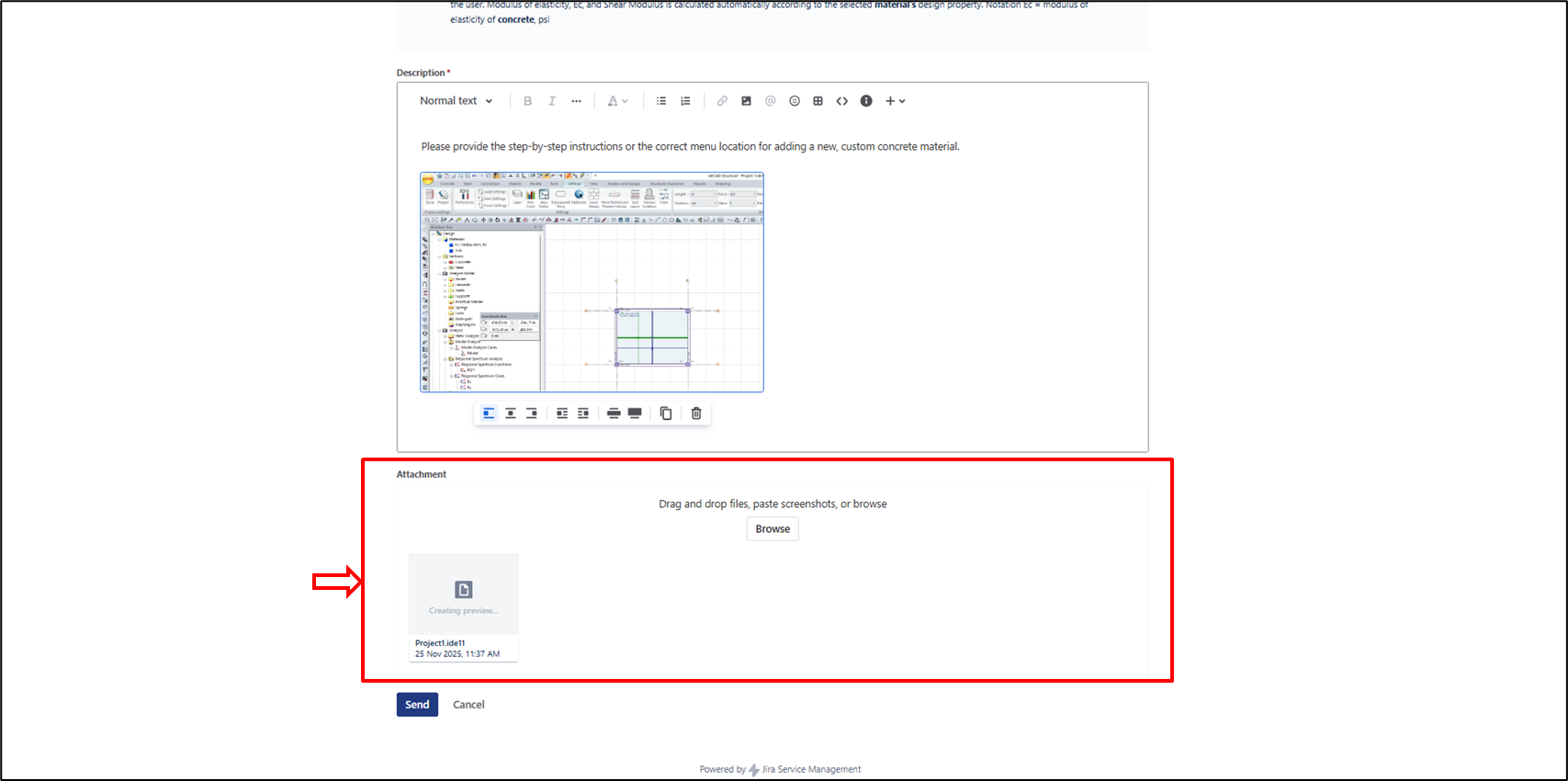
Finally, use the Attachment section to drag and drop files or browse.
-
A screenshot of an error and the relevant project file often let us resolve your problem in one step.
-
"Once complete, click 'Send'. This process ensures you receive the direct support you need."
How to Check the Status of Your Request
-
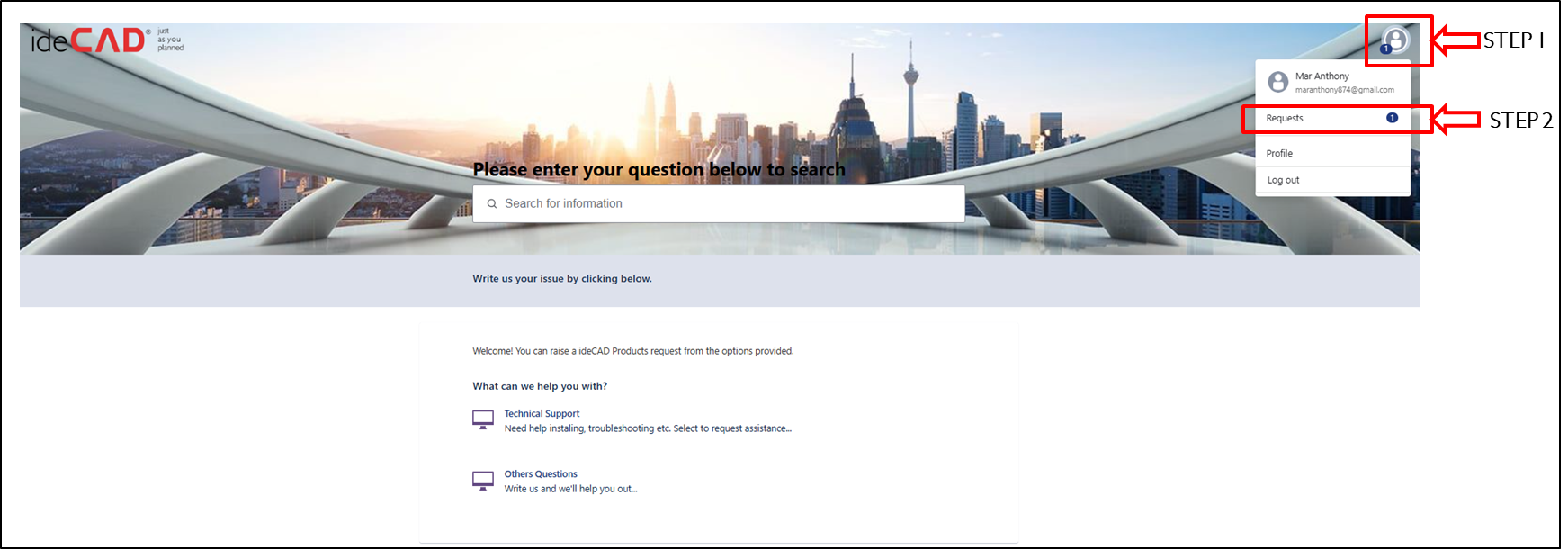
STEP 1: Click Profile and Settings.
-
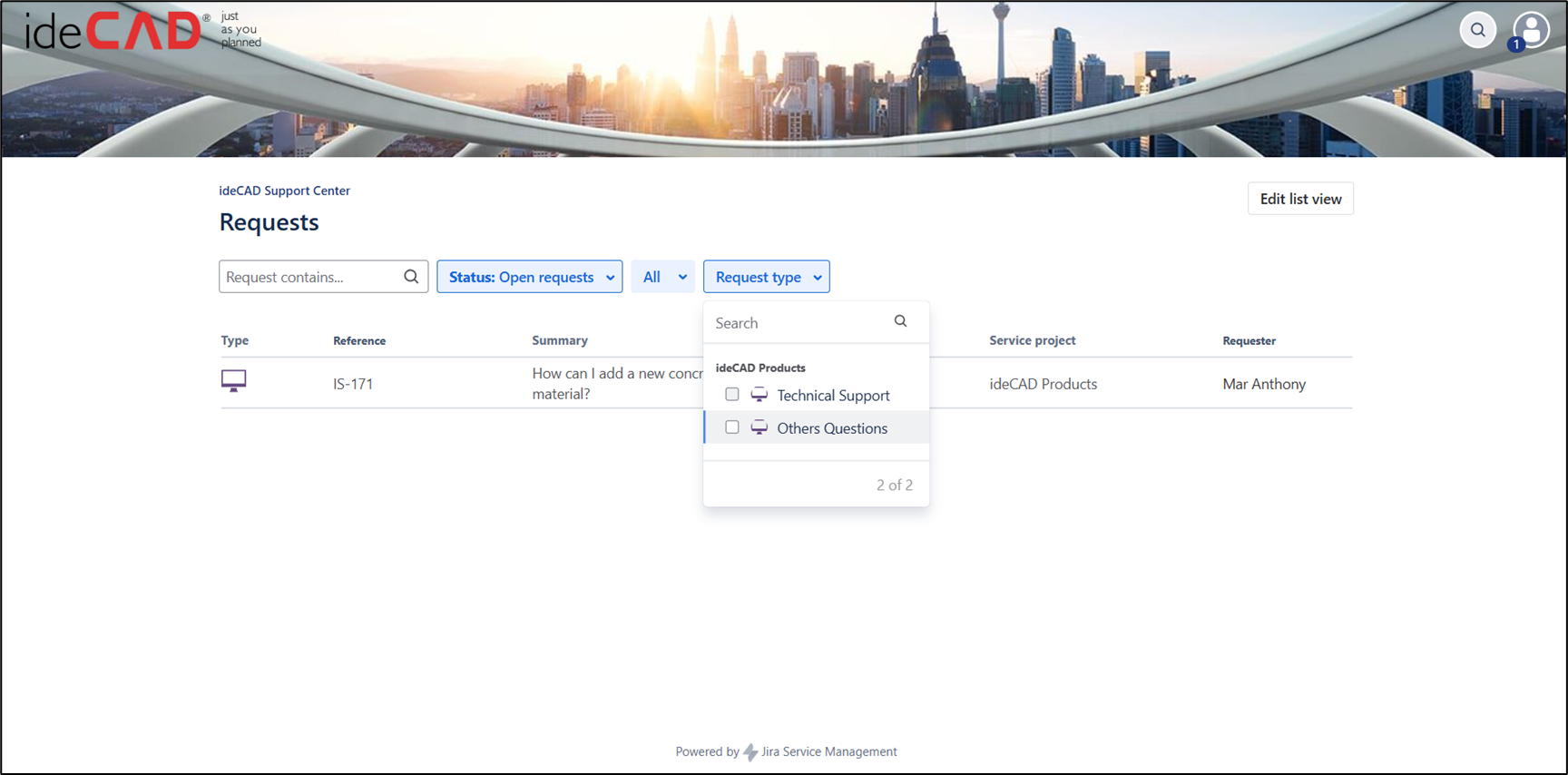
STEP 2: Click Requests.
-
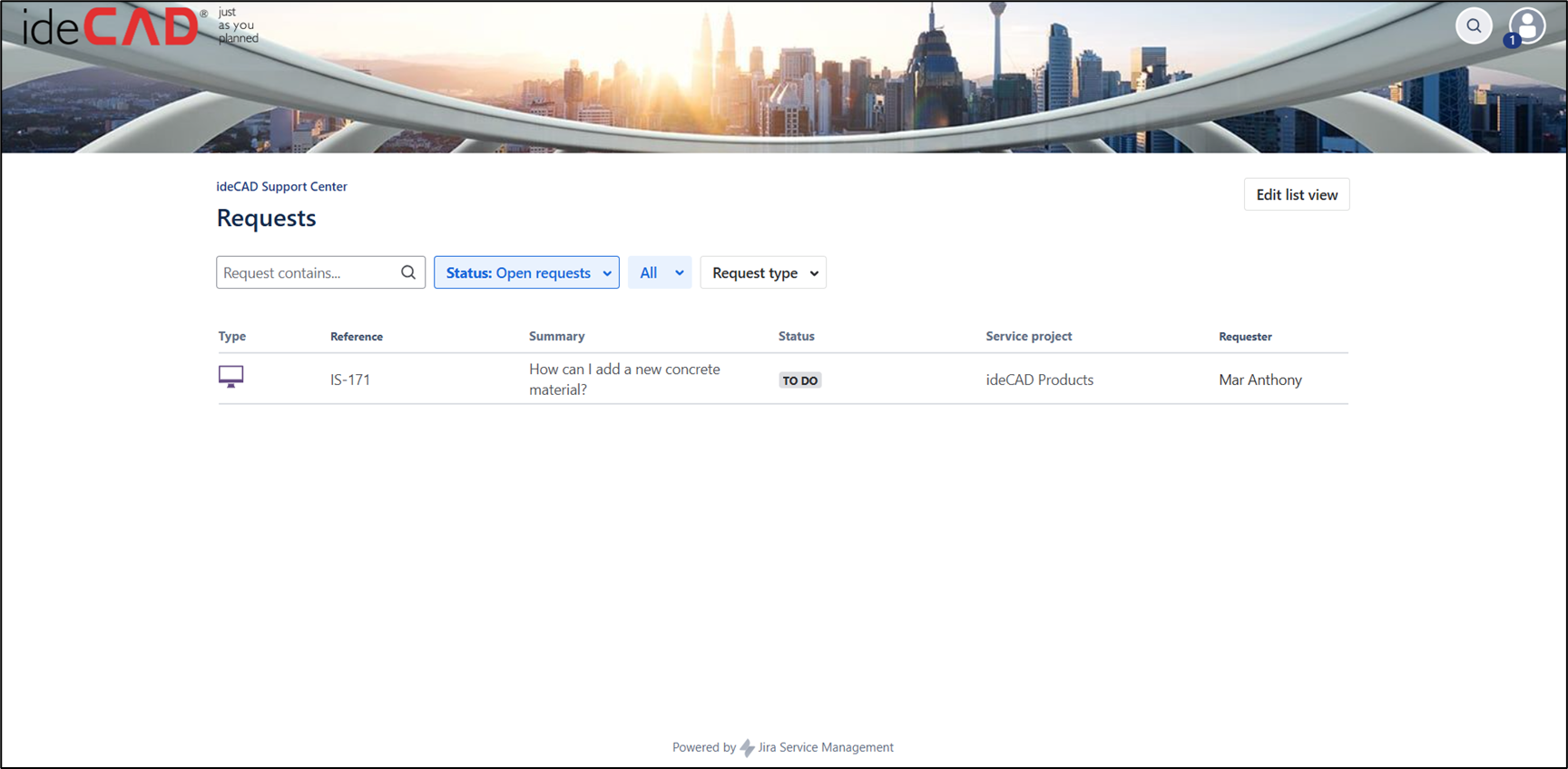
Here, you can view all your requests.
-
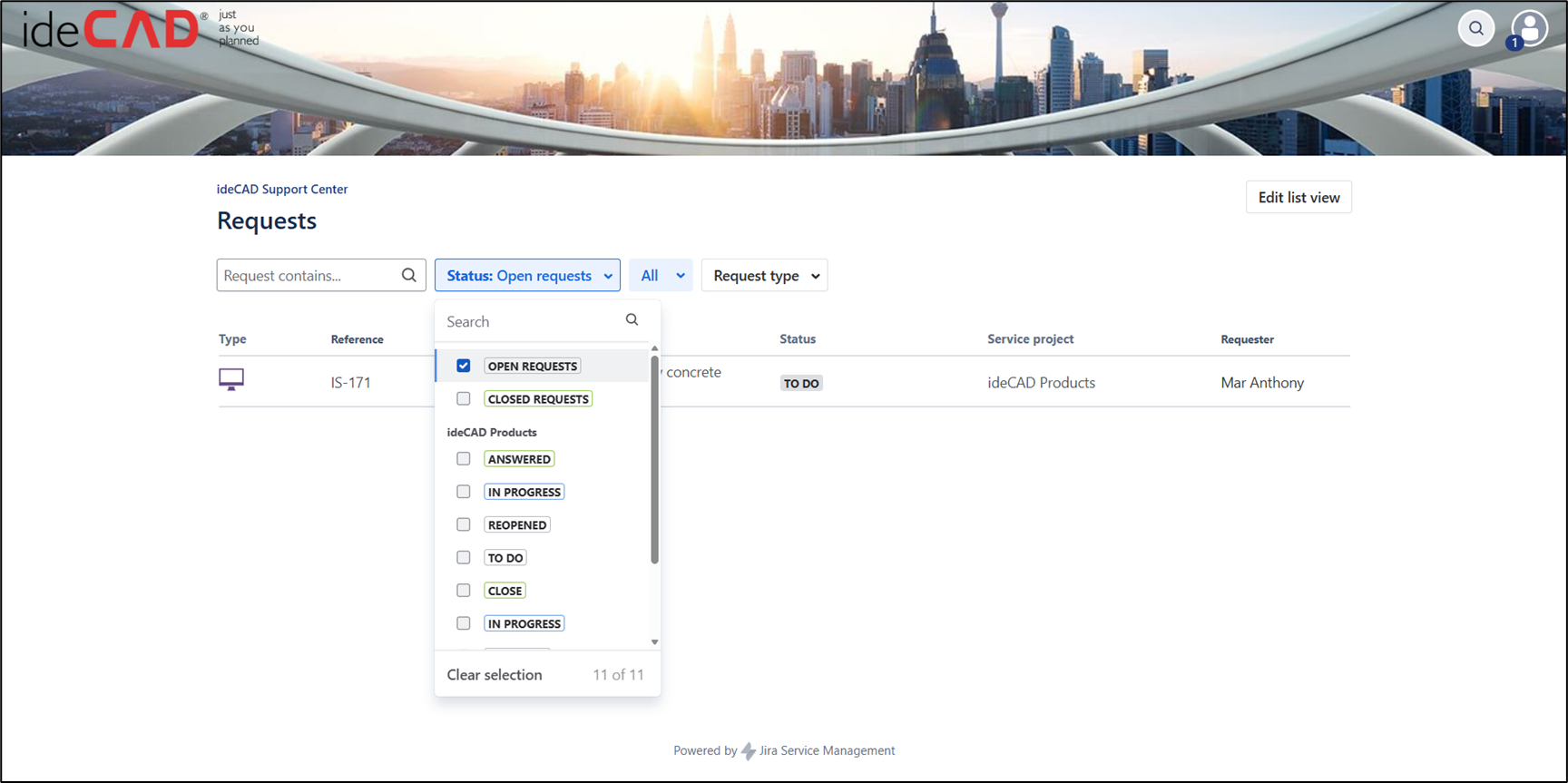
You can search for your request using the search bar or sort it by status.
-
You can also sort your request by type: Technical support or Other questions.
Next Topic