
Explore the full capabilities of your chosen ideCAD product with a free 30-day trial. Access all features, including printing, exporting, collaboration tools, and professional project workflows.
-
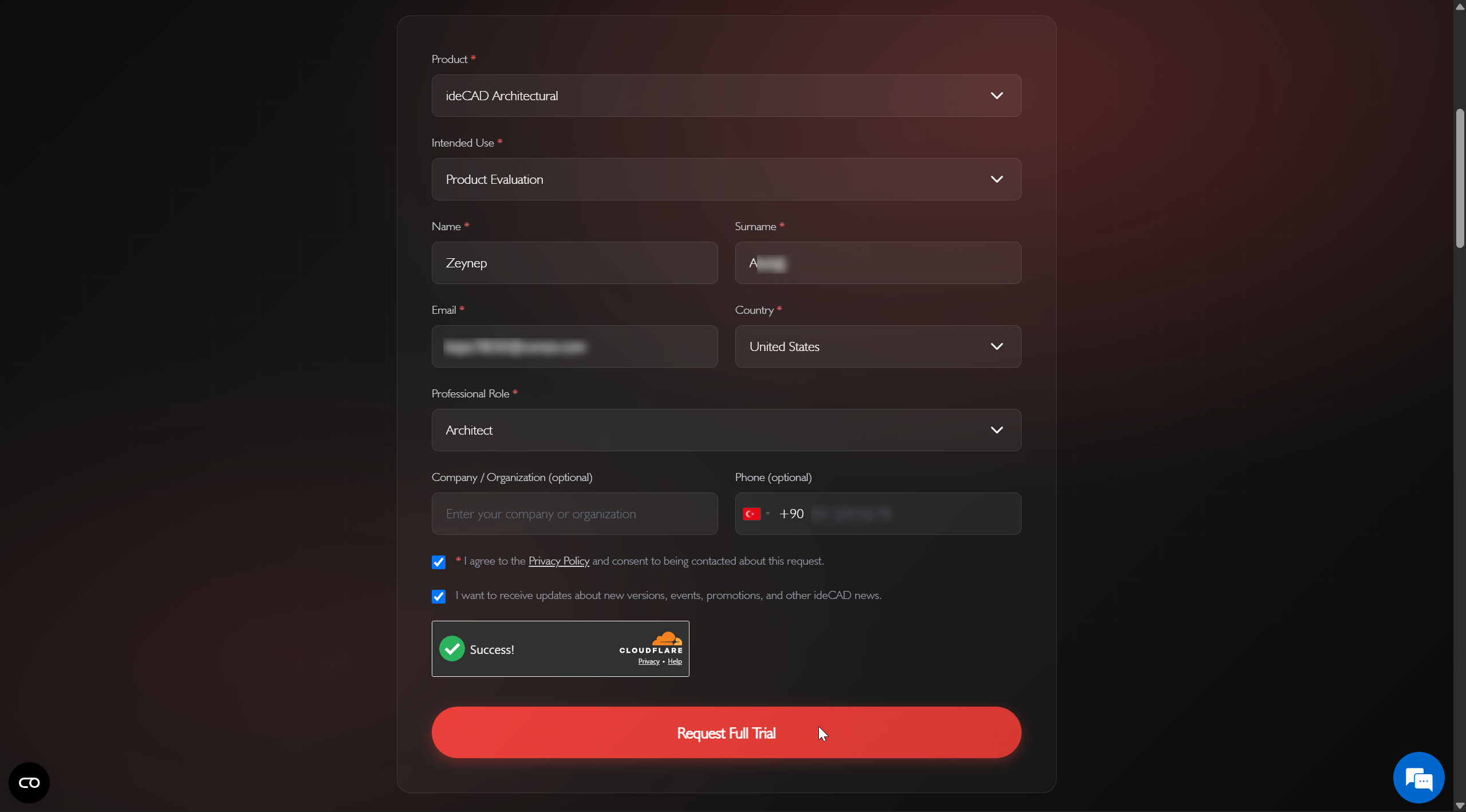
In the request form, select the Free 30-Day Full Trial product you want to try, enter your information, accept the Privacy Policy, and check the box to receive ideCAD news and updates.
-
Click the Request Full Trial button.
-
After clicking the Request Full Trial button, please allow some time for your Free 30-Day Full Trial license request to be approved.
-
Once your request is approved, you will receive a confirmation email. Please check your inbox regularly, including your spam folder.
-
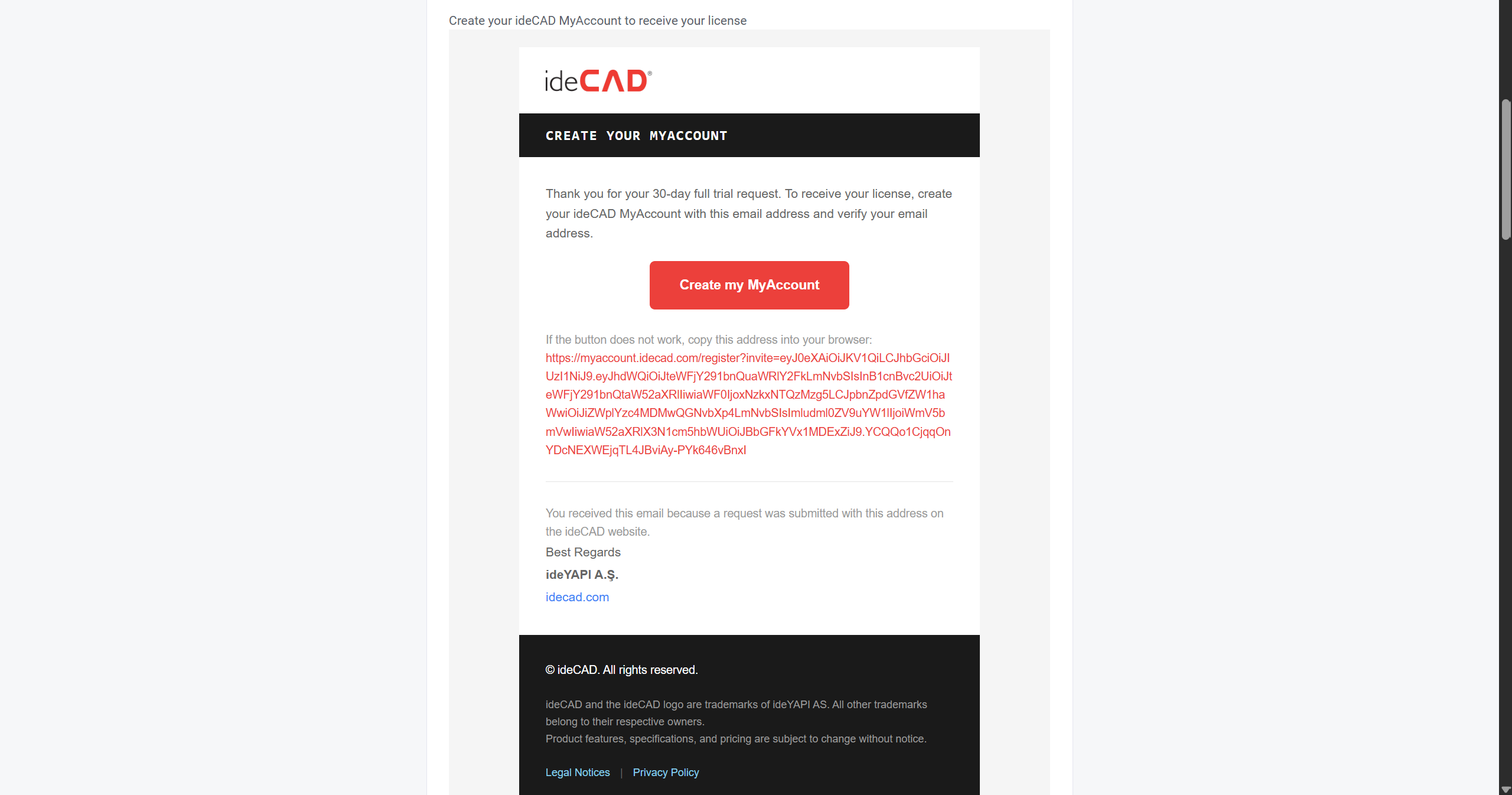
To receive your Free 30-Day Full Trial license, create your ideCAD MyAccount with this email address.
-
Click the Create my MyAccount button.
-
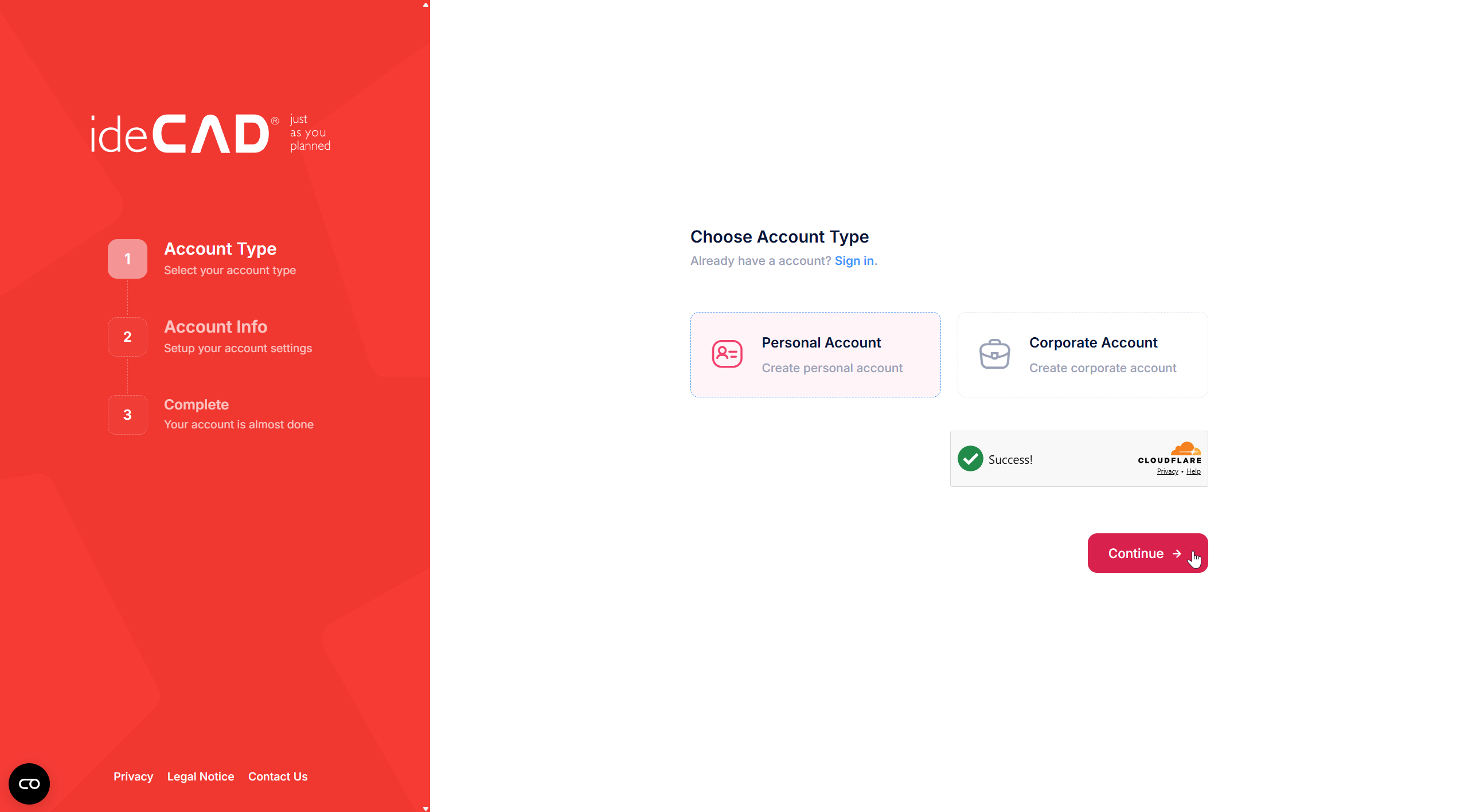
The MyAccount account creation page will open.
-
Choose the account type and click the continue button.
-
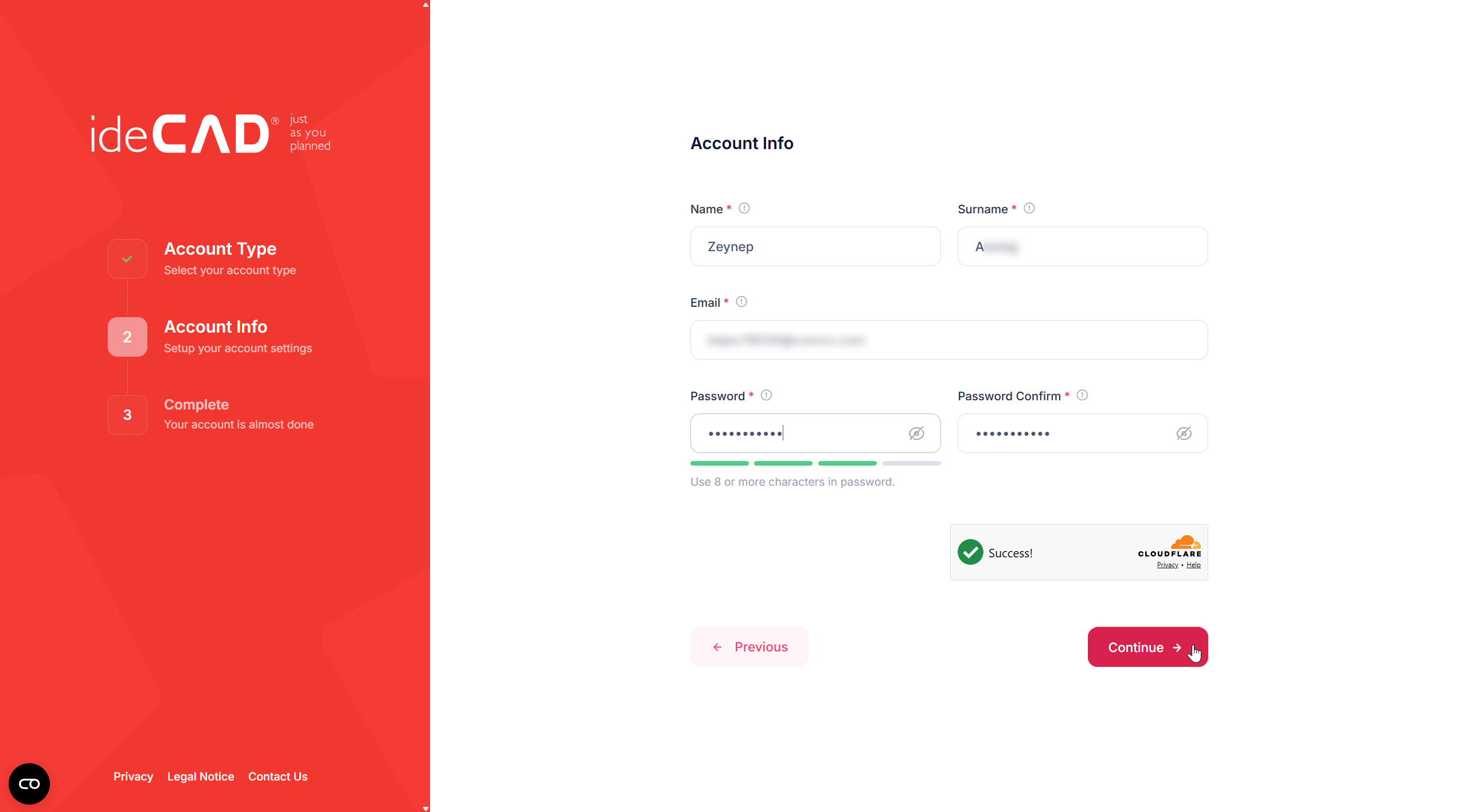
The name, surame and email fields will be pre-filled. Enter and confirm your password, then click Continue button.
-
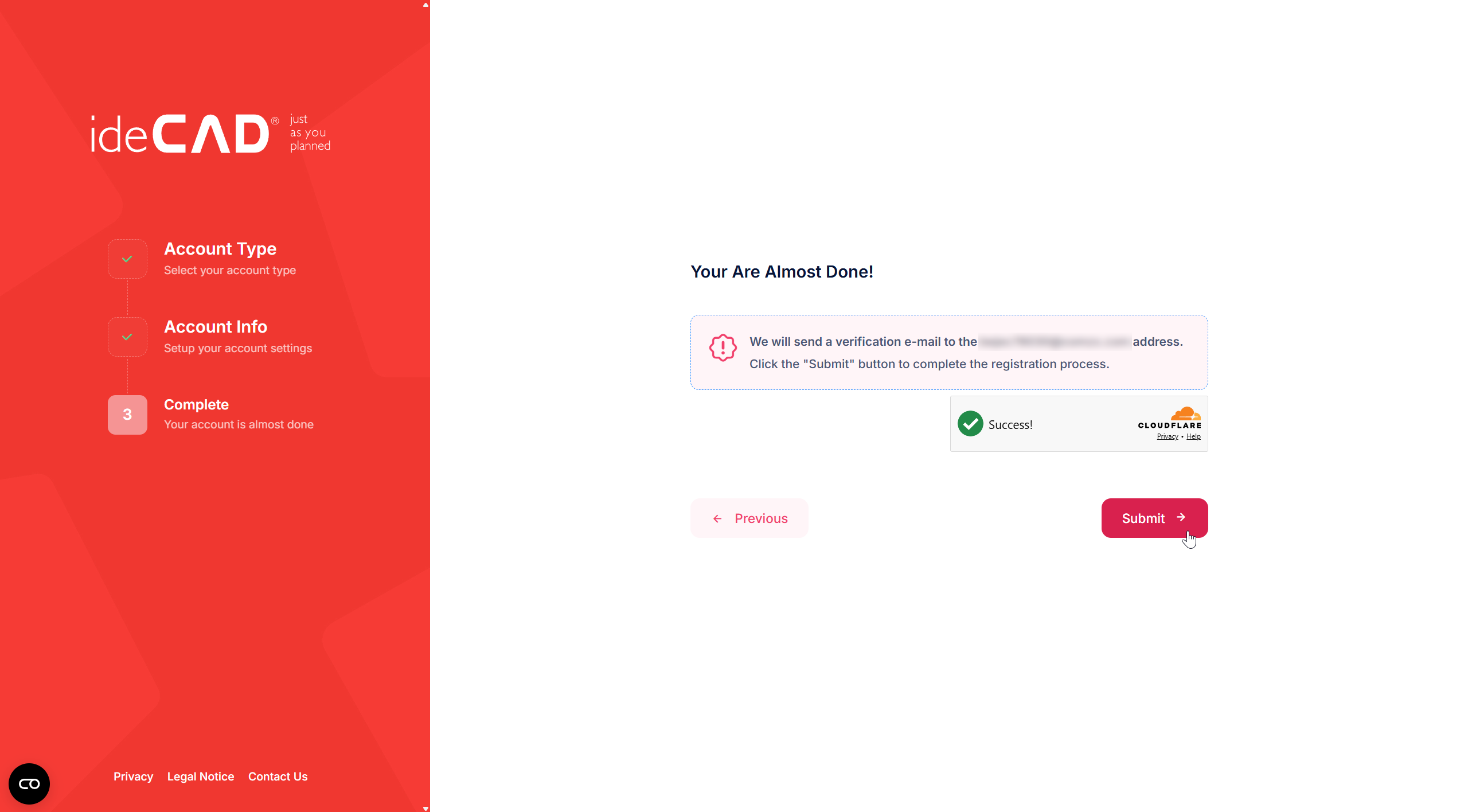
Click the Submit button to send verification mail.
-
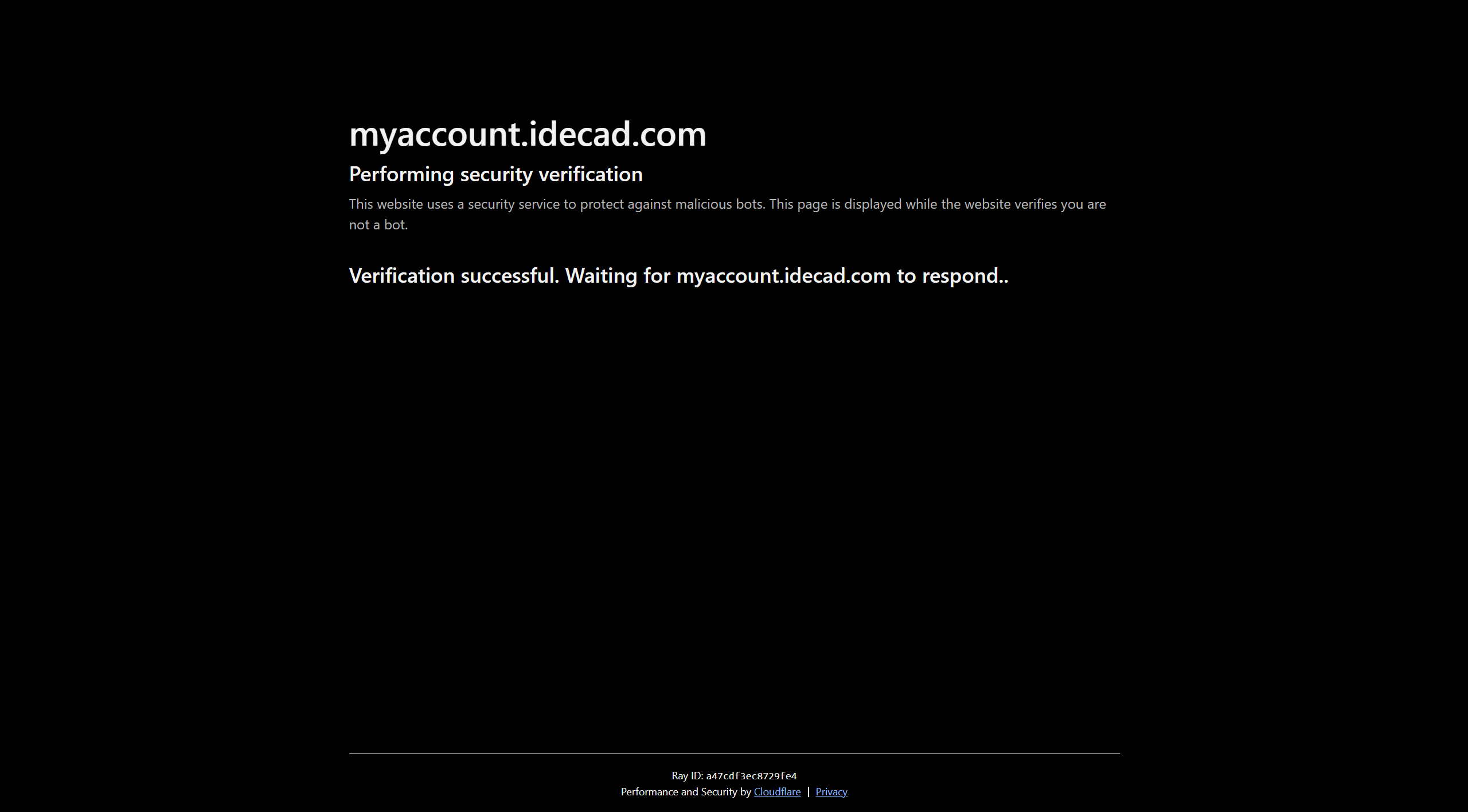
The website will automatically perform a security verification to confirm that you are not a bot.
-
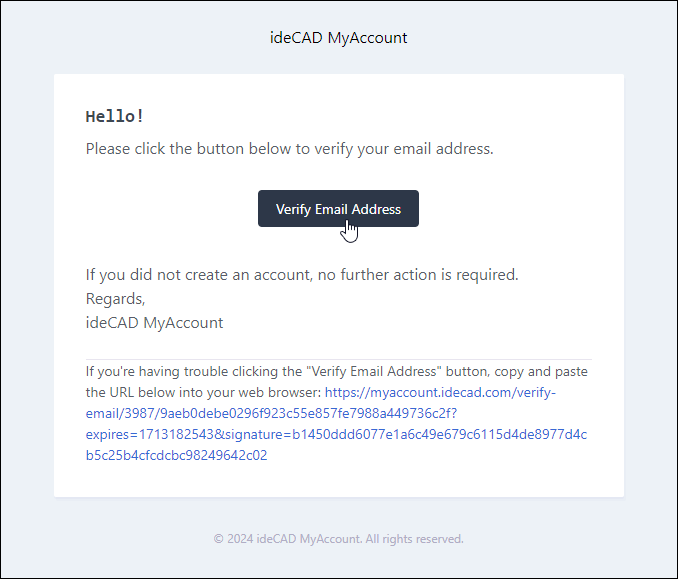
Before getting started, you have to verify your email address by clicking on the link just emailed.
-
Check the mail for verifying the account. Click the Verify Email Address button in the email.
-
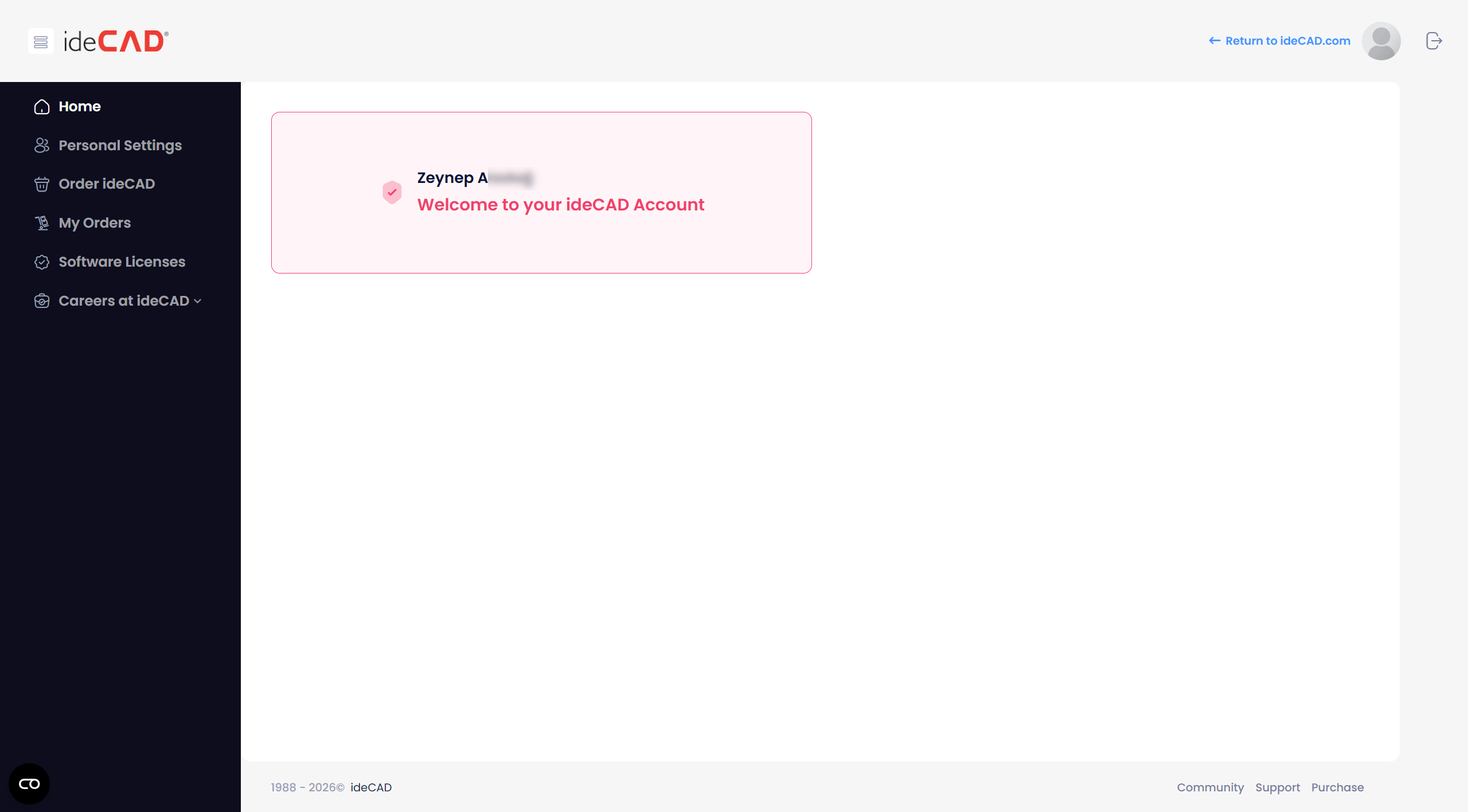
Your account is verified.
-
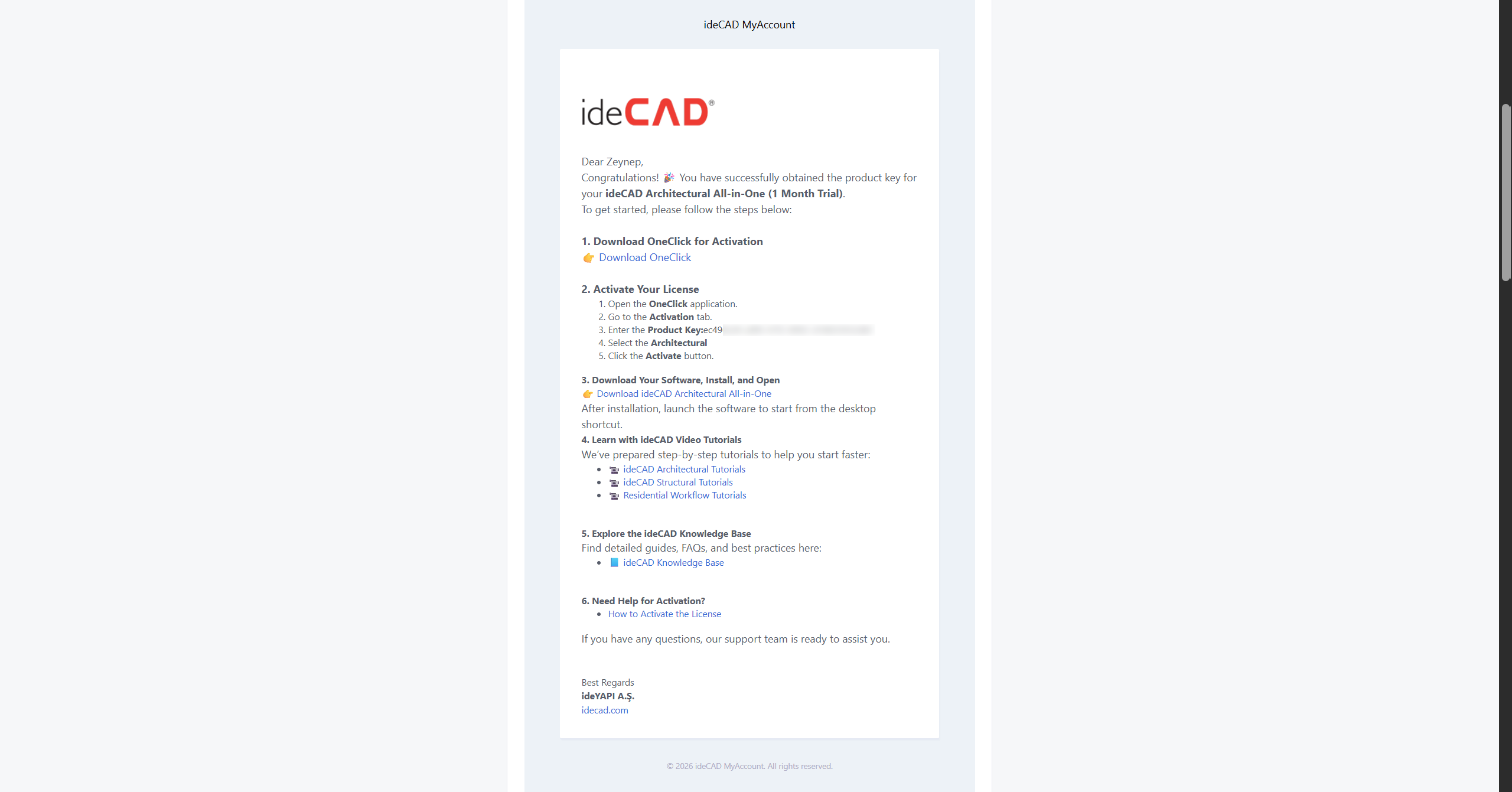
After verifying your email address, you will receive an email containing your Free 30-Day Full Trial license information.
-
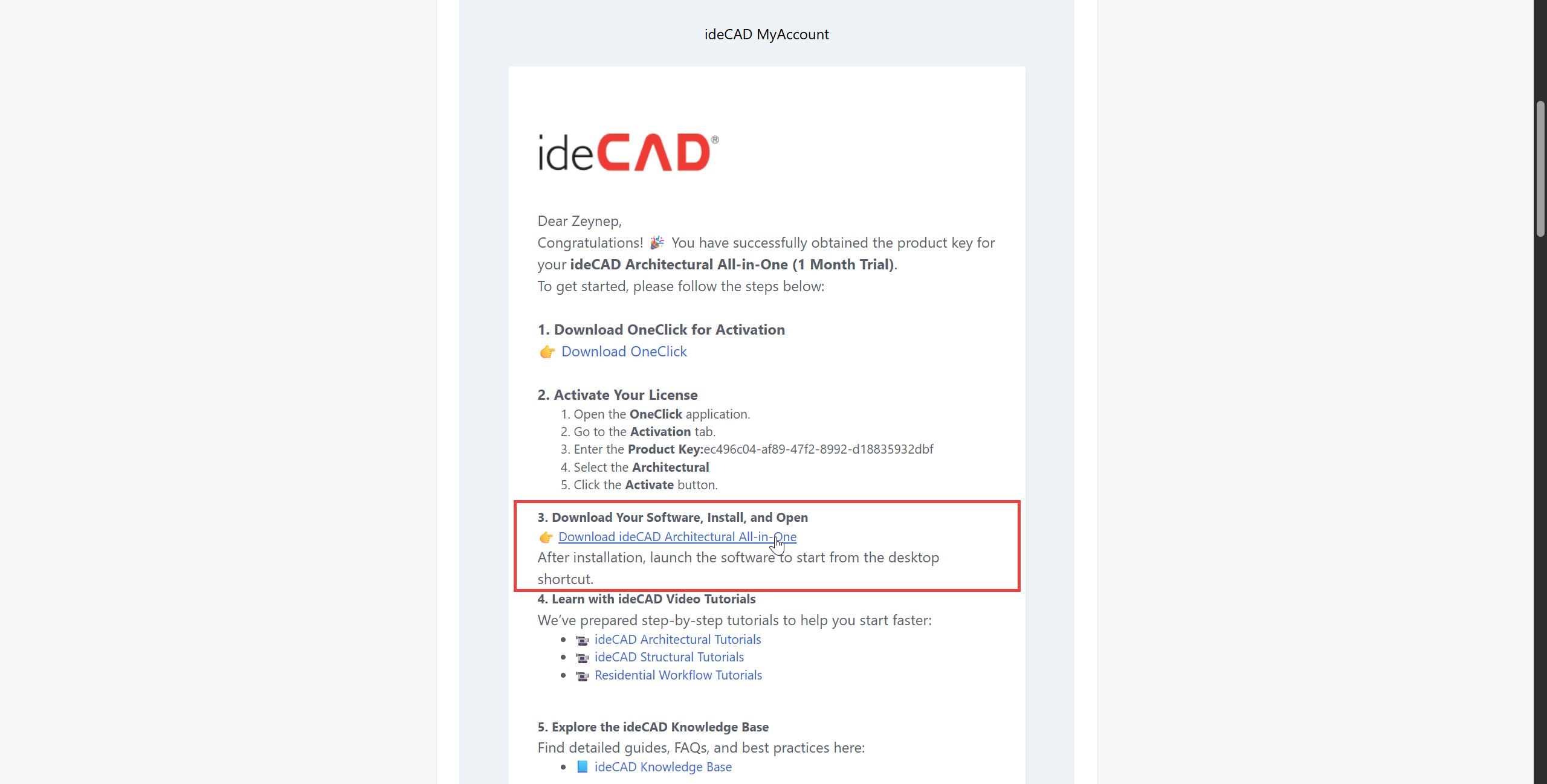
This email also includes links to download OneClick and ideCAD, instructions for license activation, and access to video tutorials and help pages.
To activate the your Free 30-Day Full Trial license;
-
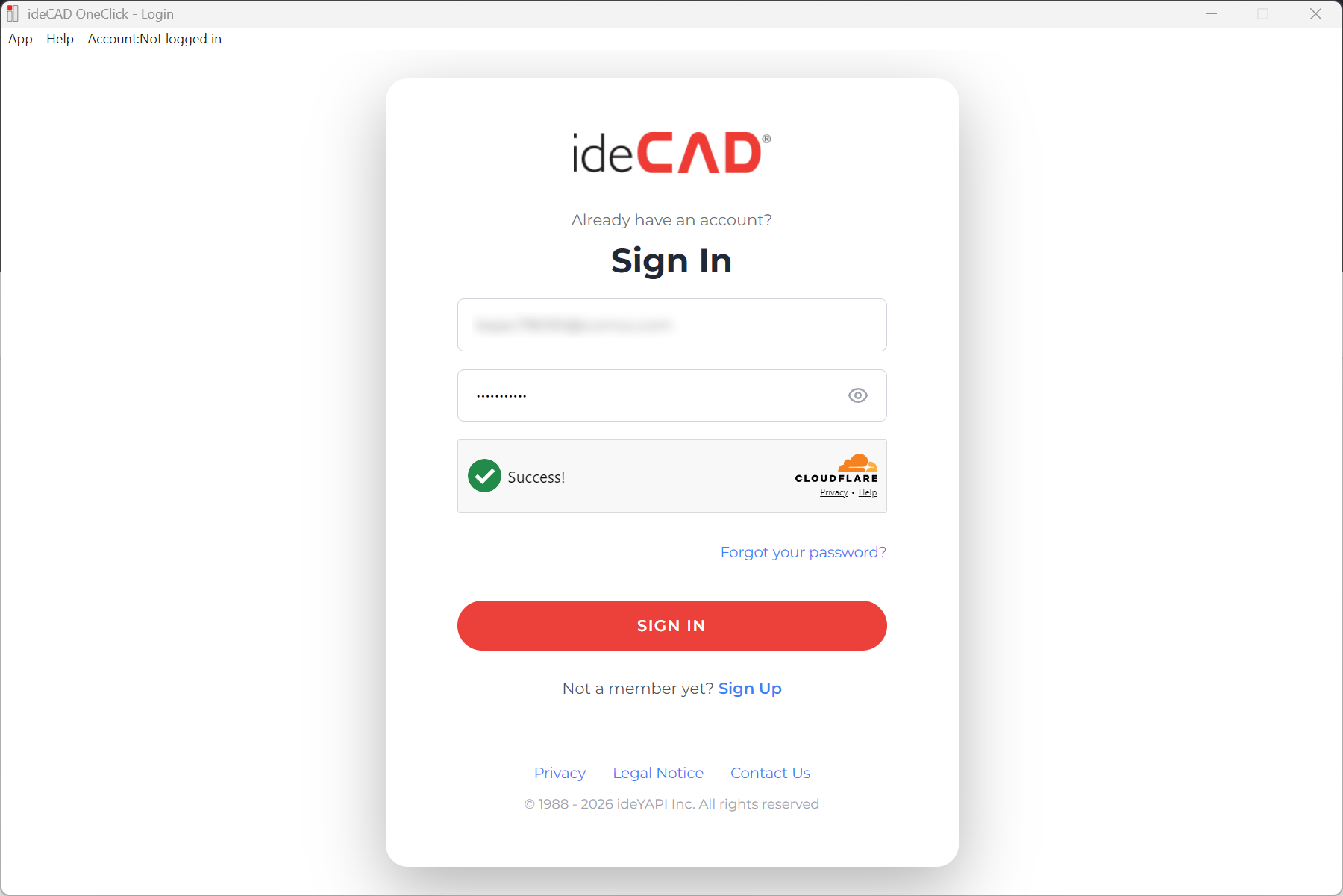
Open ideYAPI OneClick. If you have not downloaded ideYAPI OneClick, click here for download steps.
-
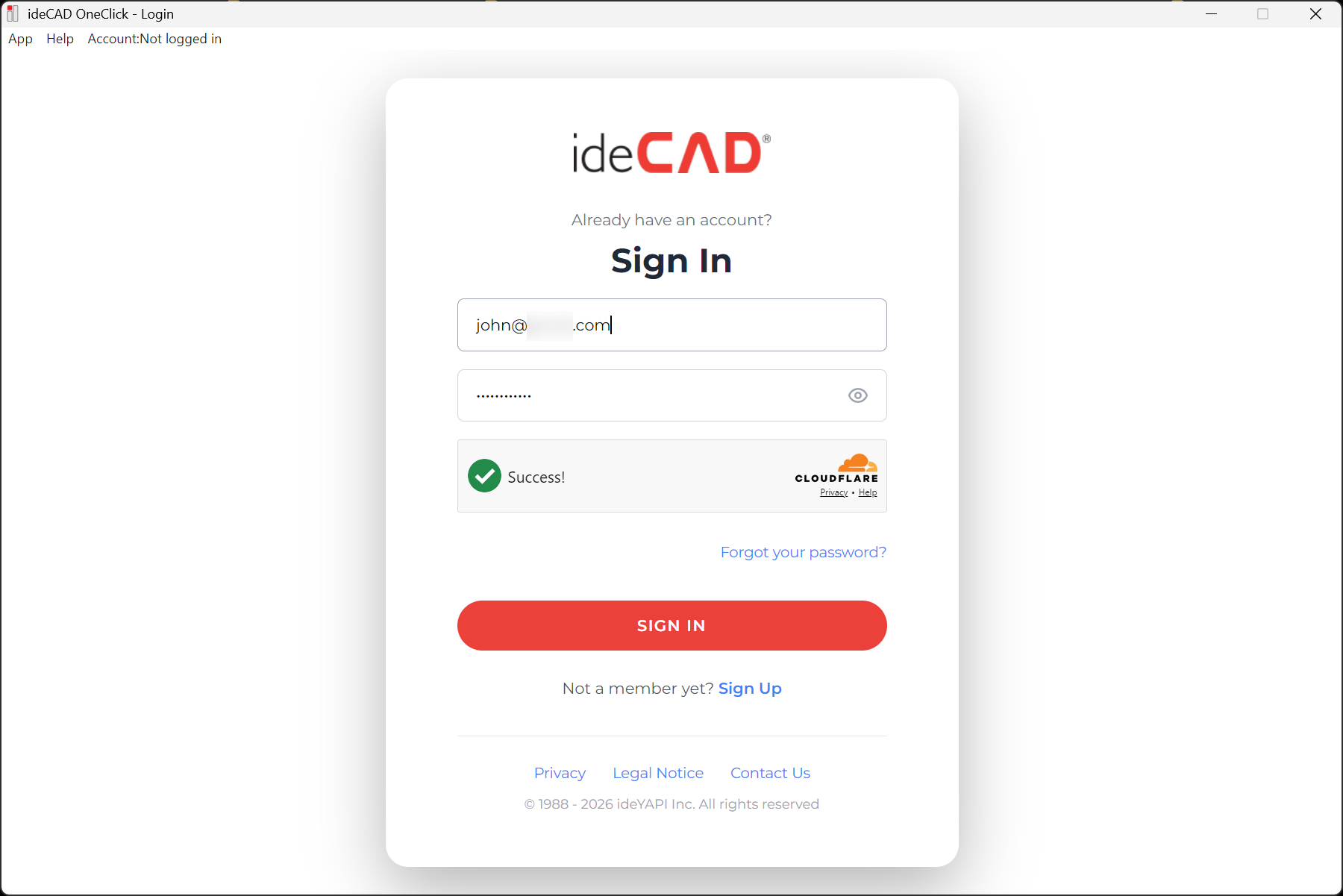
Sign in with your MyAccount information. Enter your email and password.
-
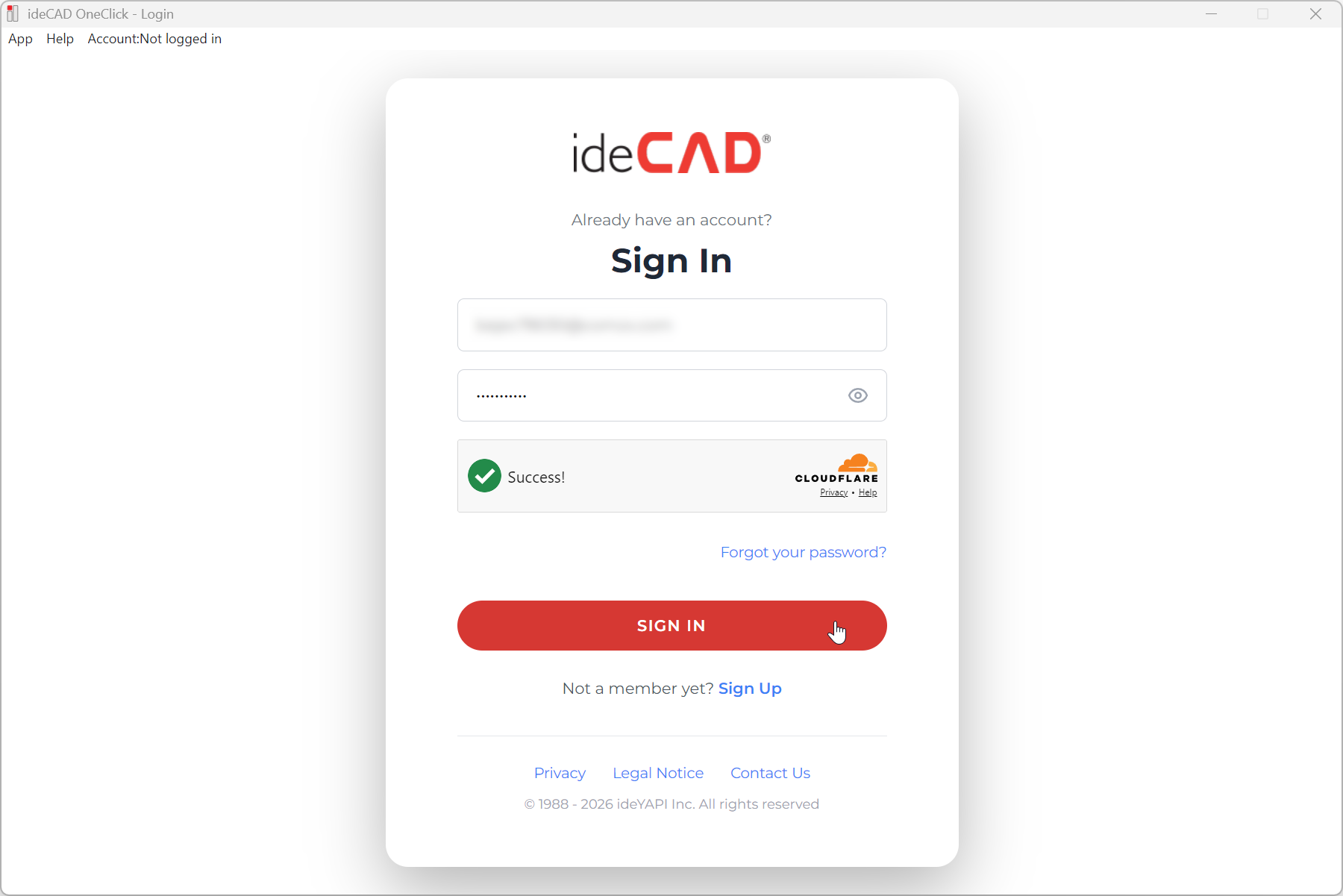
Click on the Sign In button.
-
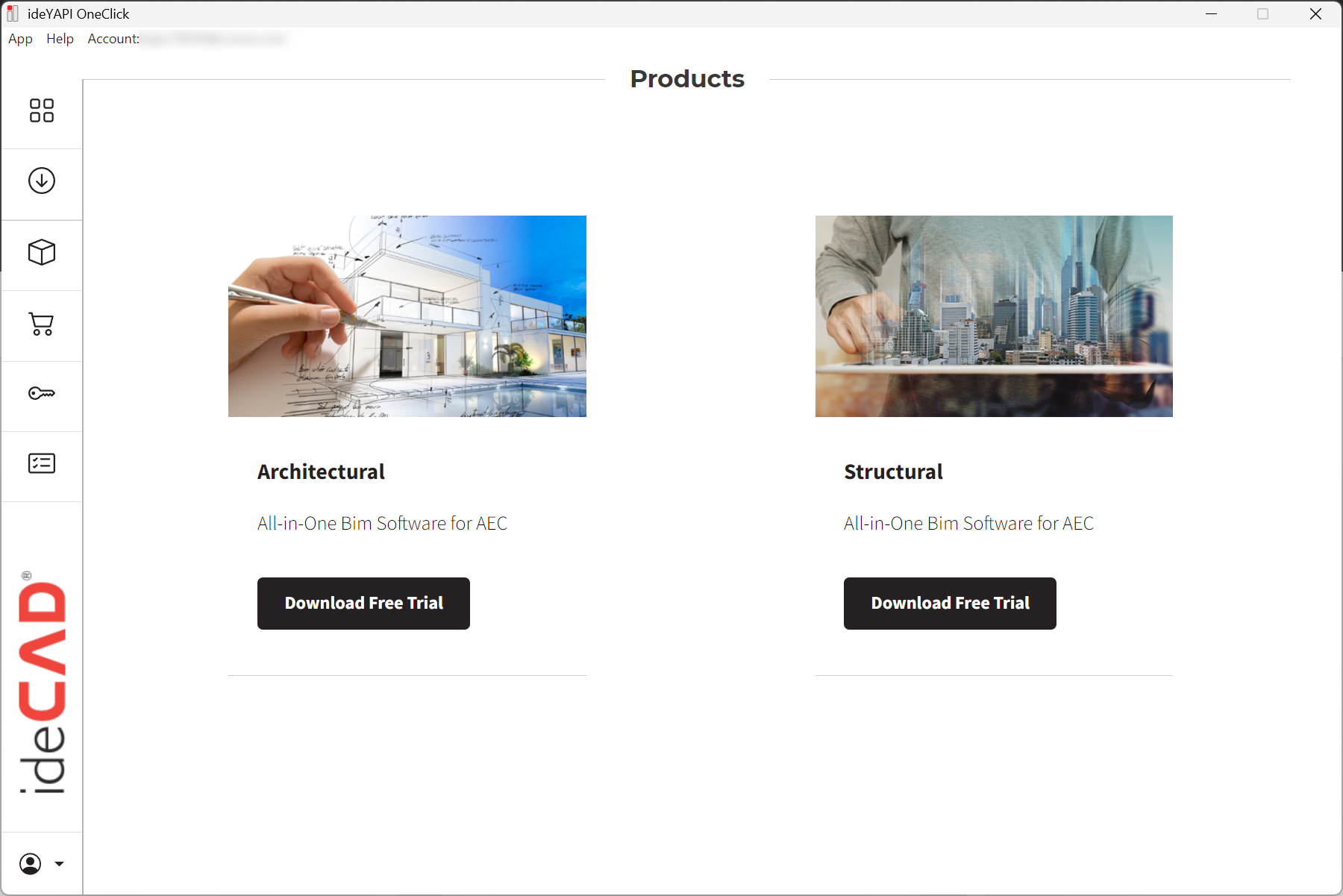
ideYAPI OneClick will open.
-
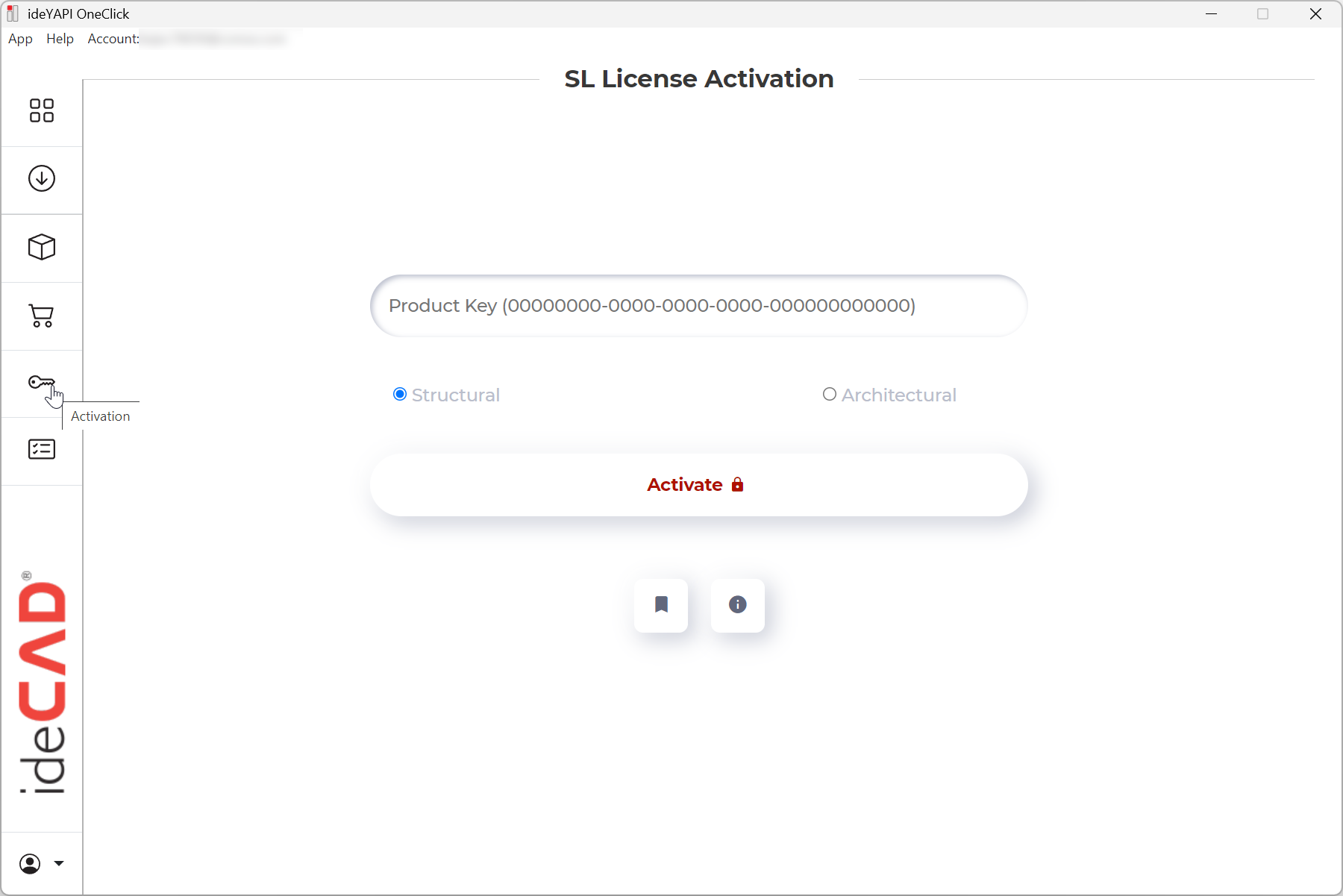
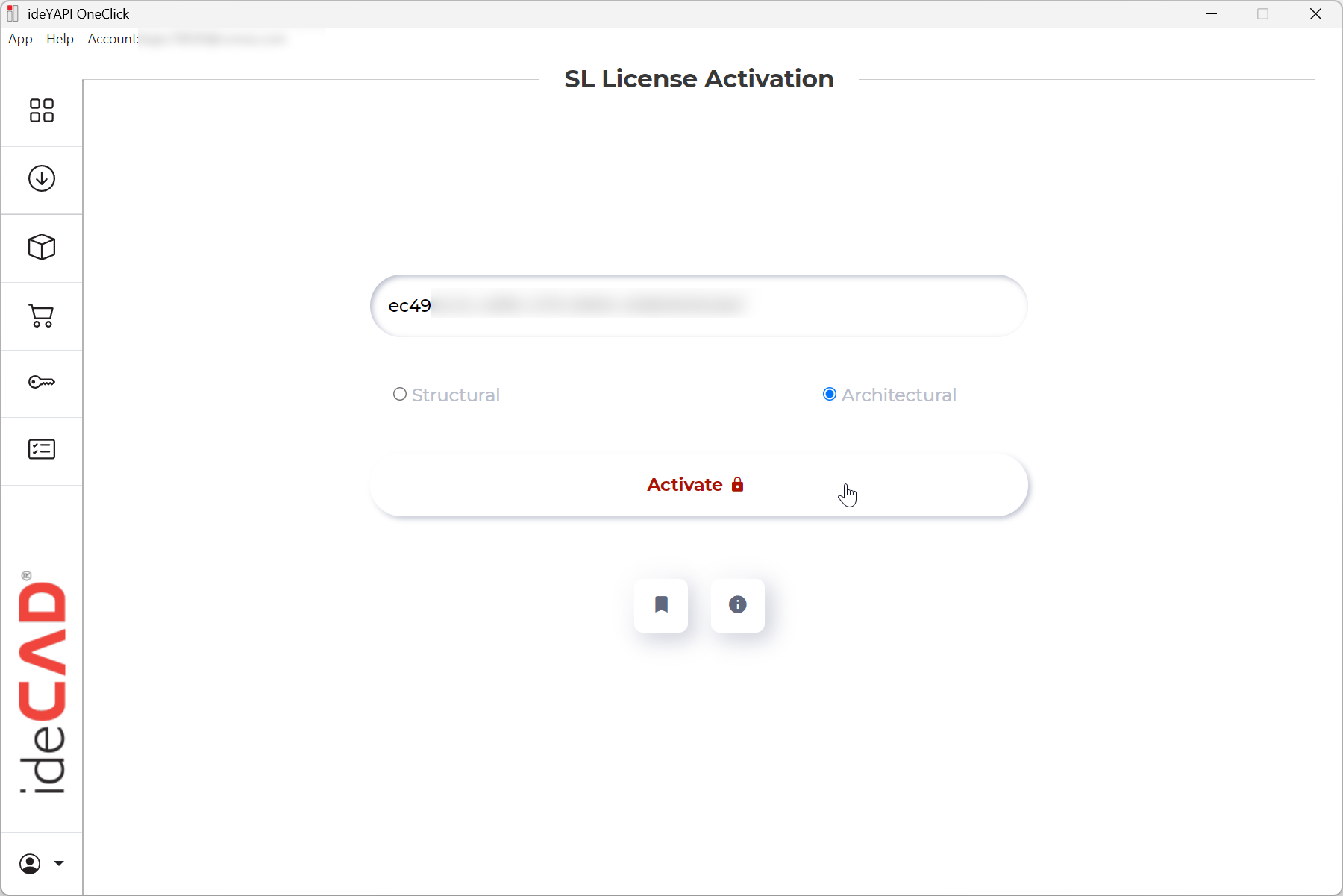
Go to the Activation tab.
-
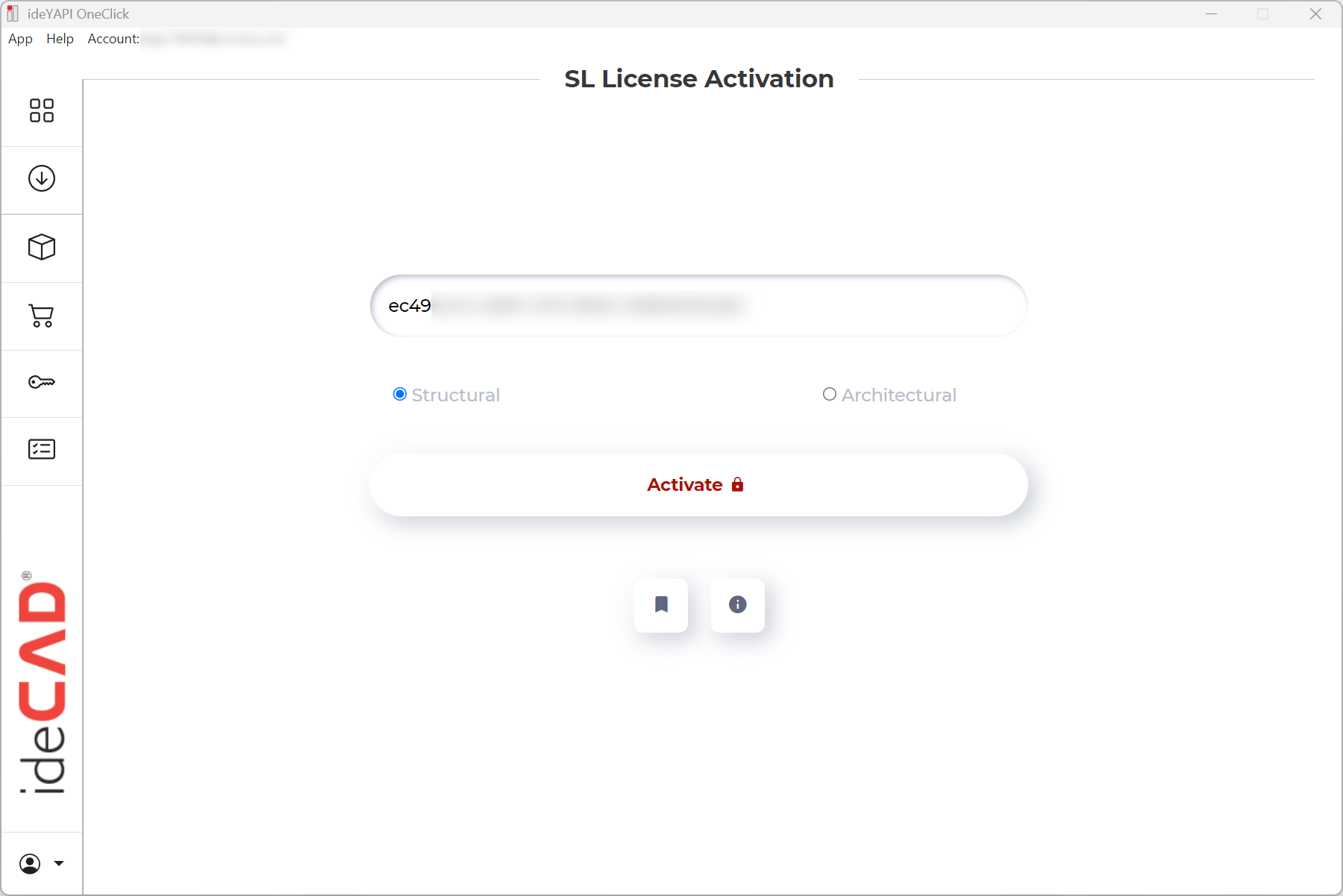
Enter the Product Key provided in the email.
-
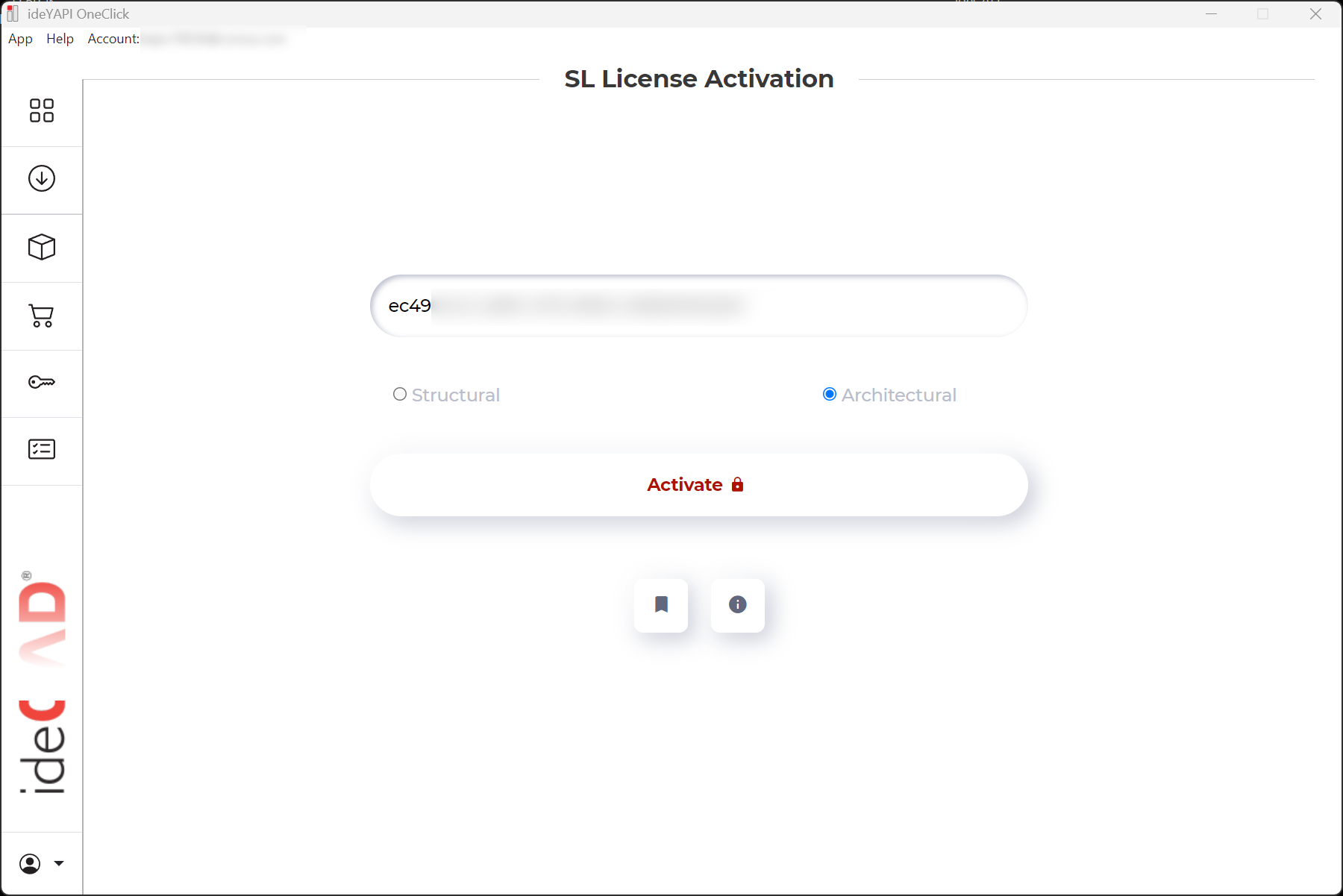
Select the ideCAD product you want to activate. In this example, select Architectural.
-
Click the Activate button.
-
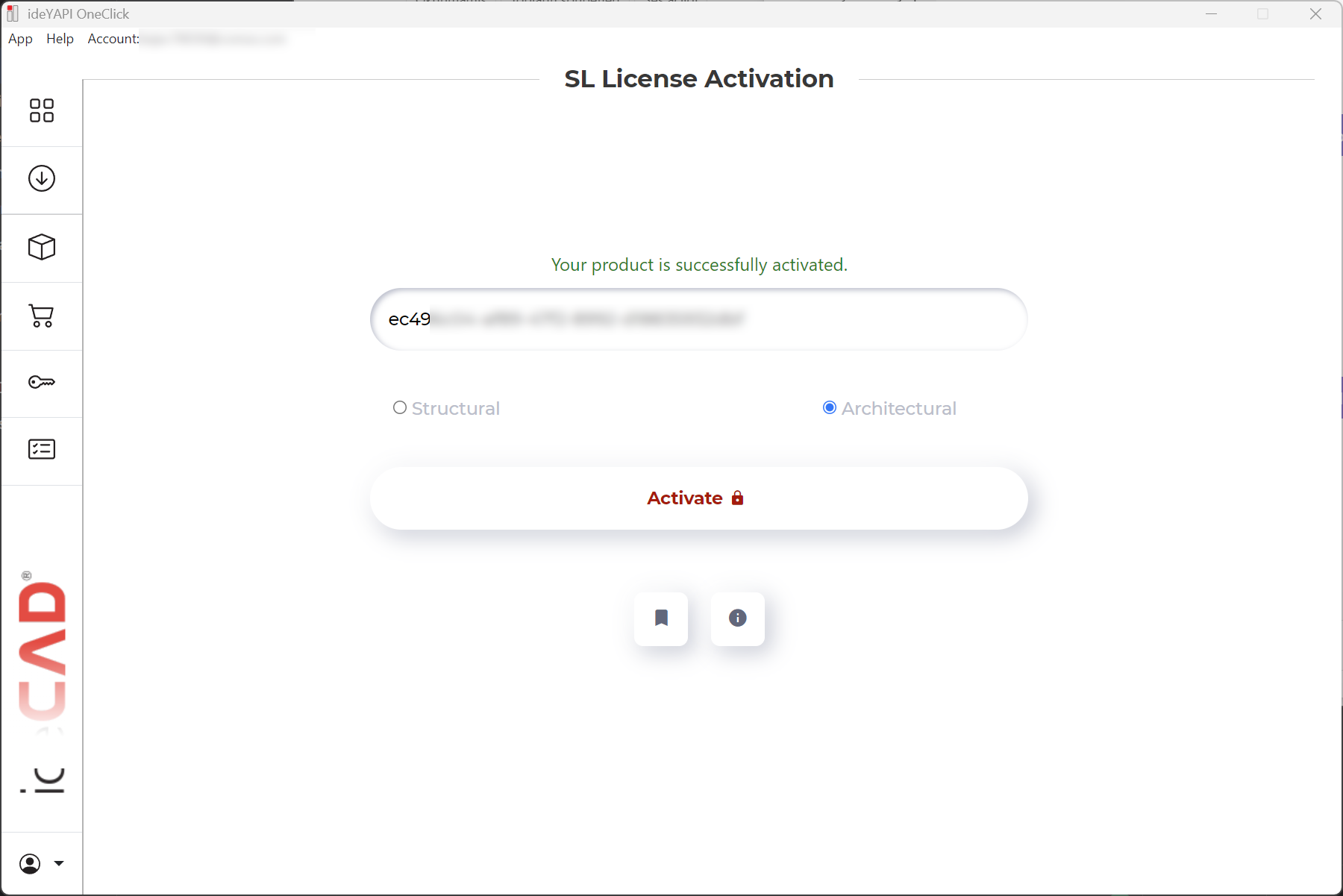
The Free 30-Day Full Trial license for your selected ideCAD product will be activated. In this example, ideCAD Architectural Free 30-Day Full Trial license will be activated.
You can download the software in two ways.
-
First, click the Download line for your selected ideCAD product in the email. In this example, click Download ideCAD Architectural All-in-One line.
-
The download will begin. Once the download is complete, double-click the installation file to start the installation.
-
After installation, launch the software to start from the desktop shortcut.
Alternatively, you can download the software using ideYAPI OneClick.
-
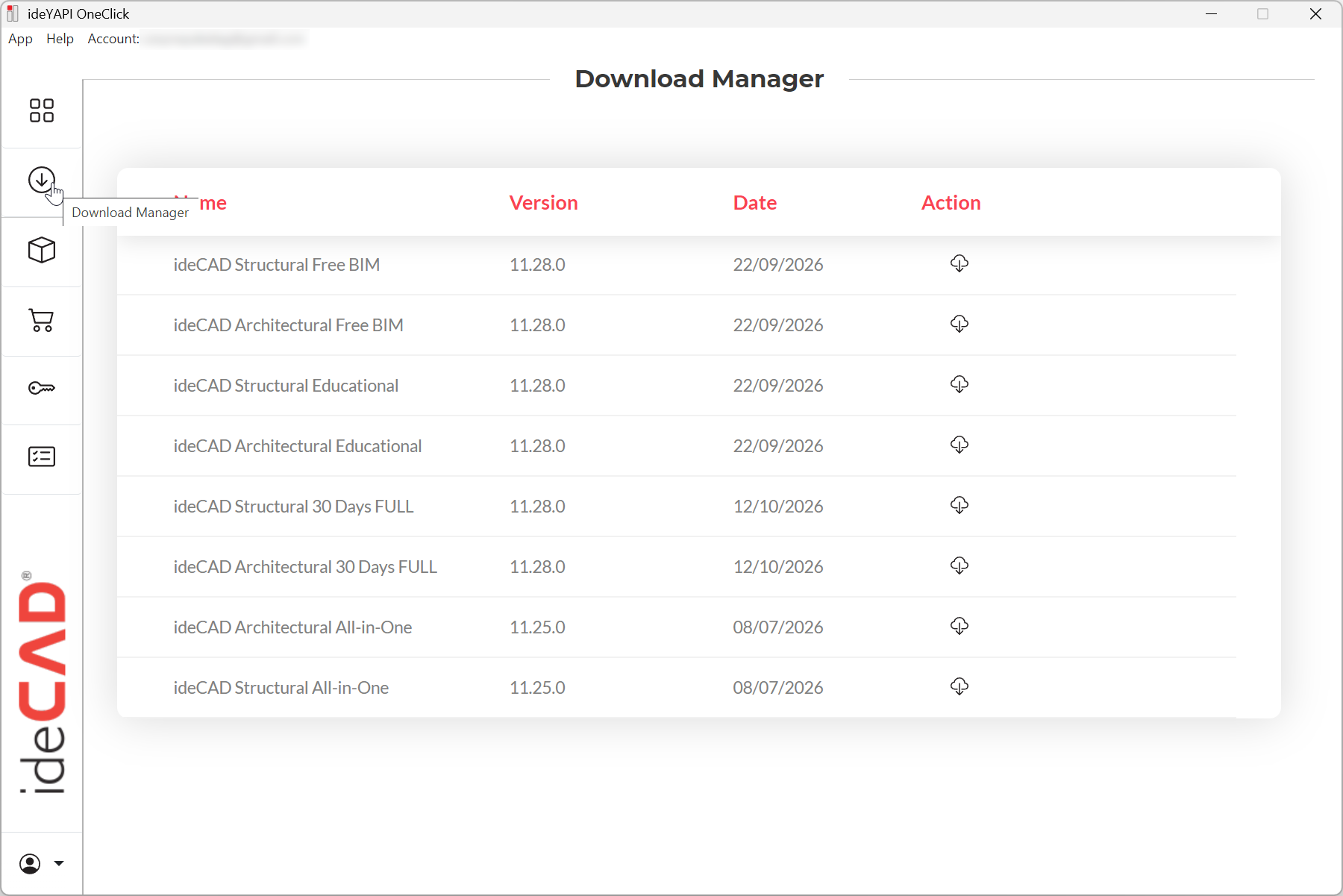
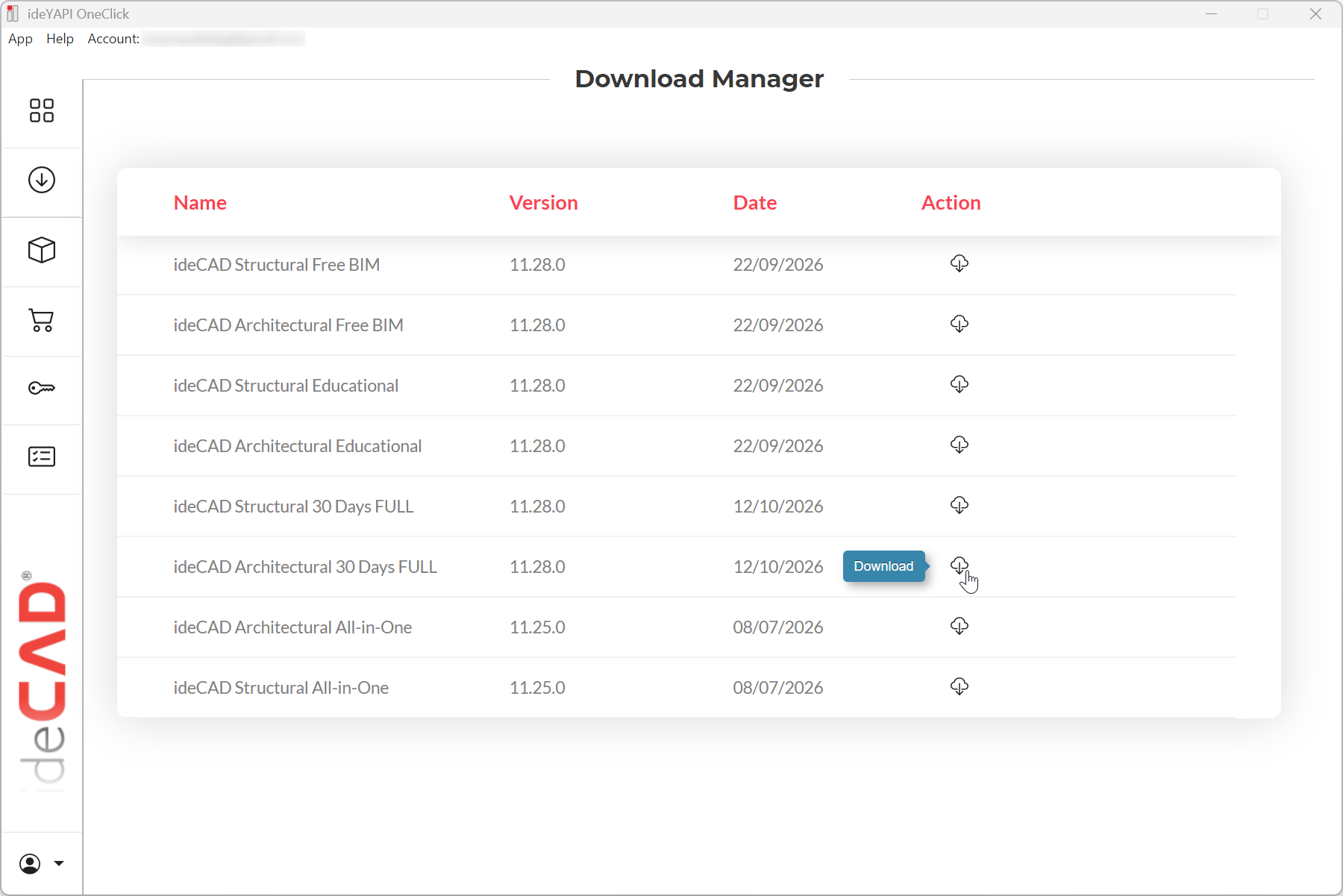
Open ideYAPI OneClick and go to the Download Manager tab.
-
Click the Download icon for your selected ideCAD product. In this example, click the Download icon for ideCAD Architectural 30 Days FULL.
-
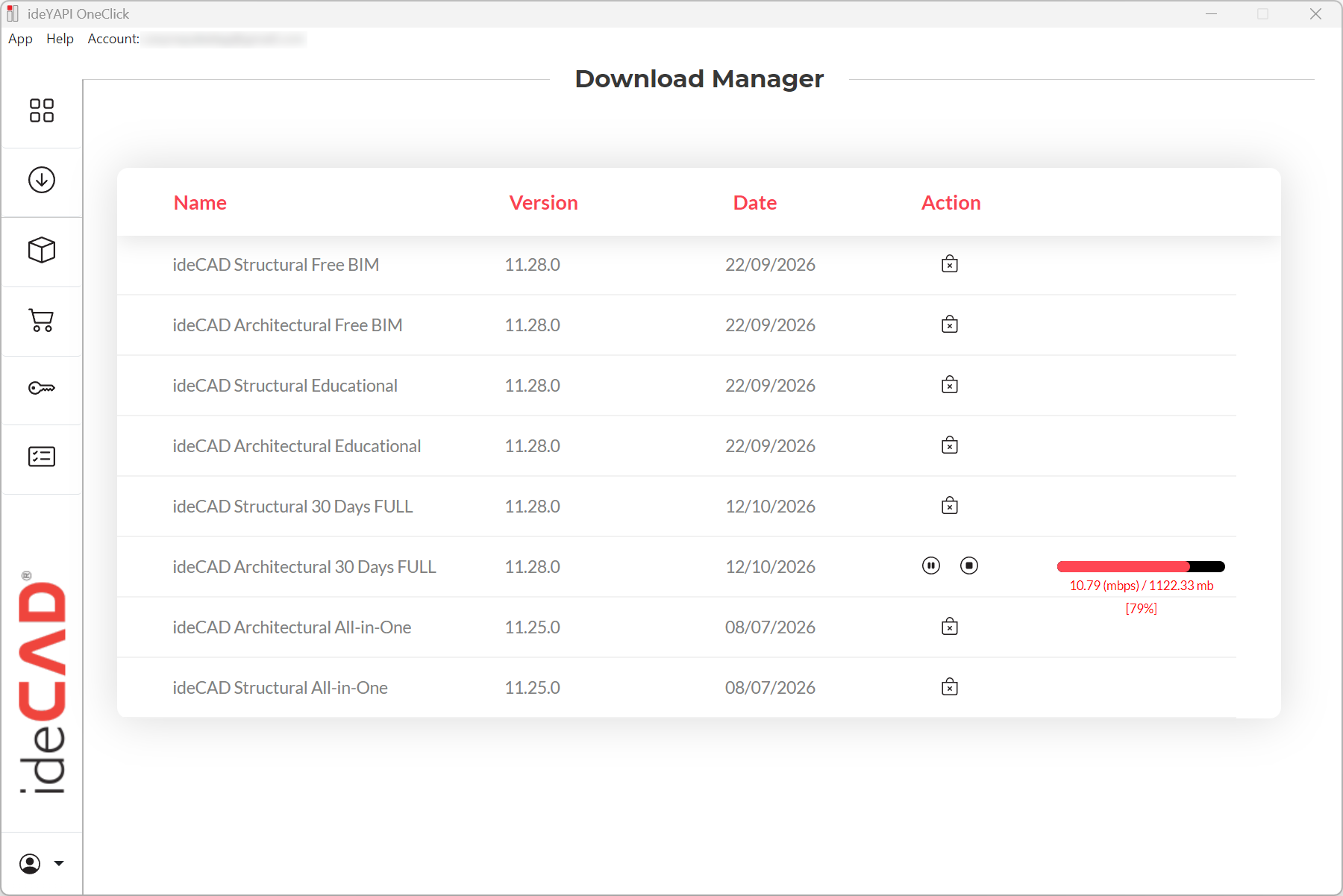
The download will begin.
-
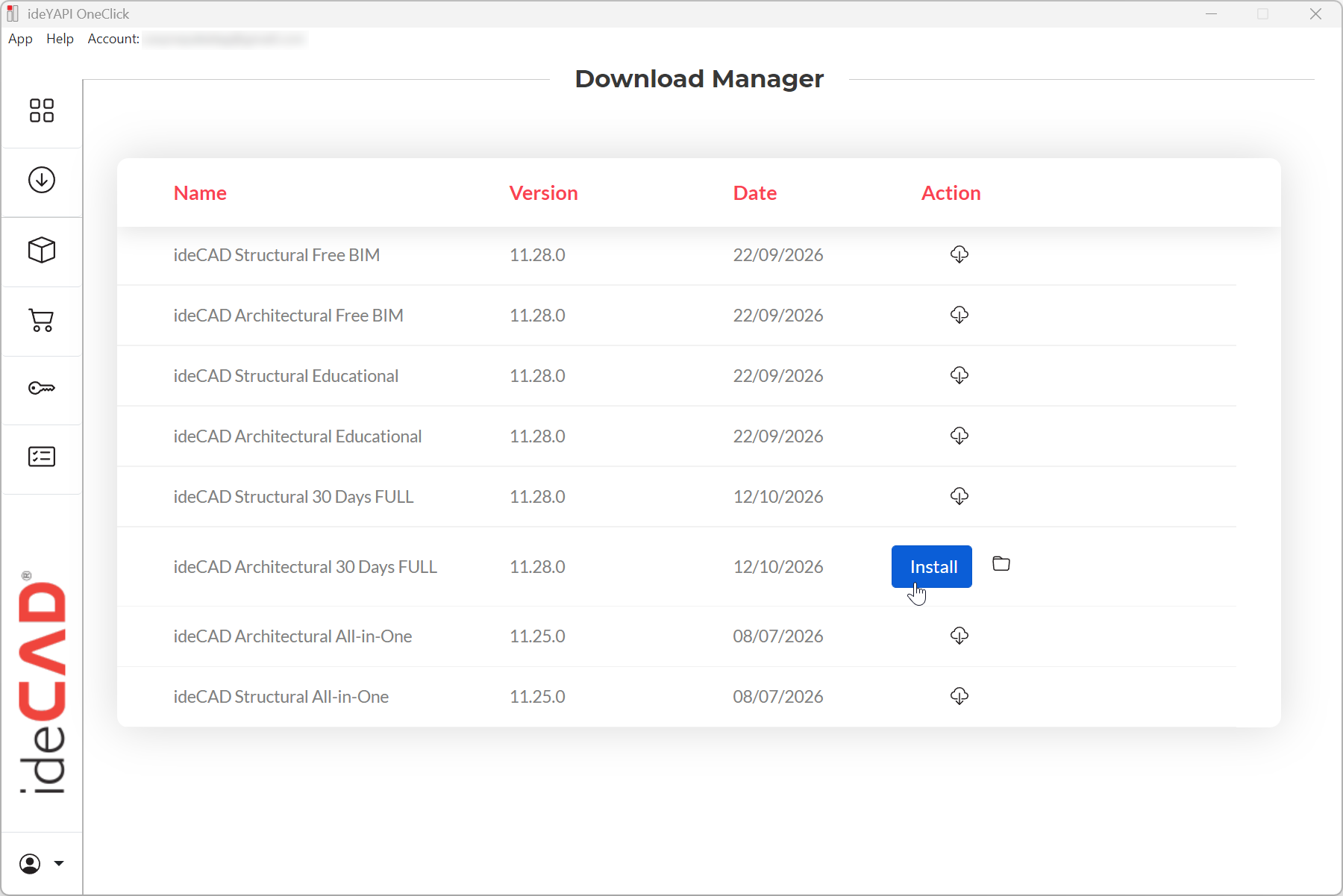
After the download is complete, the installation process will start automatically.
-
If the installation process has not started, you can start the installation process by clicking the Install button.
-
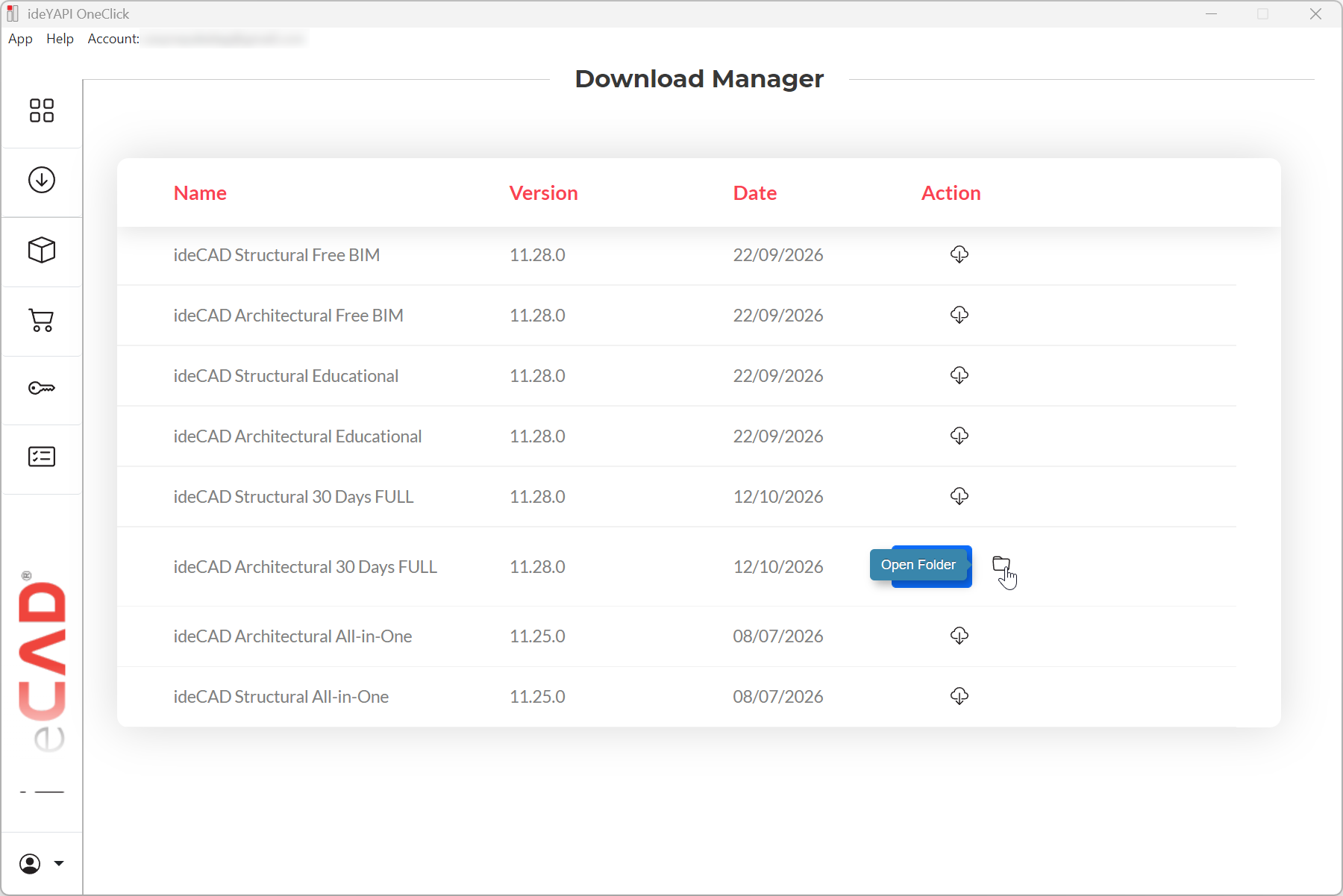
If the installation does not start automatically, you can also click the Open Folder icon next to the Install button to open the folder containing the installation file.
-
Double-click the installation file to start the installation manually.
-
After installation, launch the software to start from the desktop shortcut.
Next Topic