
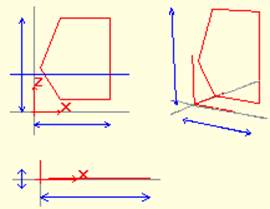
Polygons are 2-dimensional objects created by combining lines with multiple nodes defined by the user. All polygons in Dio are closed polygons (with a line between the start and end points).
To create a polygon;
-
Click the Line Drawing / Polygon .
-
You will see a dialog with Undo and Finish buttons.
-
After you click your first point, a line will start moving relative to the mouse.
-
After you click on your second point, a triangle will form, whose third point moves relative to the mouse.
-
A polygon will be created with increasing number of sides as you add other points.
-
Proper dialogue on the screen after drawing a polygon Finish by clicking on the polygon can create.
-
If you notice that a point is wrong, you can click the Undo button to undo the points starting from the end in order of their occurrence.
Transformations:
-
Although polygons are created, they do not have any use.
-
You can convert a polygon to a crate / wing using Polygon-> Case / Wing Transform .
-
You can open a space in a case using Polygon-> Space Transformation .
-
You can make the polygon 3-dimensional using the stretch command.
To modify an existing polygon:
-
Click on the polygon. The polygon will turn green and the nodes will become active as red boxes.
-
The cursor shape will change when you hover over the node points. In this case, you can click the nodes and move them.
-
You can delete the polygon by pressing the Del / Delete key on the keyboard .
Additional information:
-
If the polygon is drawn with a door or window handle and this polygon is extended, this elongated object must be connected to the wing with the "Establish Case / Wing Object Connection" command. Otherwise, when the wing opens, the arm will stay where it is.
Next Topic