
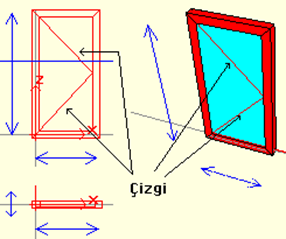
Drawing details such as the opening direction can be given in the lines and plan / view windows. The definitions and joints of the lines are the same and in 2.
To create a line;
-
Click on the Line Drawing / Line .
-
After clicking your first point, the Line will begin to form and change shape depending on the mouse. A line will be formed after clicking your second point.
-
Lines must be connected to the wings with the " Set Case Object Link" command. Otherwise, the line will stay where it is when the wing opens.
To make changes to the existing line;
-
Click on the line. The line will turn green and the nodes will become active as red boxes.
-
The cursor shape will change when you hover over the node points. In this case, you can click the nodes and move them.
-
You can delete lines by pressing the Del / Delete key on the keyboard .
-
By entering the properties of the lines, you can adjust their placement according to the frame.
Next Topic