
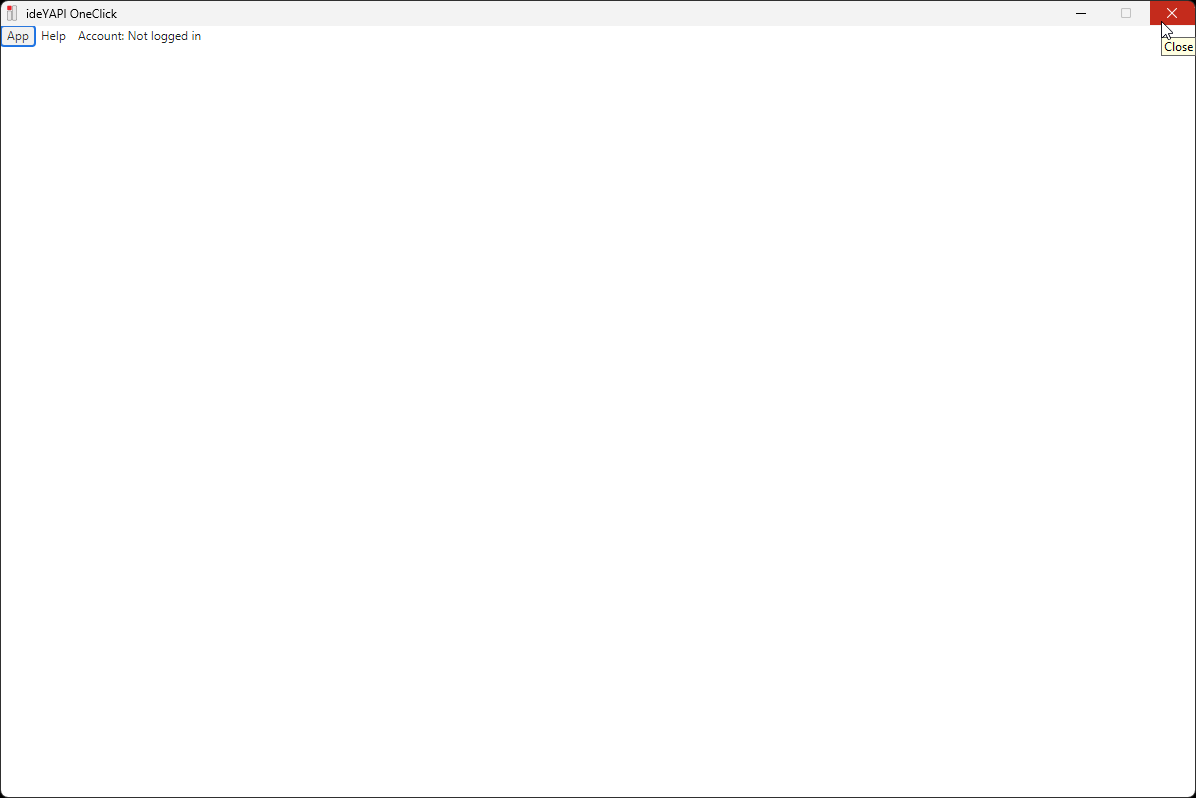
If the ideYAPI OneClick screen appears white, follow the steps below.
-
Close the ideYAPI OneClick application.
-
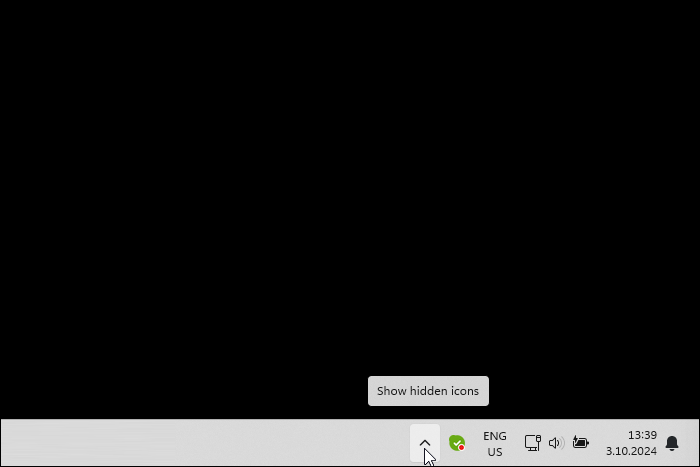
Click the Show hidden icons arrow in the lower right corner of the desktop screen with the left mouse button.
-
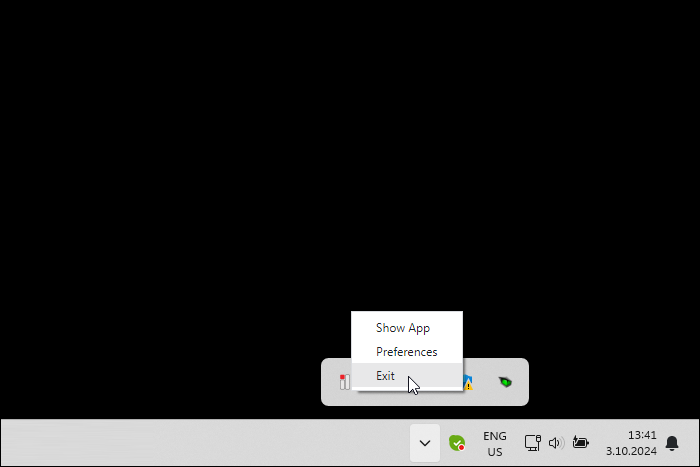
Right click on ideYAPI OneClick . Click on the Exit line from the list that opens.
-
The question "Do you want to exit?" will appear on the screen. Click the Yes button.
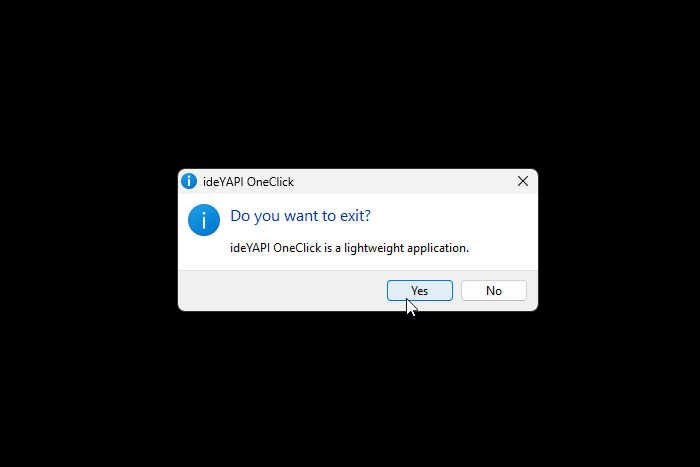
If you do not exit ideYAPI OneClick under Show hidden icons, ideYAPI OneClick will not open when you double-click the ideYAPI OneClick shortcut on the desktop.
-
Run the ideYAPI OneClick program by double-clicking the ideYAPI OneClick shortcut on the desktop screen with the left mouse button.

-
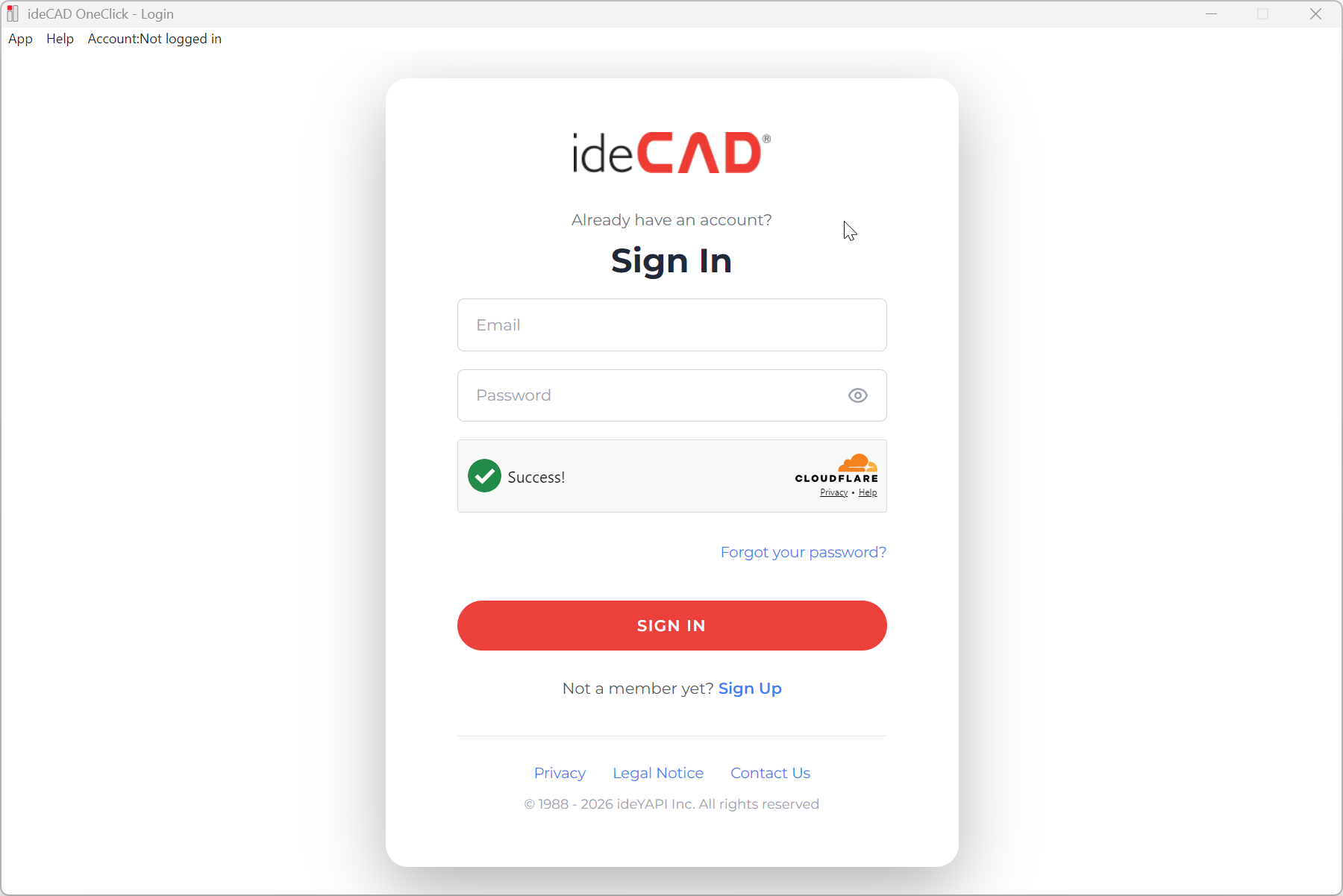
ideYAPI OneClick will open.
-
You can sign in with your MyAccount membership.
Next Topic