
This problem may be caused by incomplete copying and deletion of files for report generation in the program installation folder.
Please follow the steps below to solve the problem.
-
If antivirus software is available, disable it.
-
Close the program.
-
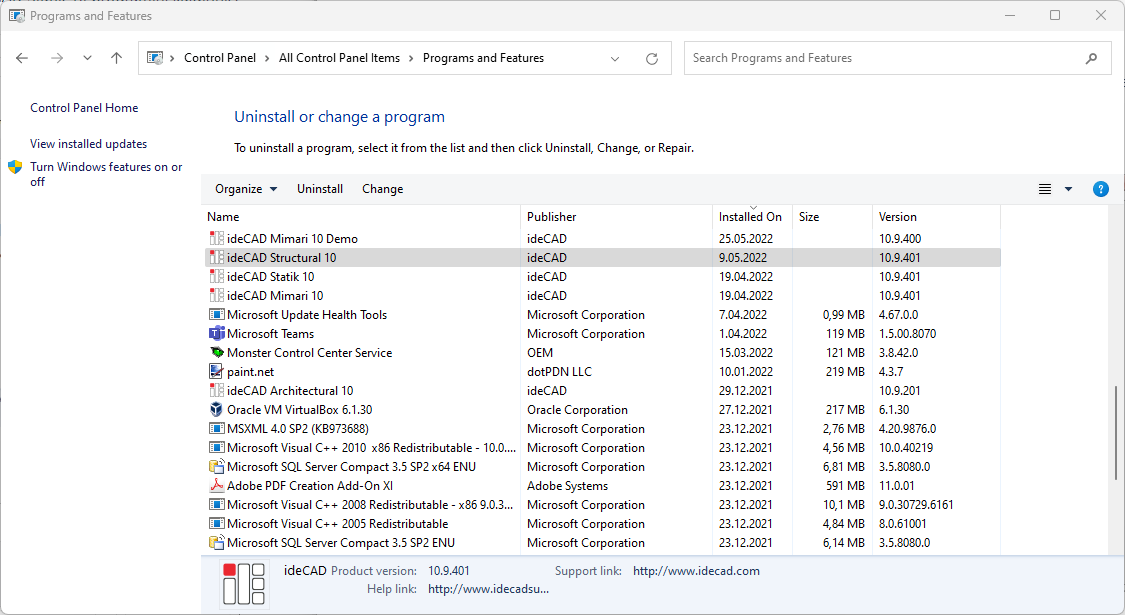
Uninstall ideCAD Structural 10 program from Programs and Features section.
-
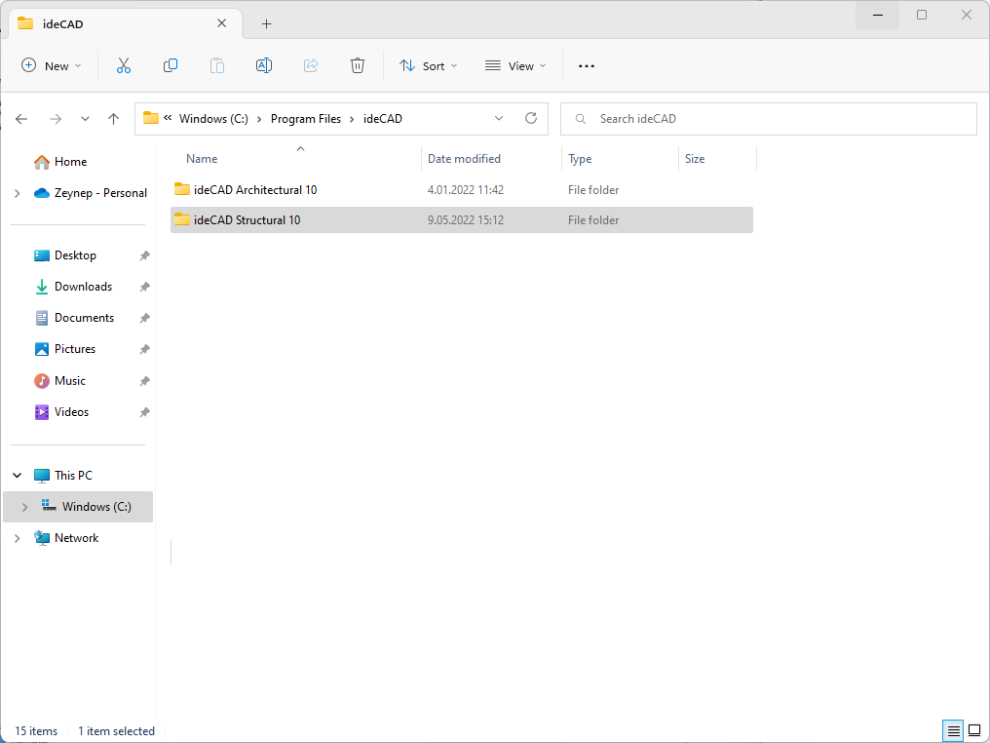
Delete the C:\Program Files\ideCAD\ideCAD Structural 10 folder.
-
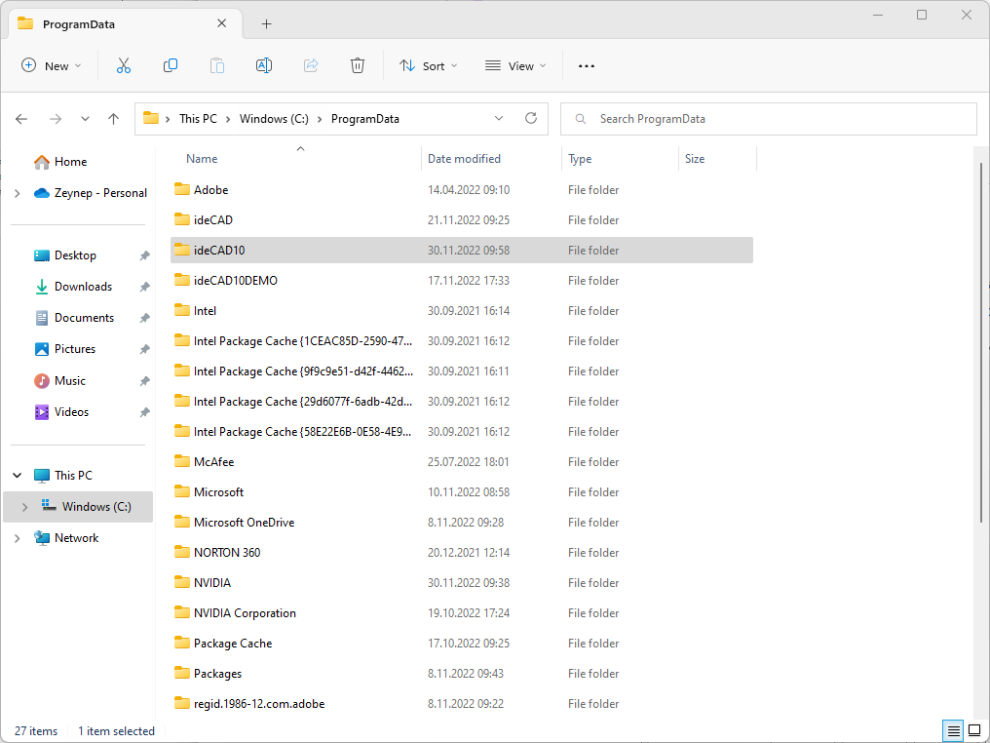
Delete the C:\Programdata\ideCAD10 folder.
-
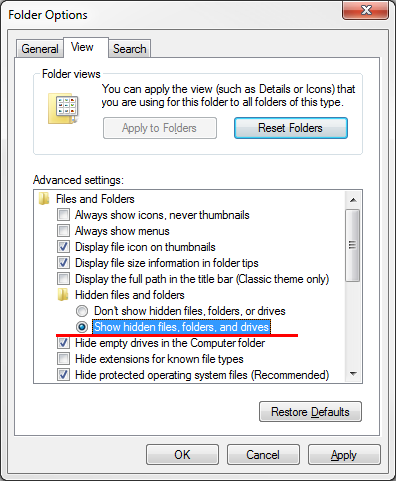
If you can't see the ProgramData folder, it may be in a hidden location. You can make it visible by checking the "Show hidden files, folders and drives" option in the "Folder and Search options" section.
-
Install the program again.
-
Press and hold the Ctrl and Shift keys simultaneously and together on the left side of the keyboard.
-
Run the program shortcut by double clicking on the desktop.
-
Do not release the Ctrl and Shift keys until the message "Registry entries and settings are cleared" appears on the screen. (The warning may remain in the background).
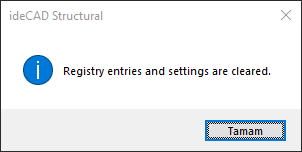
-
Click OK on the warning.
-
When the program is opened, try to upload your project, analyze it and get a report.
With this operation, the menu, toolbar and shortcuts are brought to the initial state of the program.